Set up interview rounds
Set up interview rounds before you schedule anything: confirm the role, add rounds and hiring managers, map skills per round, then track each round's status.
2 min read
Define a candidate's interview rounds before you schedule anything: clicking "Schedule Round 1" with no rounds configured throws an error. That button only appears for a candidate who has responded positively. You set the rounds up in one dialog on the recruiter dashboard — role, rounds and hiring managers, then skills — and save.
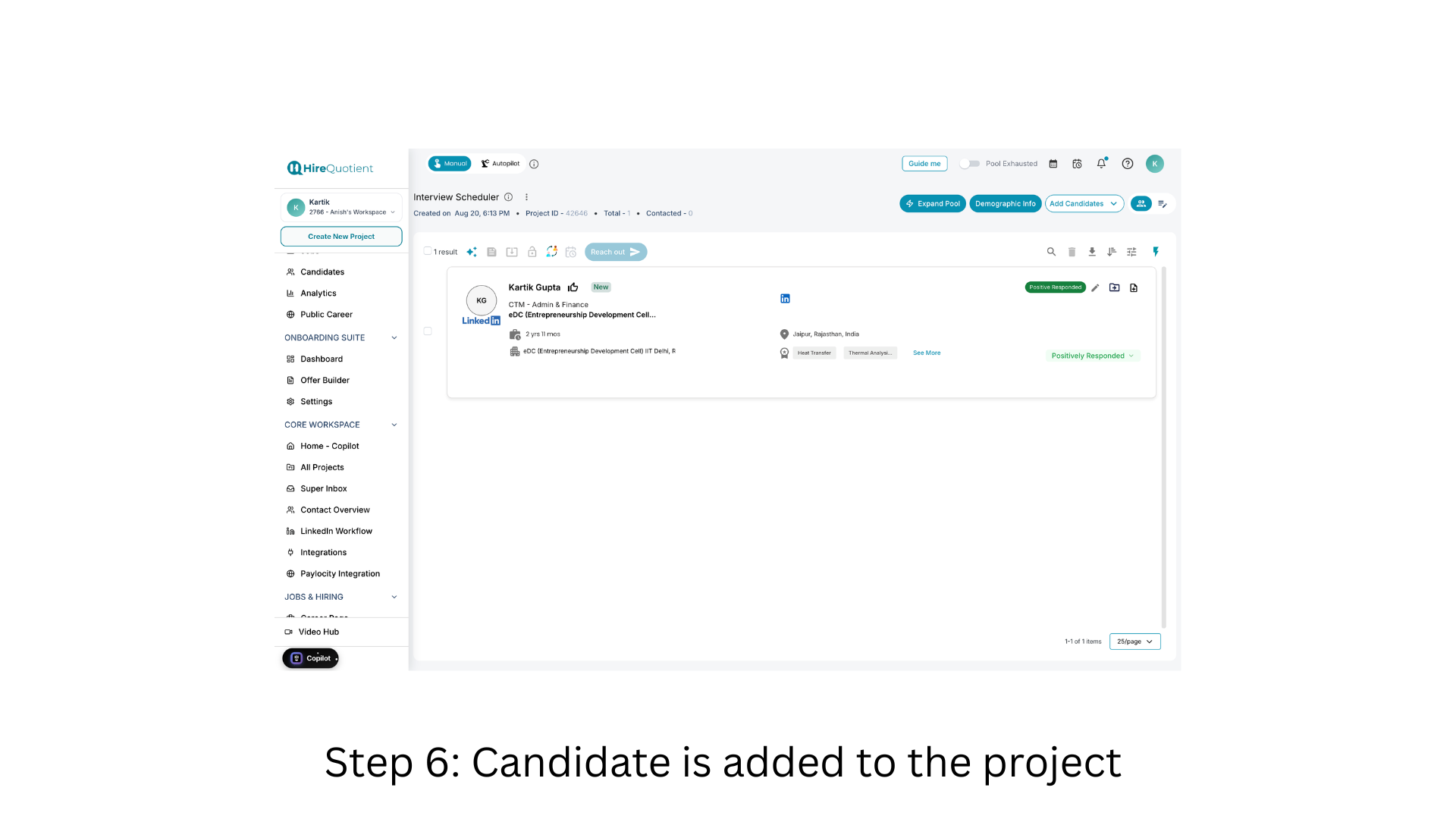
- 1Start from a candidate who has responded positivelyOn the recruiter dashboard, open the project and find the candidate. Check for the green Positive Responded tag and a stage of Positively Responded — only candidates in that state can enter the interview loop; Sourced or Contacted candidates must be reached out to and reply first.
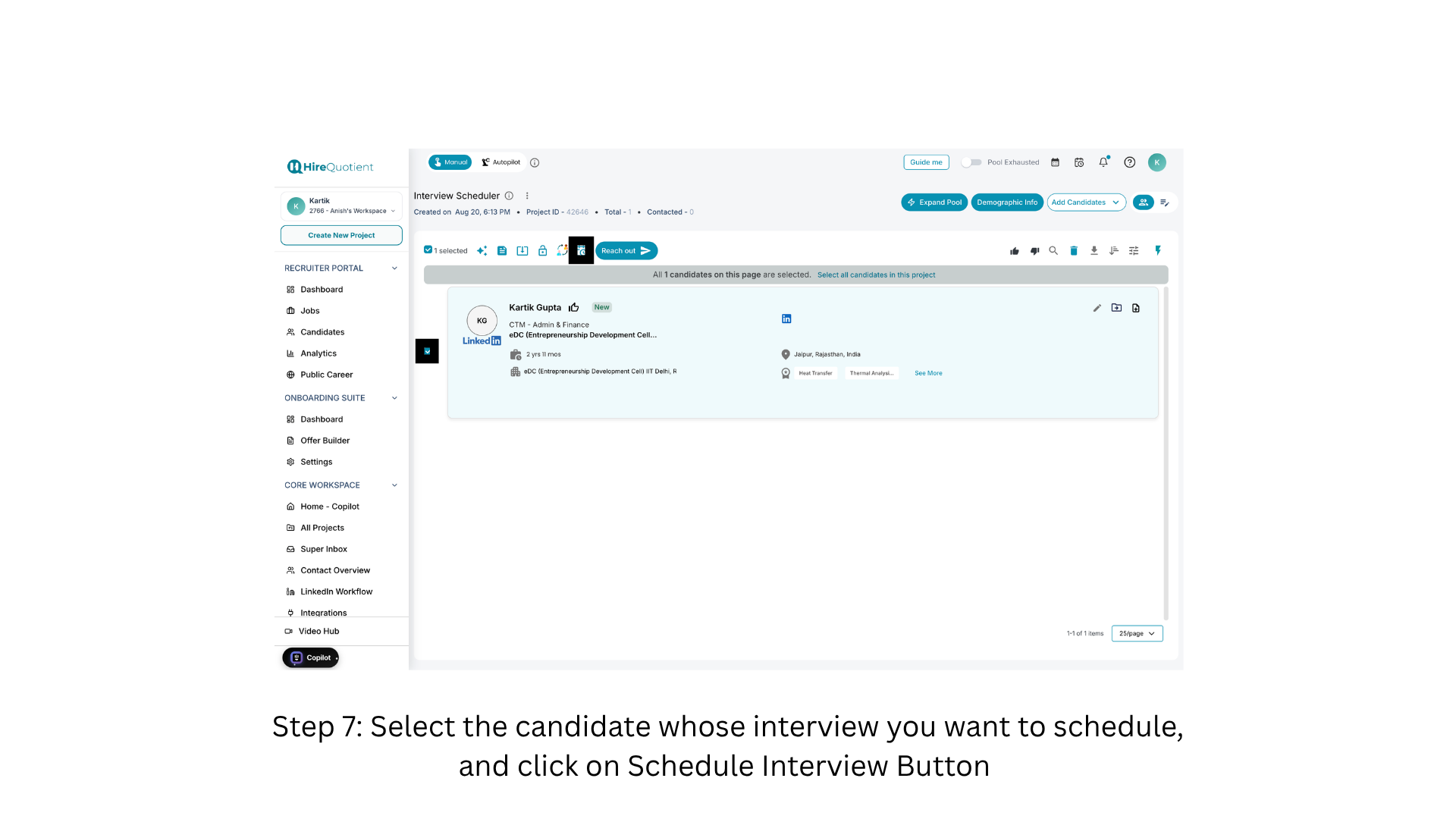
- 2Select the candidate and open interview settingsTick the checkbox on the candidate's card — the toolbar shows "1 selected". Select exactly one candidate, since rounds and hiring managers are configured per person. Click the interview settings icon in the action toolbar, immediately left of Reach out. Nothing is emailed yet; the same icon later opens the tracking view.
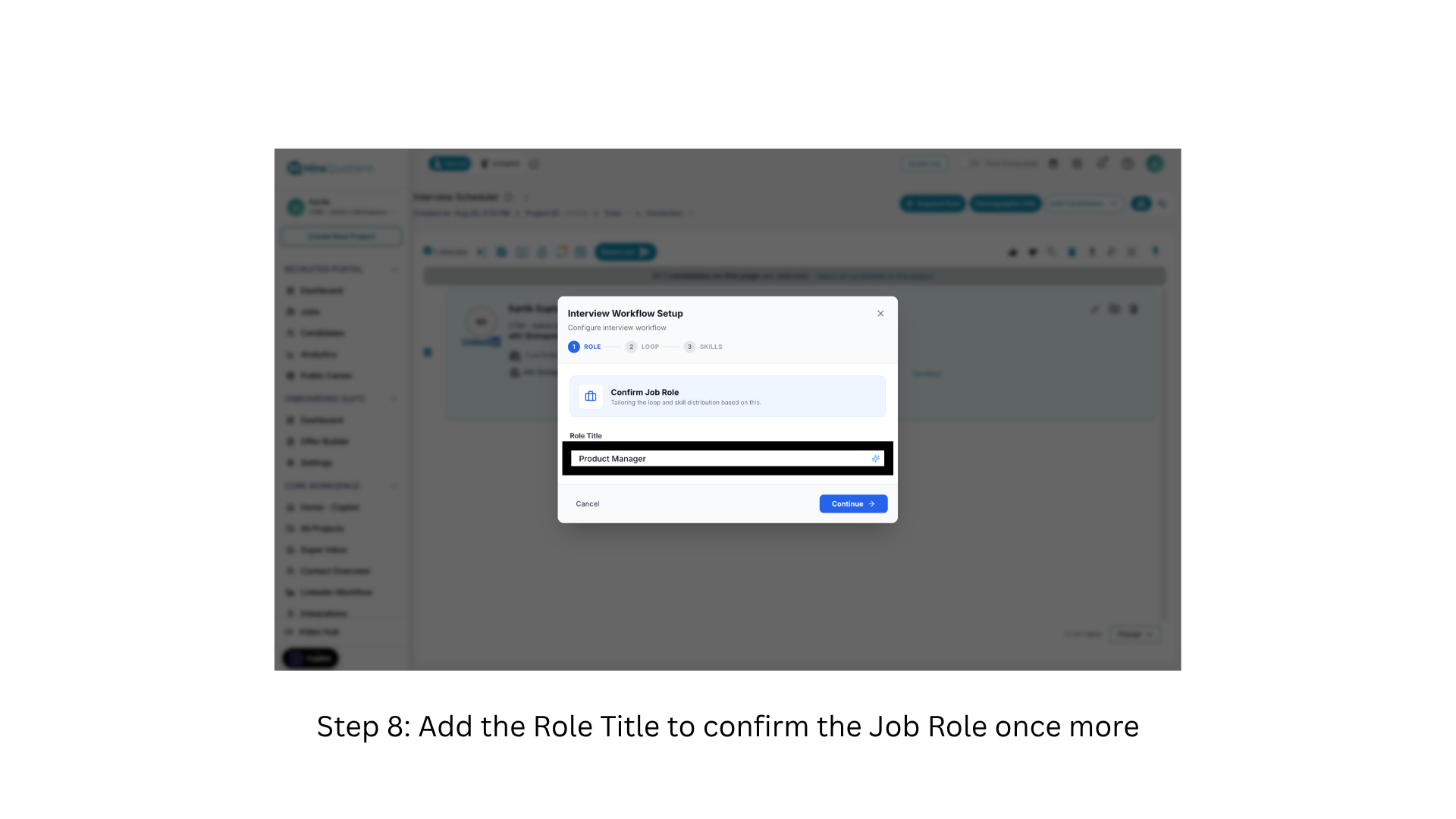
- 3Confirm the job role for the loopThe Interview Workflow Setup dialog opens on ROLE, the first step of the ROLE / LOOP / SKILLS stepper. Enter the Role Title as you would advertise it — it shapes the rounds and skills the Scheduler proposes; the sparkle icon suggests one for you. Click Continue. Nothing saves until the final step.
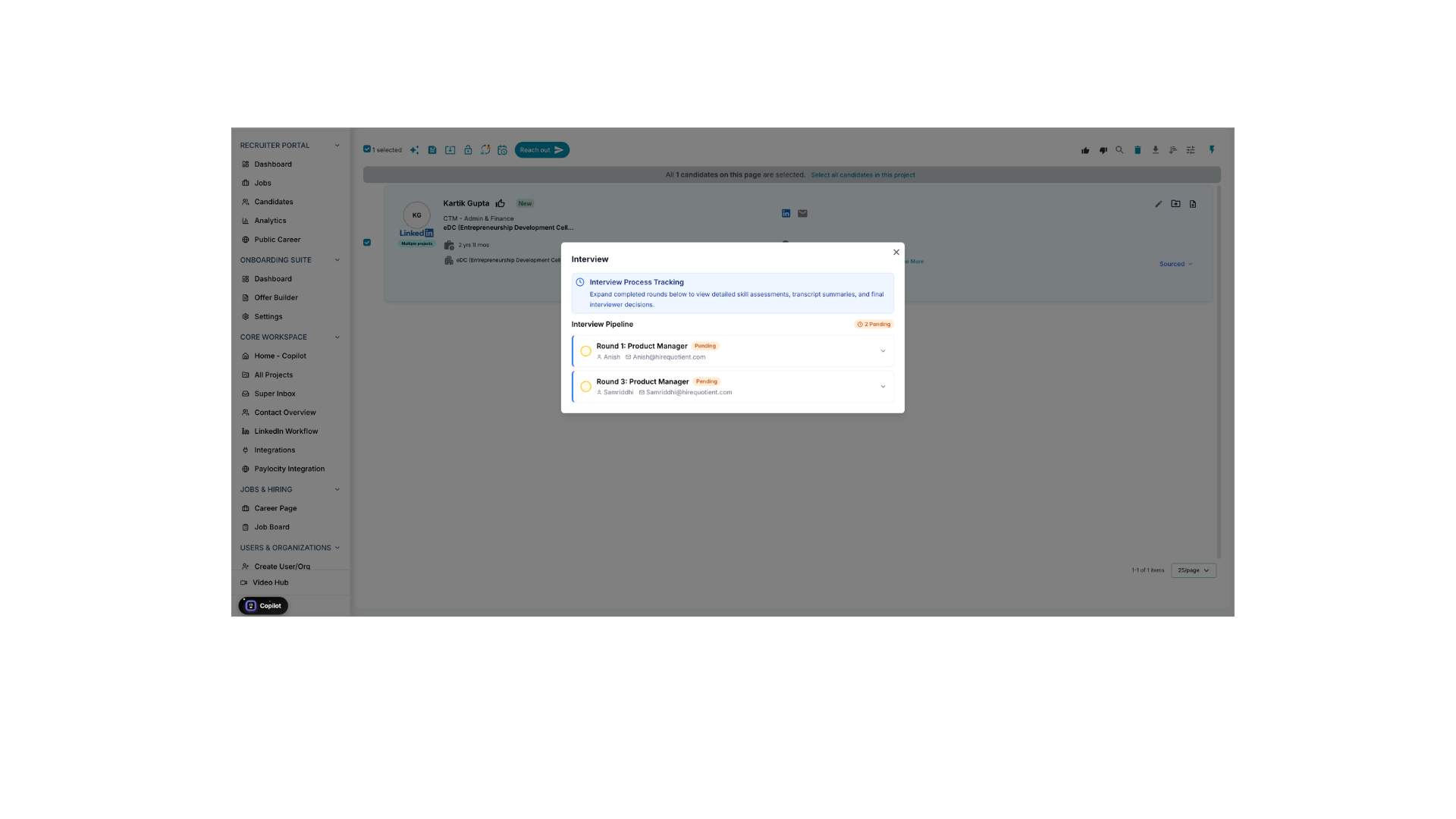
- 4Add rounds and assign hiring managersStep 2, LOOP, builds the INTERVIEW SEQUENCE. The number of rounds sets how many times the scheduling cycle repeats. Each round takes its hiring manager's name and email, which is where the availability request goes — a wrong address stalls the round. Use + Add Stage to append a round, drag to reorder, then Continue.
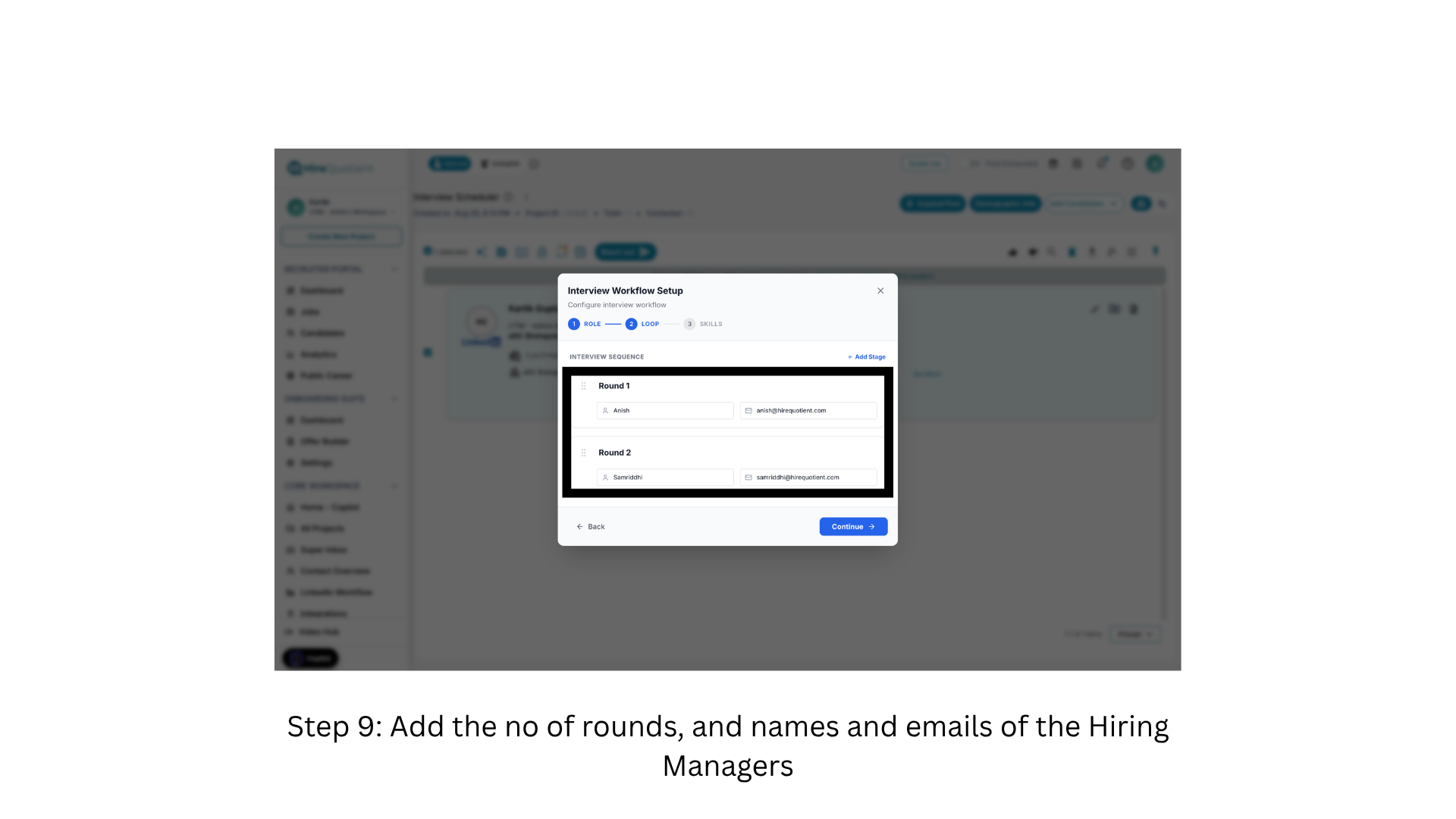
- 5Map the skills assessed in each roundStep 3, SKILLS, opens Skill Mapping with a proposed set of skills per round. Let the AI fill them from the role title or add your own with + Add skills, removing chips that do not apply. Nothing from any step takes effect until you click Save Changes, which makes round 1 schedulable.
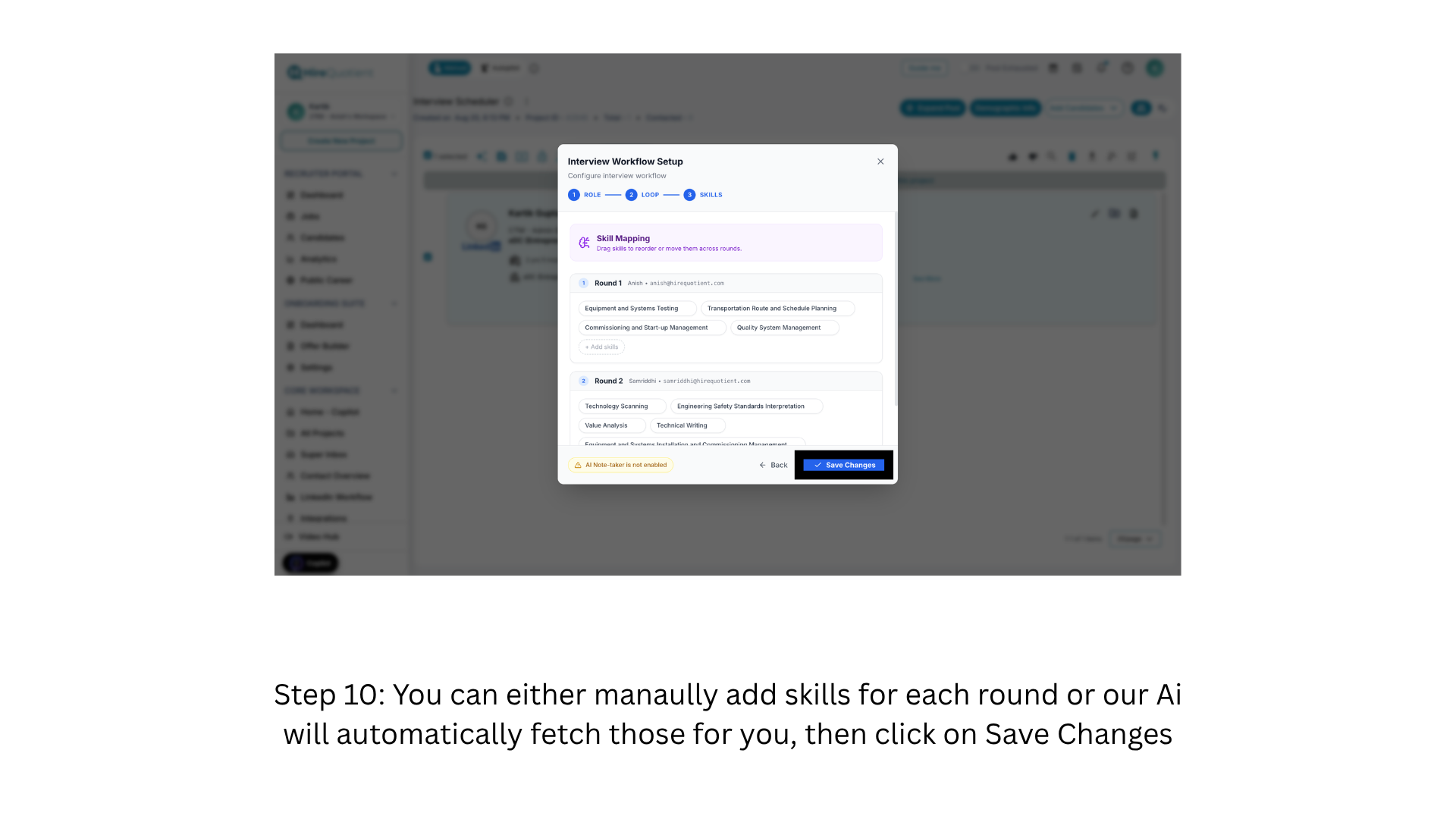
- 6Reopen interview settings to check status laterTo check status later, select the candidate again and click the same interview settings icon beside Reach out. Because a loop now exists, the icon opens the tracking view instead of the setup dialog, so you cannot re-run the configuration by accident.
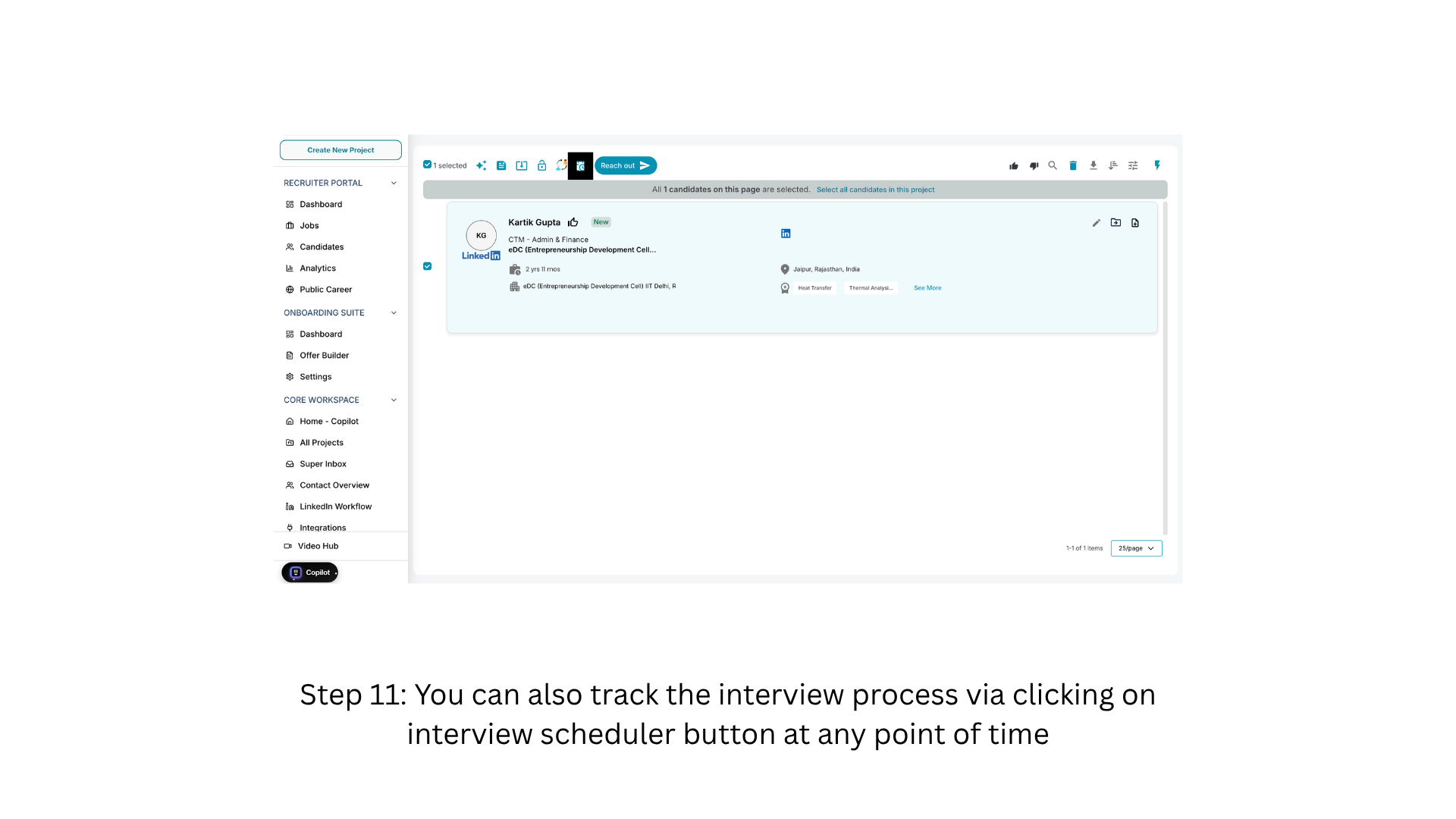
- 7Read the interview pipelineThe Interview Pipeline lists every round you configured with its assigned hiring manager and a status badge. Straight after setup all rounds read Pending; a round leaves that state only once its interview has happened and its hiring manager has submitted feedback. Completed rows expand to show results. Next: "Collect hiring manager availability".