Collect hiring manager availability
Trigger Round 1, then let each hiring manager use an emailed magic link to set their available times and pick the interview duration.
2 min read
Triggering a round hands scheduling to your interviewers. Save the round structure first — clicking "Schedule Round 1" before the rounds exist throws an error. HireQuotient then emails each hiring manager on the round a magic link (secure, no login) to submit availability, after which "Candidate slot booking and confirmations" takes over.
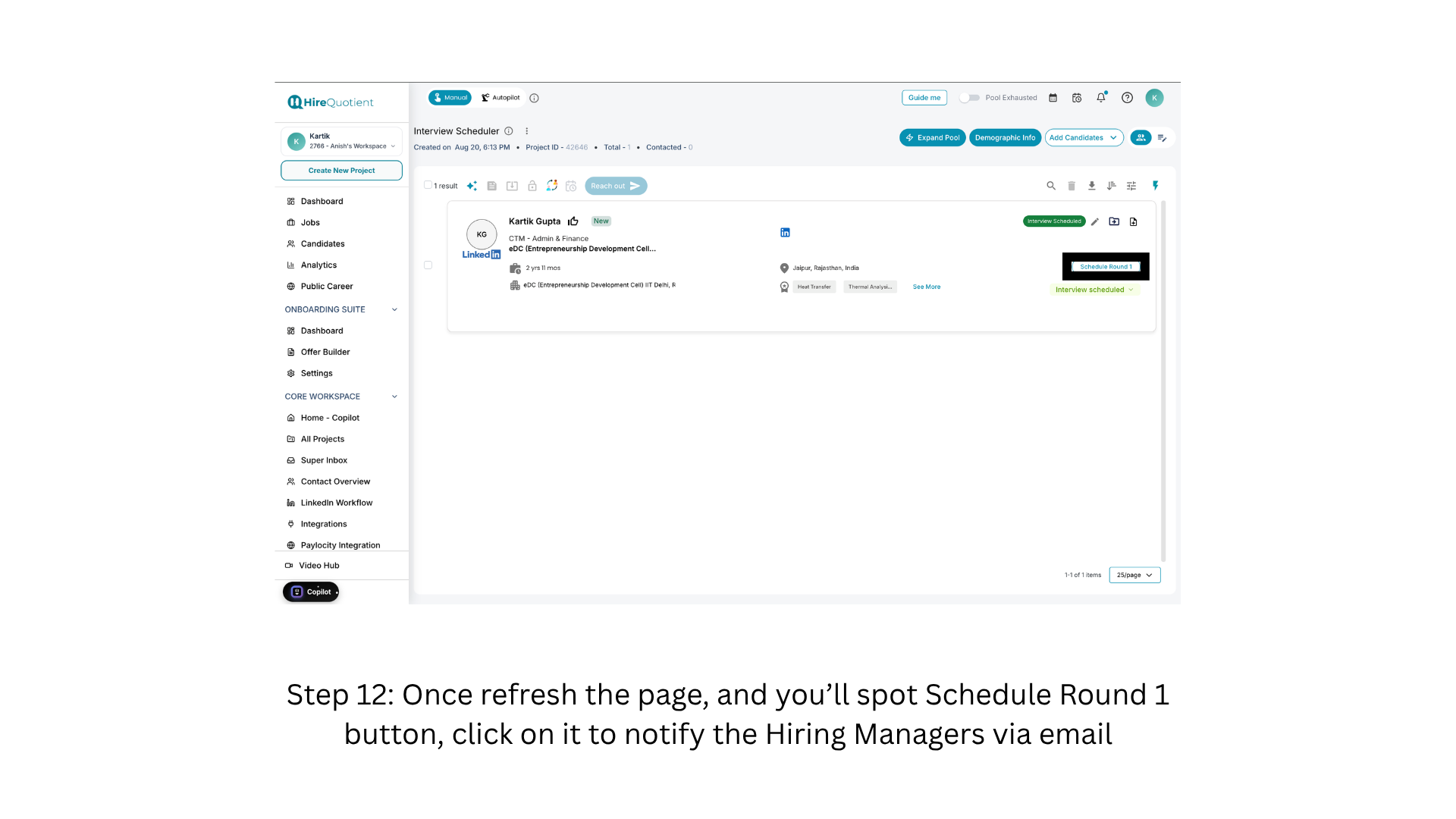
- 1Refresh the page and click Schedule Round 1On your recruiter dashboard, refresh the project page so the candidate card picks up the saved rounds. Click "Schedule Round 1" next to the candidate's stage pill — it appears only after a positive response — to email the round's hiring managers. Without saved rounds, the click errors instead.
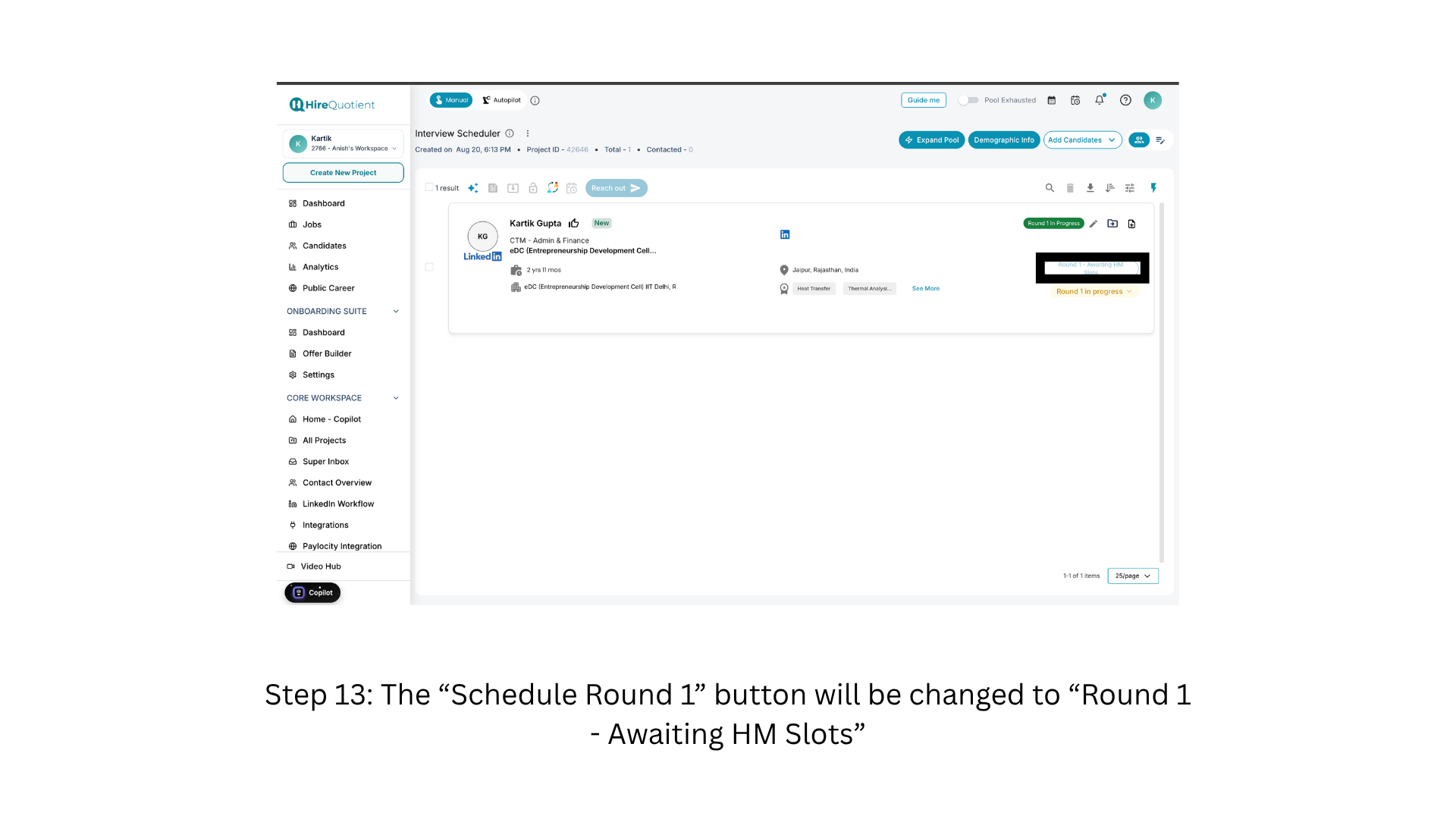
- 2Confirm the round shows Awaiting HM SlotsThe button is replaced by the read-only status "Round 1 - Awaiting HM Slots", and the card pill becomes "Round 1 In Progress". Nothing here is clickable, and the status holds until every hiring manager on the round submits availability. If one declines instead, the round shows "Round 1 - HM Declined".
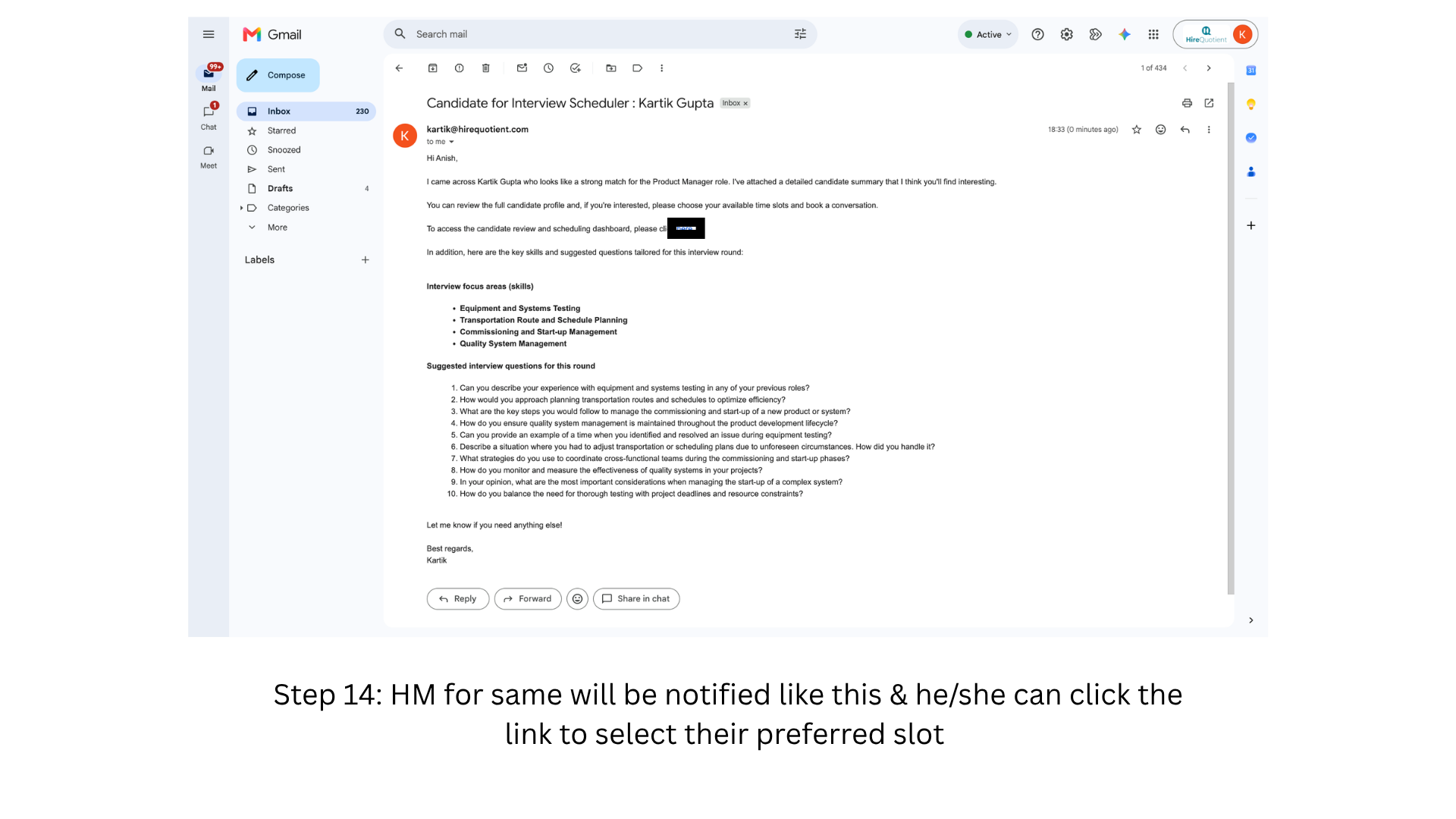
- 3Review the email the hiring manager receivesThe hiring manager's inbox. The email introduces the candidate, then lists "Interview focus areas (skills)" and "Suggested interview questions for this round", both drawn from the skills you saved against the round. They click the link in the body to open their scheduling page.
- 4Open the Provide Availability for Interviews pageThe hiring manager's page, headed "Provide Availability for Interviews". A "Select Week" dropdown sets the week; each day is a row with a checkbox and an editable time range; a duration dropdown at the bottom defaults to "1 hour". "Submit Availability" stays inactive until a day is ticked.
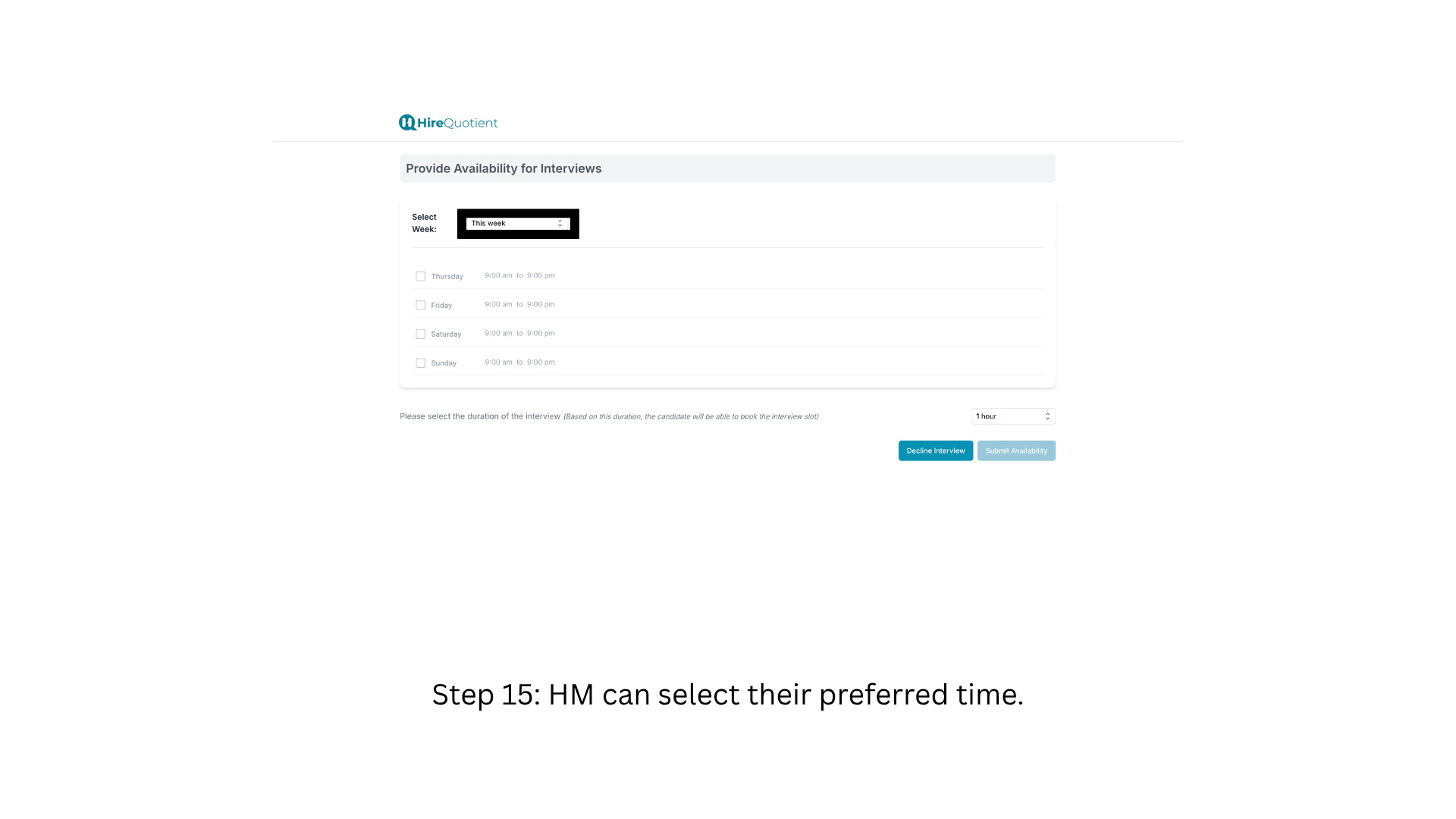
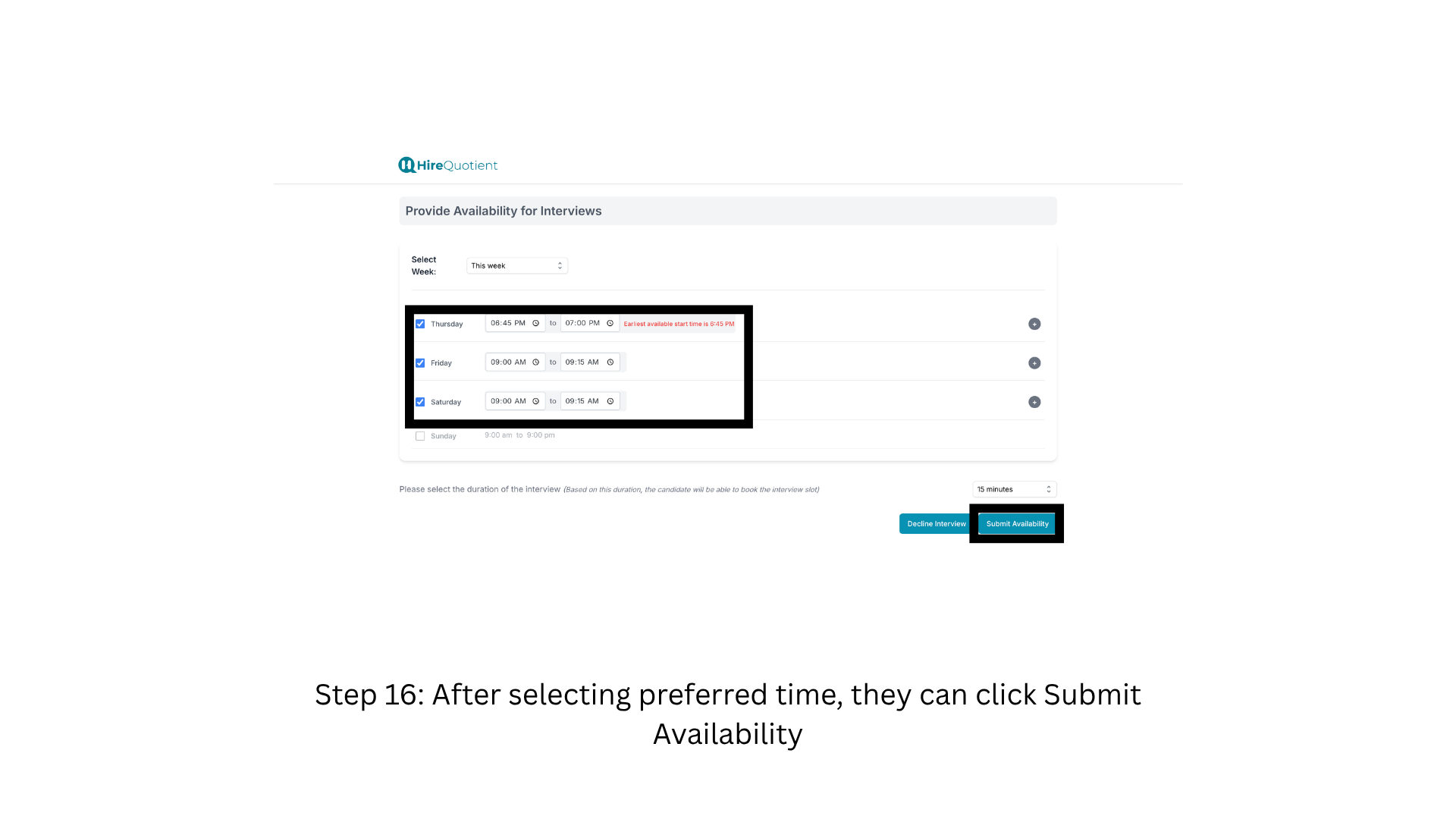
- 5Set time ranges and submit availabilityThey tick each day they can interview, adjust the time ranges, and choose the interview duration — which sets the length of every slot the candidate can book. "Submit Availability" moves the round to "Round 1 - Awaiting Candidate Selection" and emails the candidate; "Decline Interview" leaves it at "Round 1 - HM Declined".