External career page: publish and add candidates
Publish a job to your public career page, then source candidates yourself by LinkedIn URL - they start at 'SOURCED' and need outreach before any interview.
2 min read
Start from a finished draft in Job Builder. Publishing it to your public career page also creates the project that holds its candidates, which you can then source yourself by LinkedIn URL. Candidates added this way start at 'SOURCED' with next step 'Reach Out' - they must be contacted and reply positively before any interview can be scheduled.
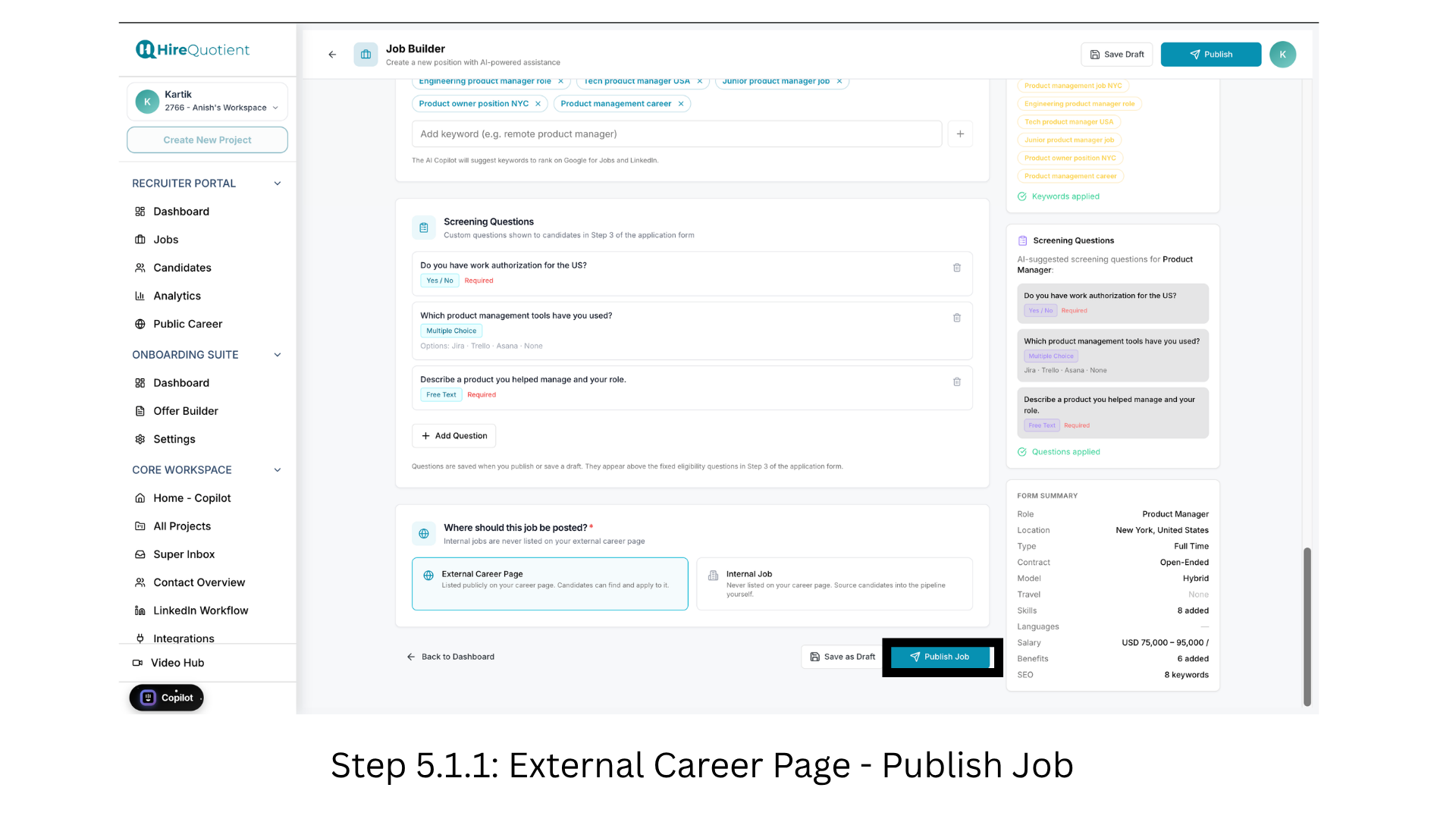
- 1Choose External Career Page and publish the jobAt the bottom of the Job Builder form, answer "Where should this job be posted?" and pick External Career Page - "Listed publicly on your career page. Candidates can find and apply to it." - not Internal Job. Check the Form Summary and Screening Questions on the right, then click Publish Job.
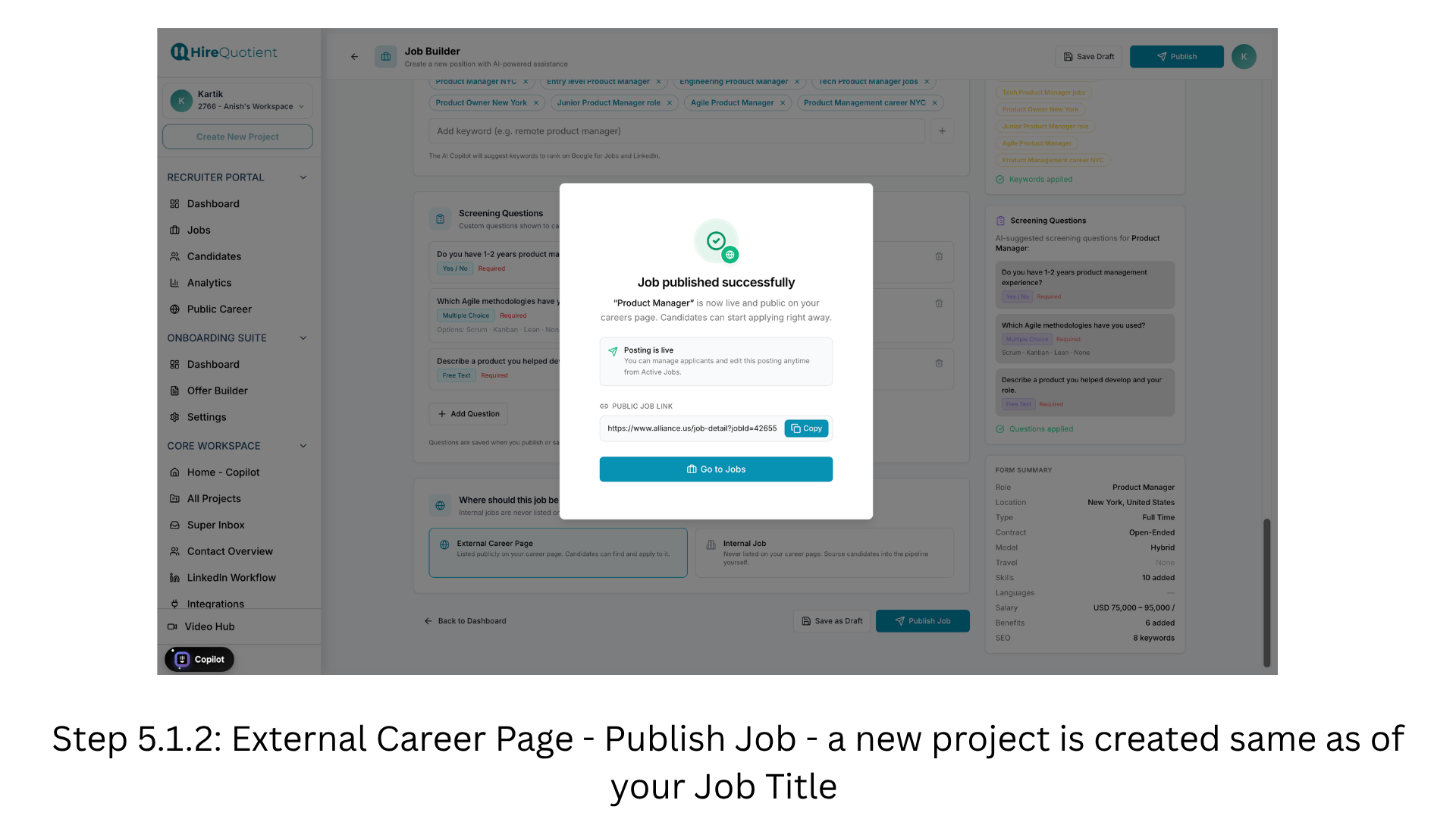
- 2Copy the public job link and note the new projectA "Job published successfully" dialog confirms the posting is live. Click Copy under PUBLIC JOB LINK to grab the shareable URL for job boards and outreach. Publishing also creates a project named after the job title; everything from here happens inside it. Click Go to Jobs.
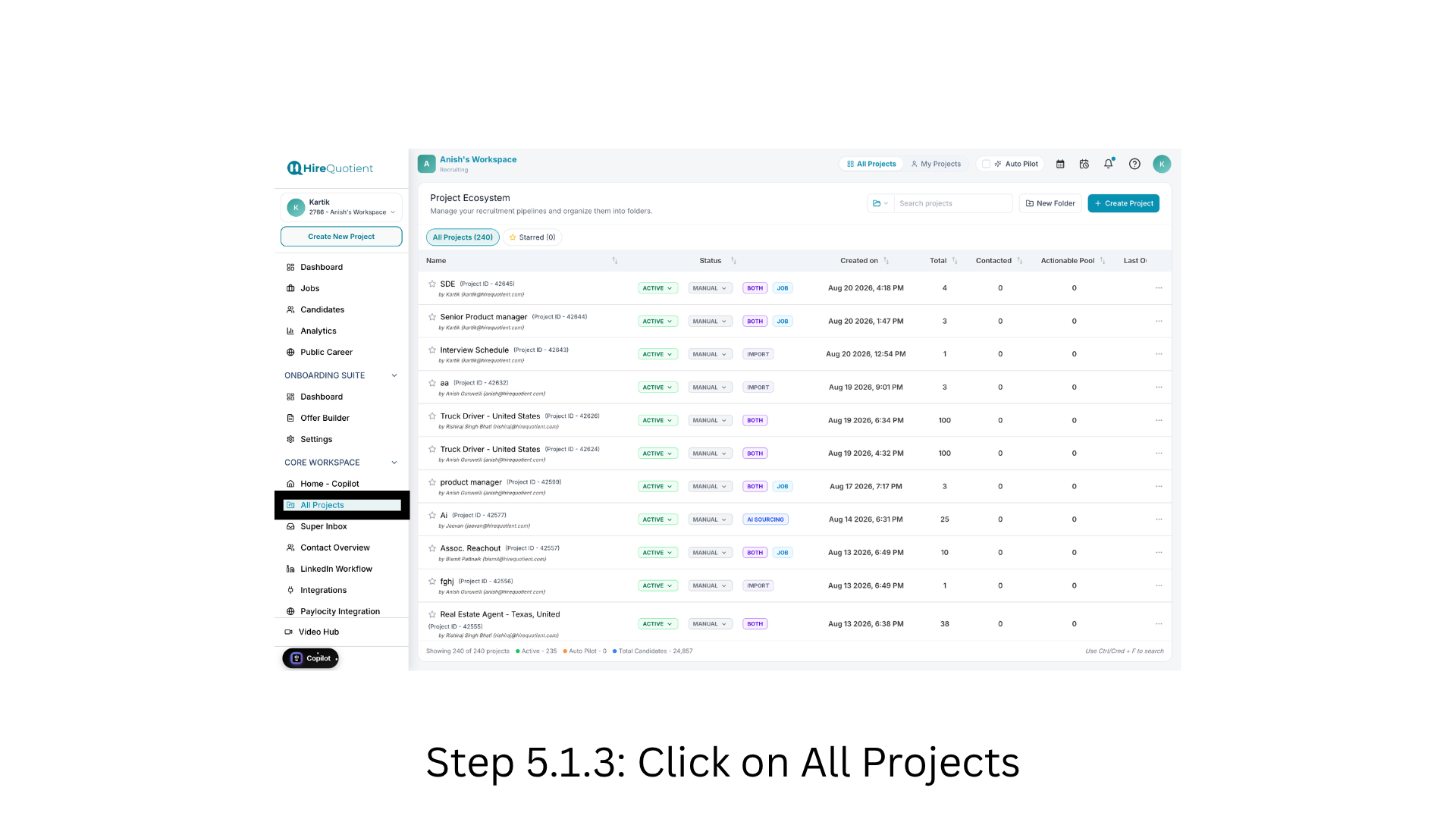
- 3Open All Projects to find the project that was createdIn the sidebar under CORE WORKSPACE, click All Projects. Search or sort by Created on to find the new project - one created by publishing a job carries the JOB badge - then click its name to open it. Look under All Projects rather than My Projects, since it is filed under the publishing account.
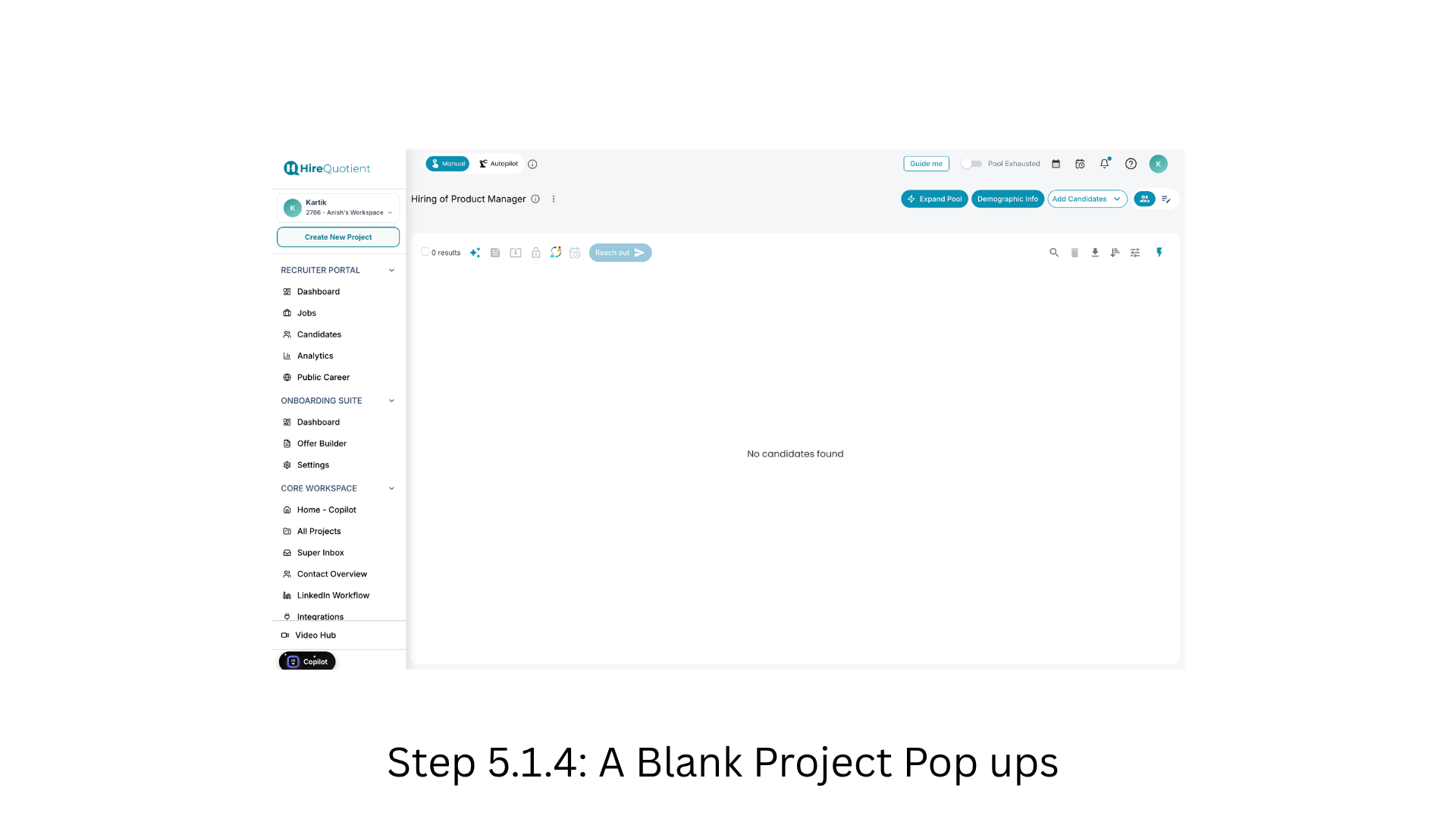
- 4Review the empty project workspaceThe project opens under your job title showing "No candidates found" and 0 results. Note that Reach out stays greyed out until at least one candidate is selected. Career page applications will land here on their own; to source people yourself, use the Add Candidates dropdown at the top right.
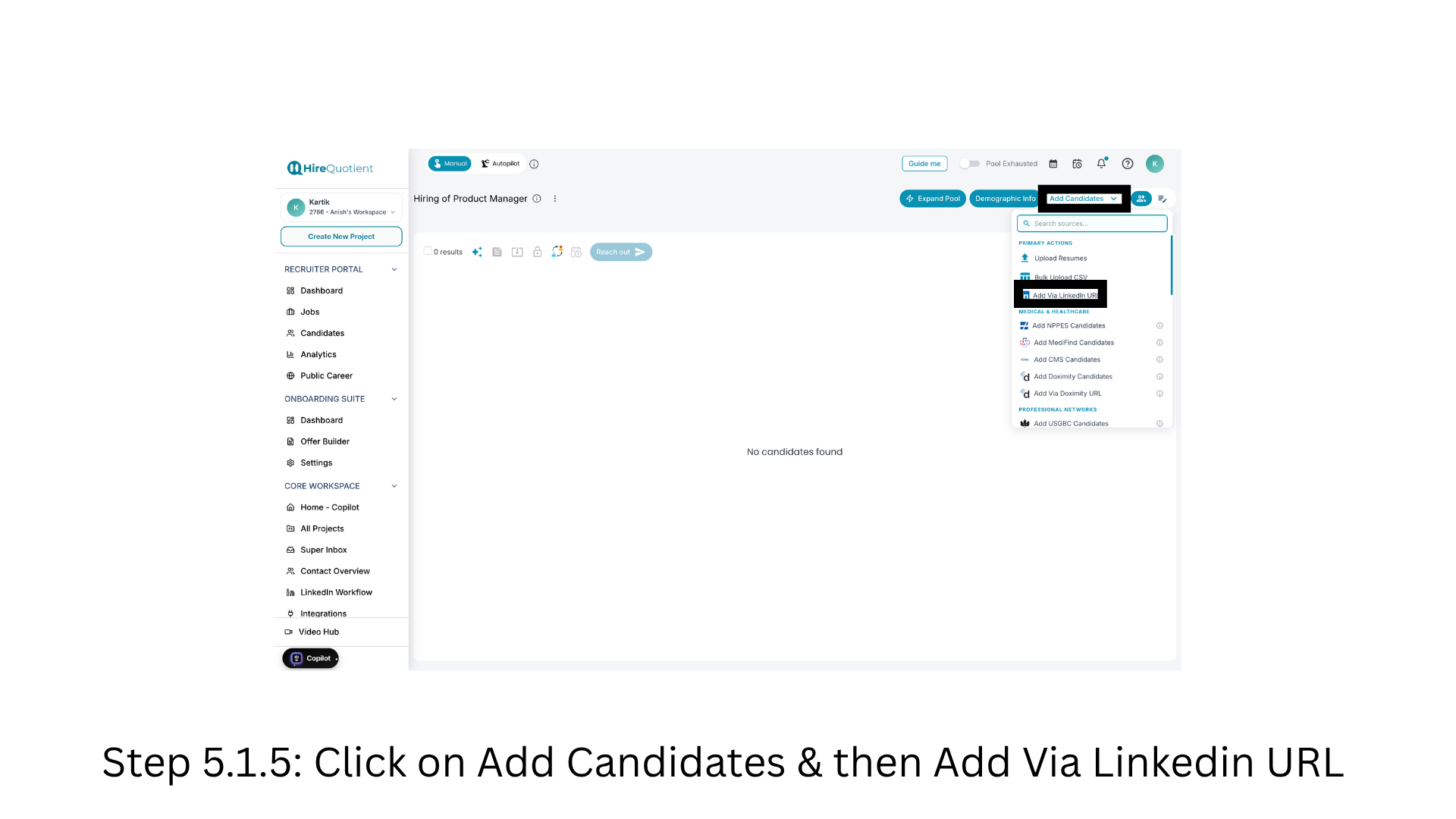
- 5Open Add Candidates and choose Add Via LinkedIn URLOpen the Add Candidates dropdown. Under PRIMARY ACTIONS you get Upload Resumes, Bulk Upload CSV and Add Via LinkedIn URL; further sections list specialist directories for healthcare and professional networks. Every source feeds the same project and the same starting stage. For someone you found on LinkedIn, choose Add Via LinkedIn URL.
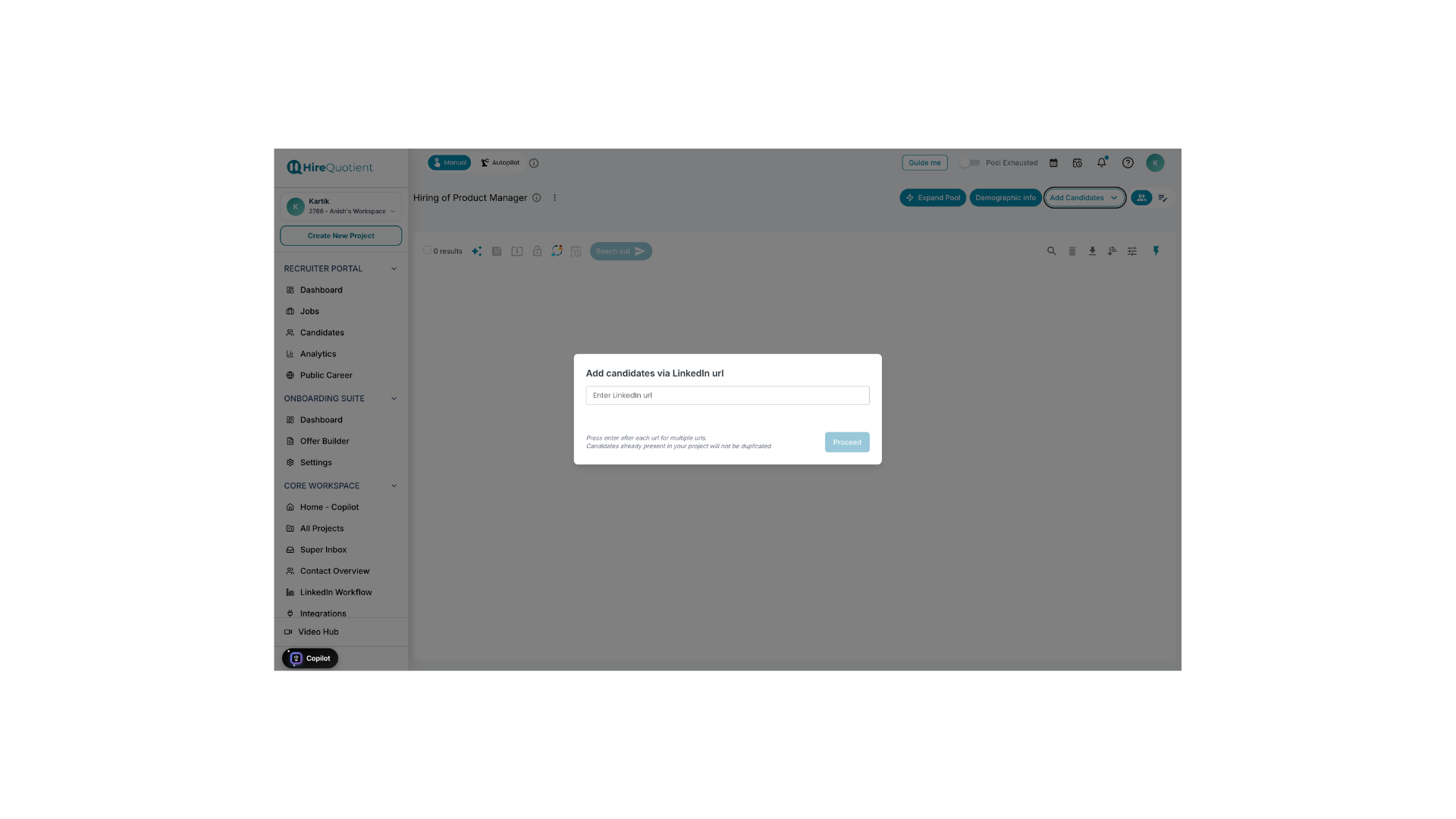
- 6Understand the Add candidates via LinkedIn url dialogThe "Add candidates via LinkedIn url" dialog has one field, "Enter LinkedIn url". Its helper text matters: "Press enter after each url for multiple urls", so you can queue several profiles, and "Candidates already present in your project will not be duplicated". Proceed stays greyed out until you add at least one URL.
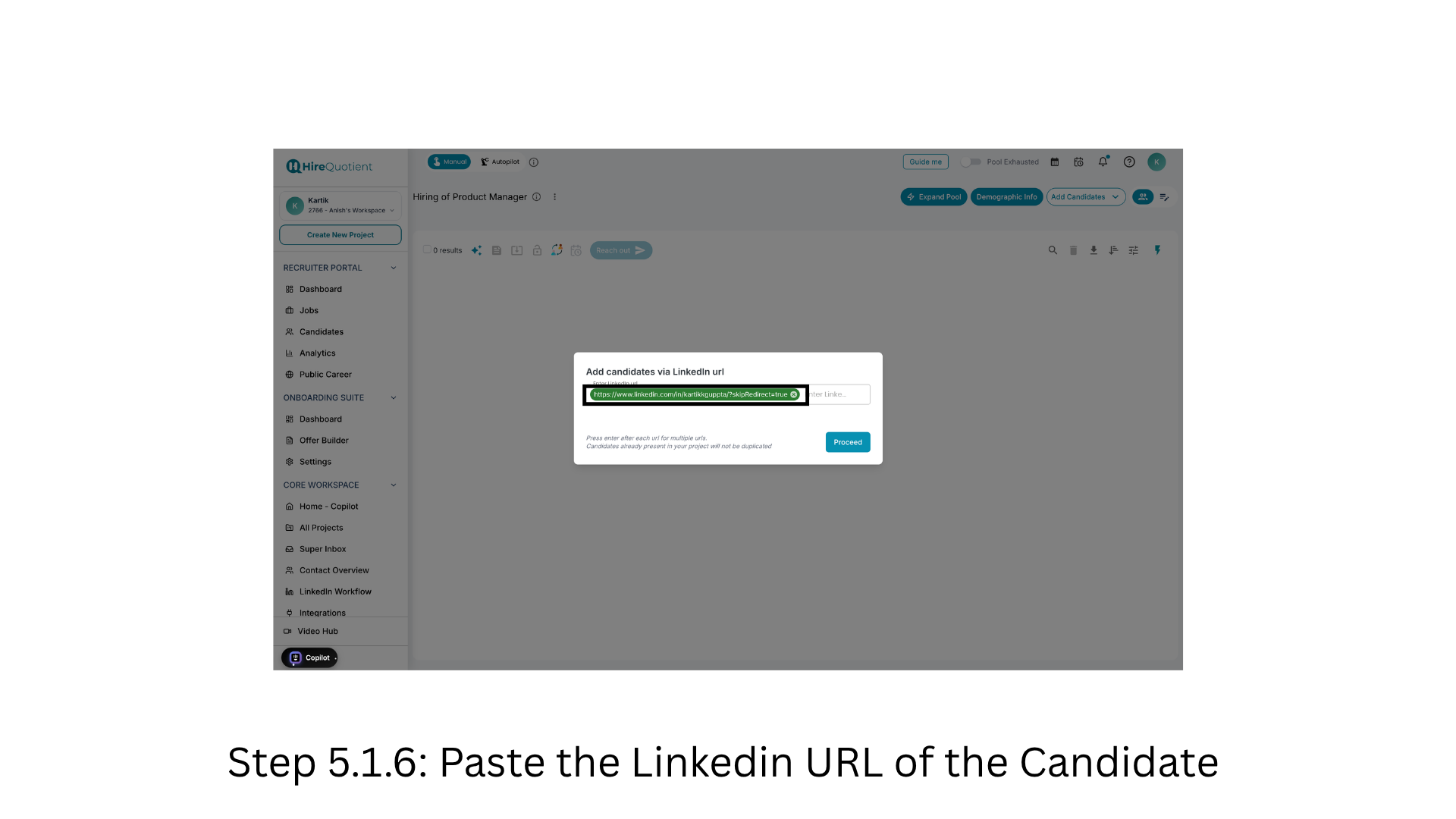
- 7Paste the LinkedIn URL, then plan the outreachPaste the LinkedIn profile URL and press Enter; it becomes a chip you can remove, and Proceed activates. Click Proceed to pull the profile into the project at stage 'SOURCED'. Run outreach - only a positive reply moves them to 'POSITIVE RESPONDED' with next step 'Schedule Round 1'. Set up your interview rounds meanwhile, or clicking it errors.