Interview feedback and advancing rounds
Hiring managers approve or reject each round from a magic link carrying AI-drafted scores and a transcript; approving unlocks the next round.
3 min read
An interview has happened and the candidate sits at "Round N - Awaiting Feedback" until that round's hiring manager submits a verdict. Approving unlocks the next round and repeats the availability-booking-interview-feedback cycle; approving the last round moves the candidate to "ALL ROUNDS PASSED" and hands the decision to "Reviews and the hiring decision".
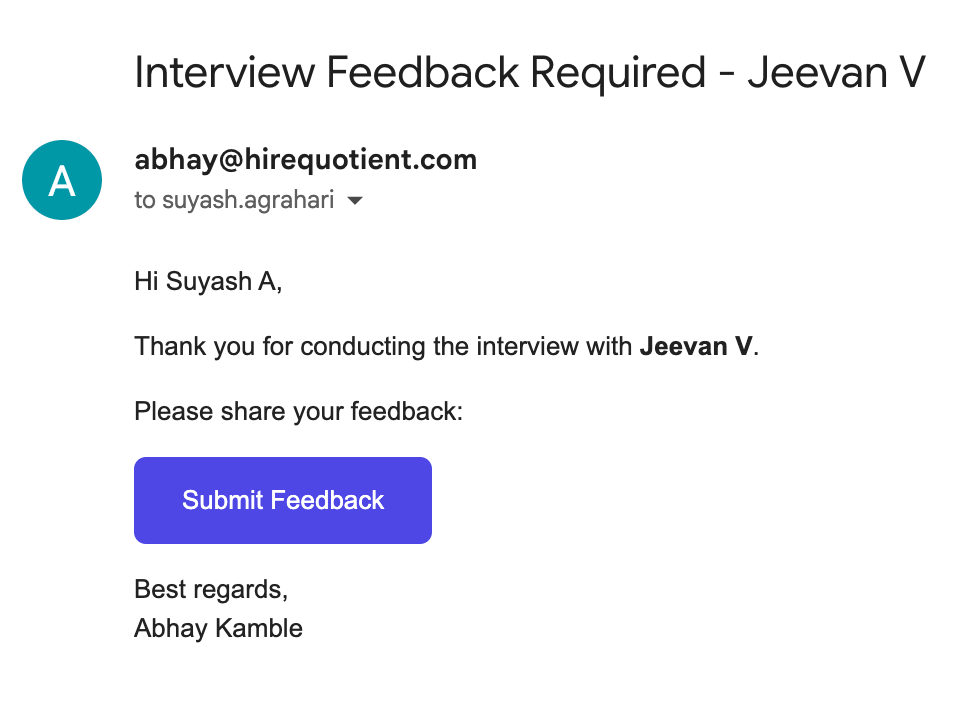
- 1The feedback request reaches the interviewerAfter the interview, the candidate sits at "Round N - Awaiting Feedback" and nothing advances until that round's hiring manager responds. HireQuotient emails them "Interview Feedback Required - [candidate name]" with a purple "Submit Feedback" button. This lands in their inbox, not your dashboard, so you can only chase it.
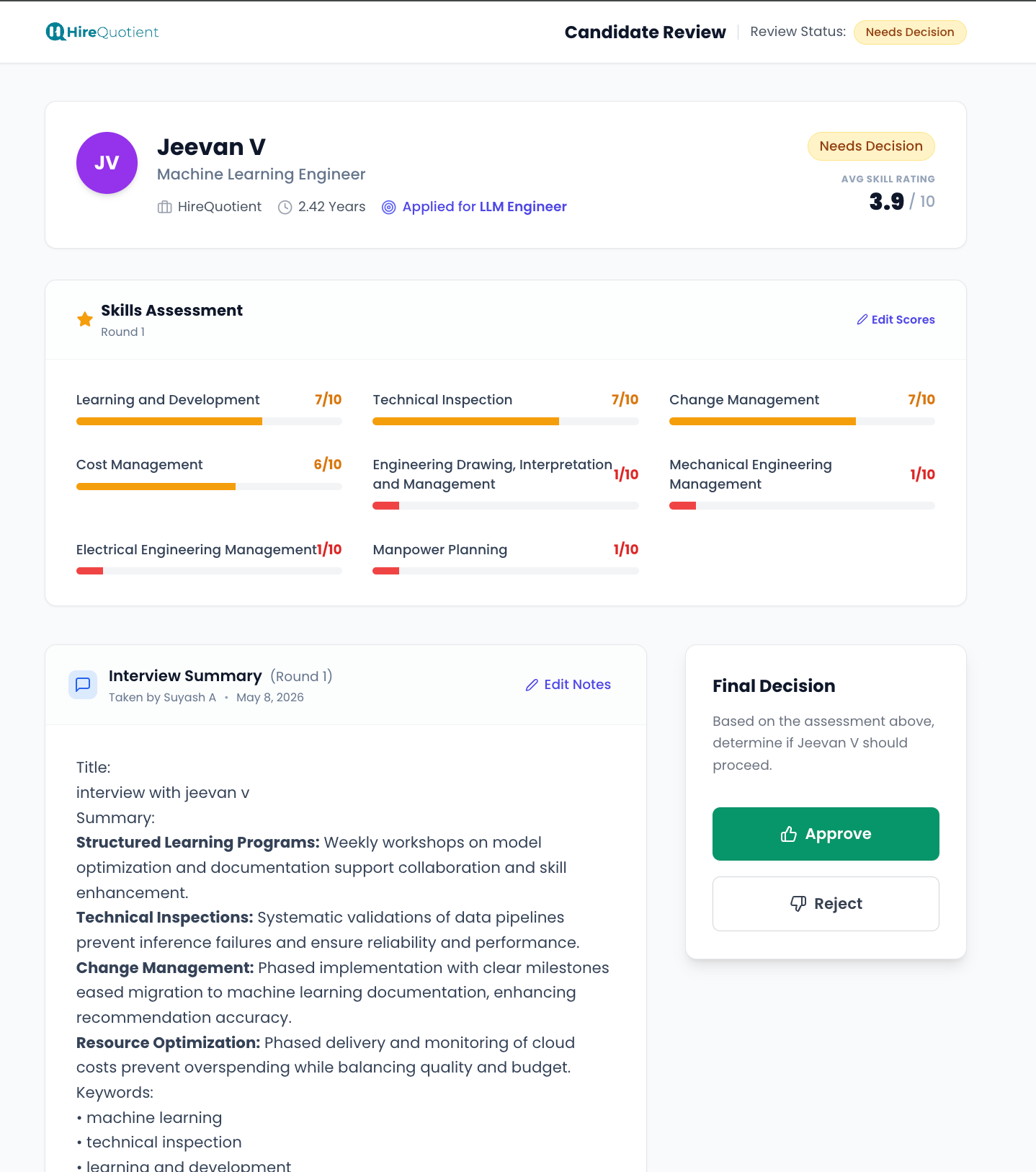
- 2Scores arrive pre-filled, and stay editableSubmit Feedback opens the "Candidate Review" page, marked "Needs Decision". Because the Fireflies AI notetaker was attached to the interview, the skill scores are already drafted and "Edit Scores" keeps them editable, so the hiring manager reviews AI output rather than writing from scratch. If the notetaker never joined, the form arrives blank.
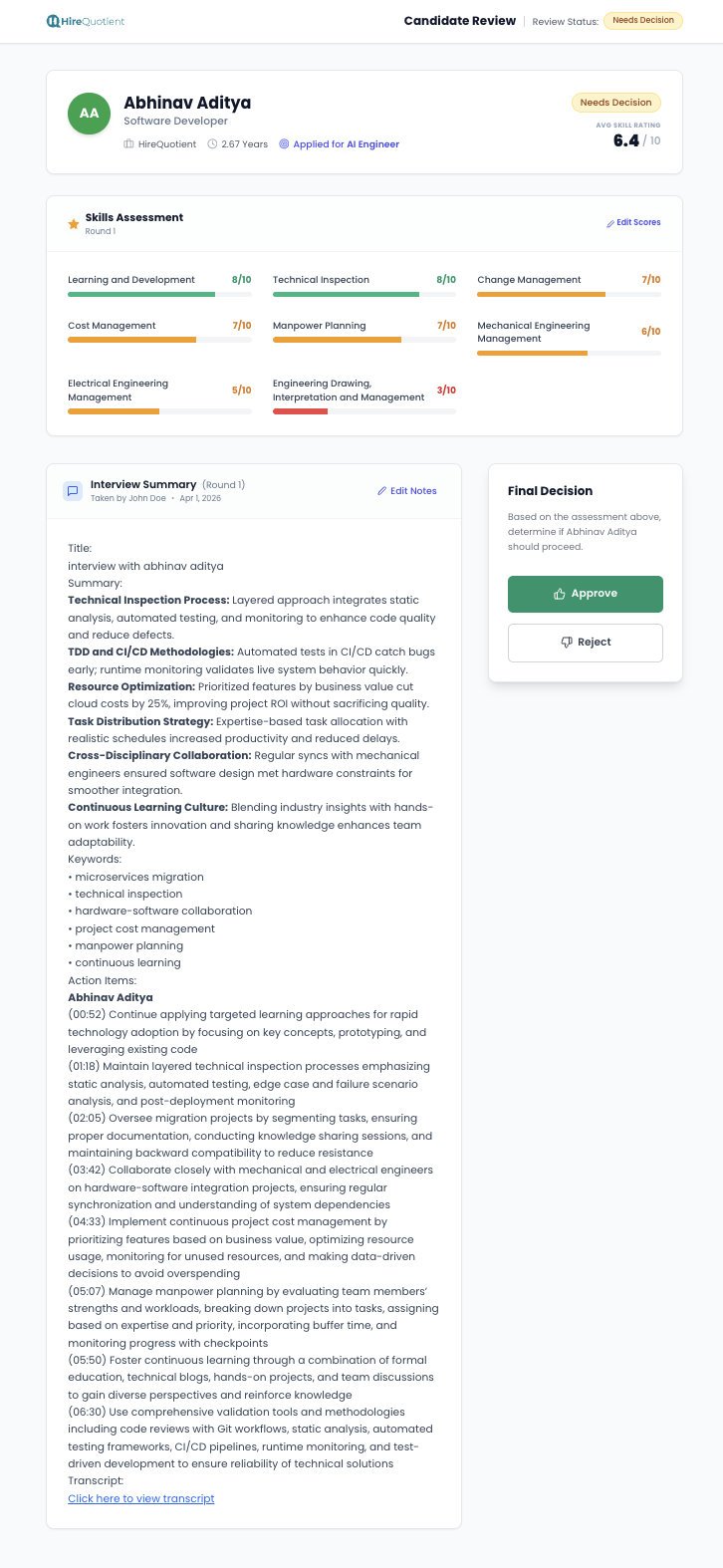
- 3The transcript and action items sit belowBelow the scores, an "Interview Summary" card holds the notetaker's summary, keywords and timestamped "Action Items", and "Click here to view transcript" opens the full conversation. "Edit Notes" lets the hiring manager correct or trim anything before deciding. You and every later interviewer inherit that evidence trail.
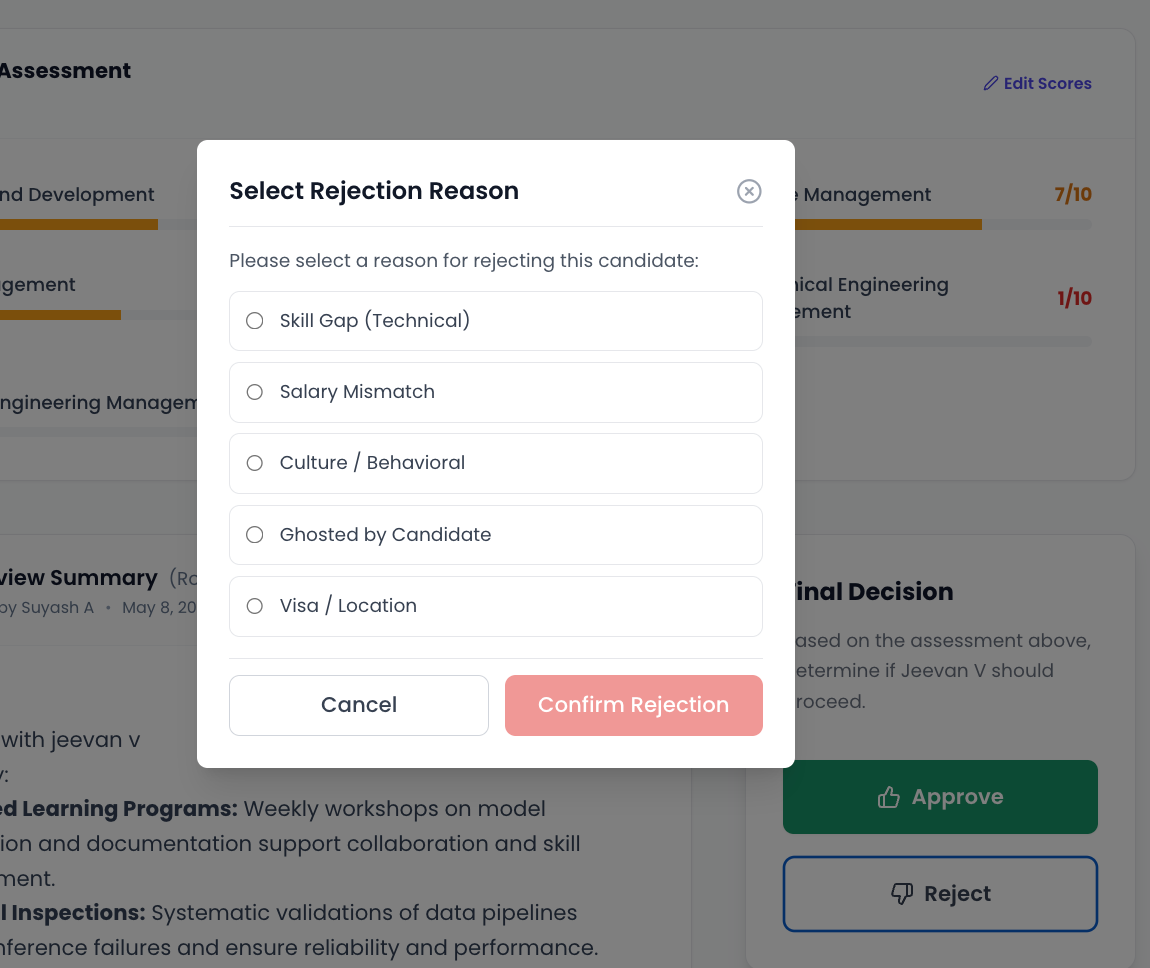
- 4Rejecting asks for a reasonThe "Final Decision" card offers one green "Approve" and one outlined "Reject". Reject opens a "Select Rejection Reason" modal — pick a reason and press "Confirm Rejection" to record it, or "Cancel" to leave the round awaiting a decision. A confirmed rejection sets the candidate's stage to "Rejected" and the remaining rounds never run.
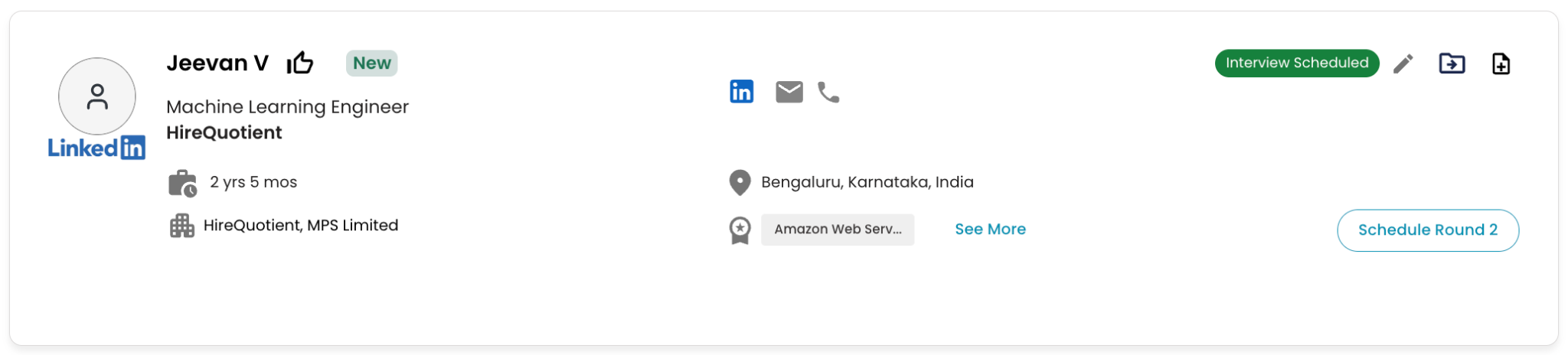
- 5Approving unlocks the next roundApprove, and back on the project page a new "Schedule Round 2" button replaces "Schedule Round 1". That is the loop restarting: clicking it emails the next round's hiring manager for availability, the candidate books a slot, the interview happens, and feedback is requested again. The cycle repeats once per configured round.
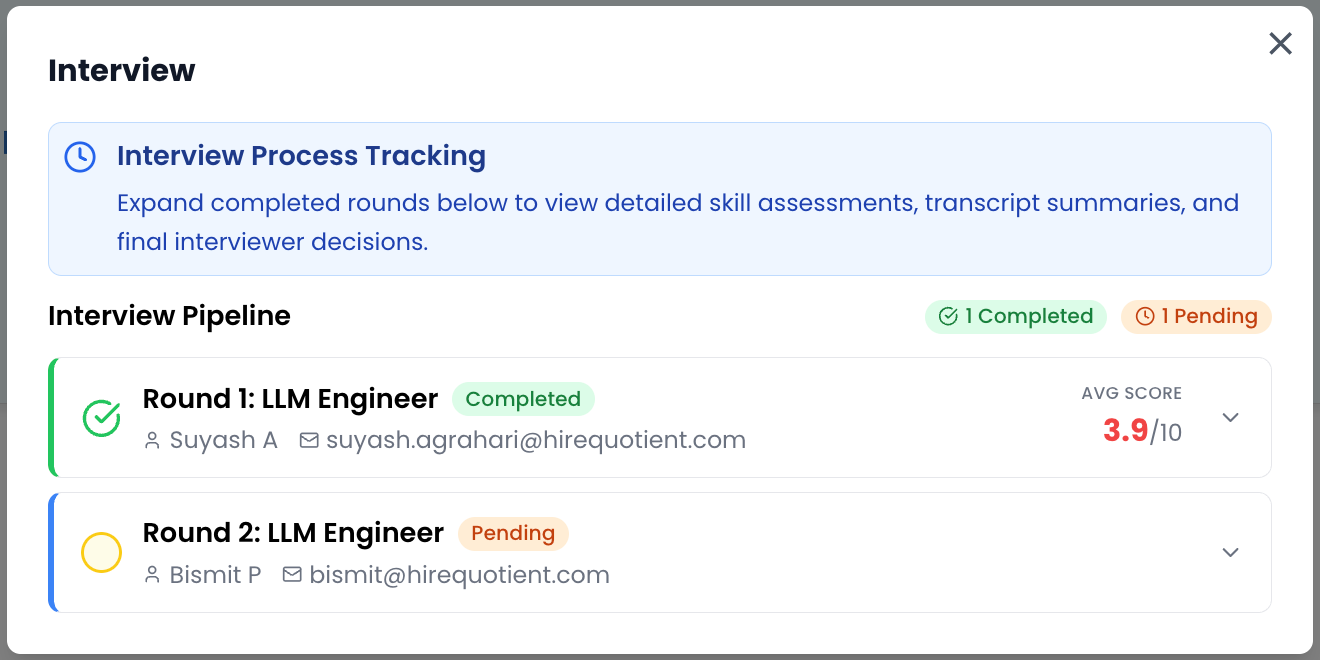
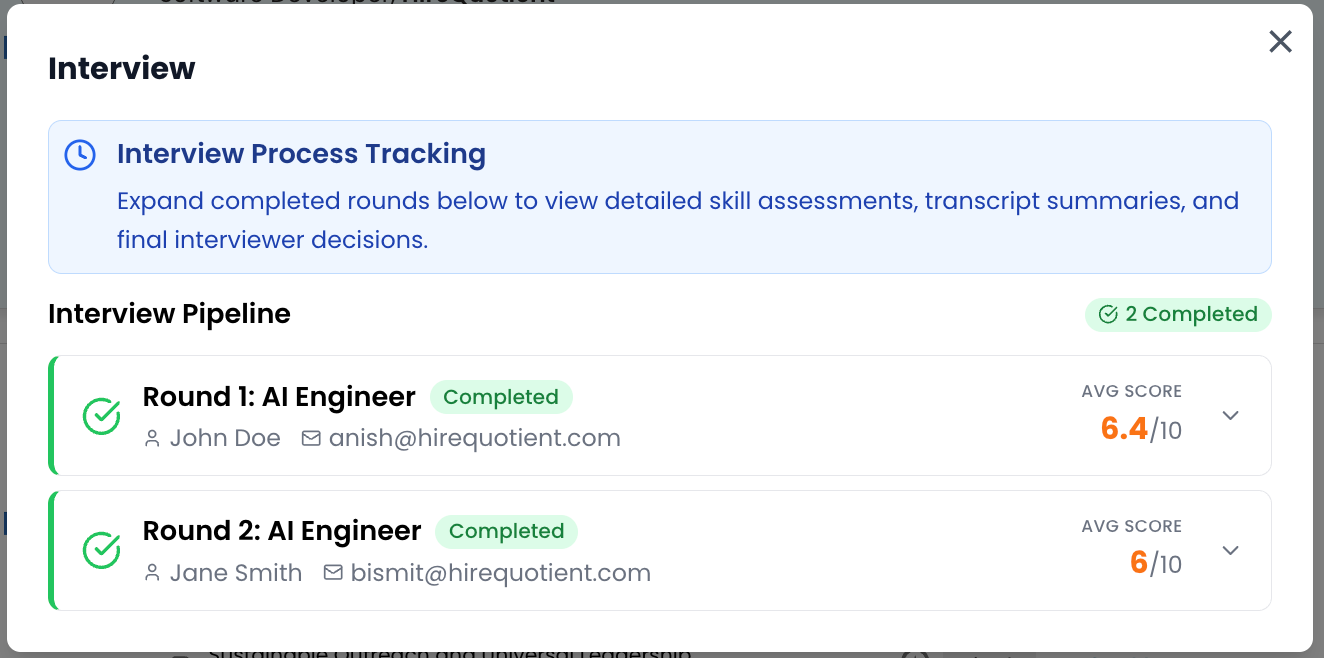
- 6Track each round from interview settingsTo check where a candidate stands, select them on the project page and open the interview settings icon. The "Interview" modal lists each round: completed ones show "Completed" with an average score, and upcoming ones read "Pending" beside their hiring manager. A round stuck on Pending means that hiring manager has not acted on their scheduling email.
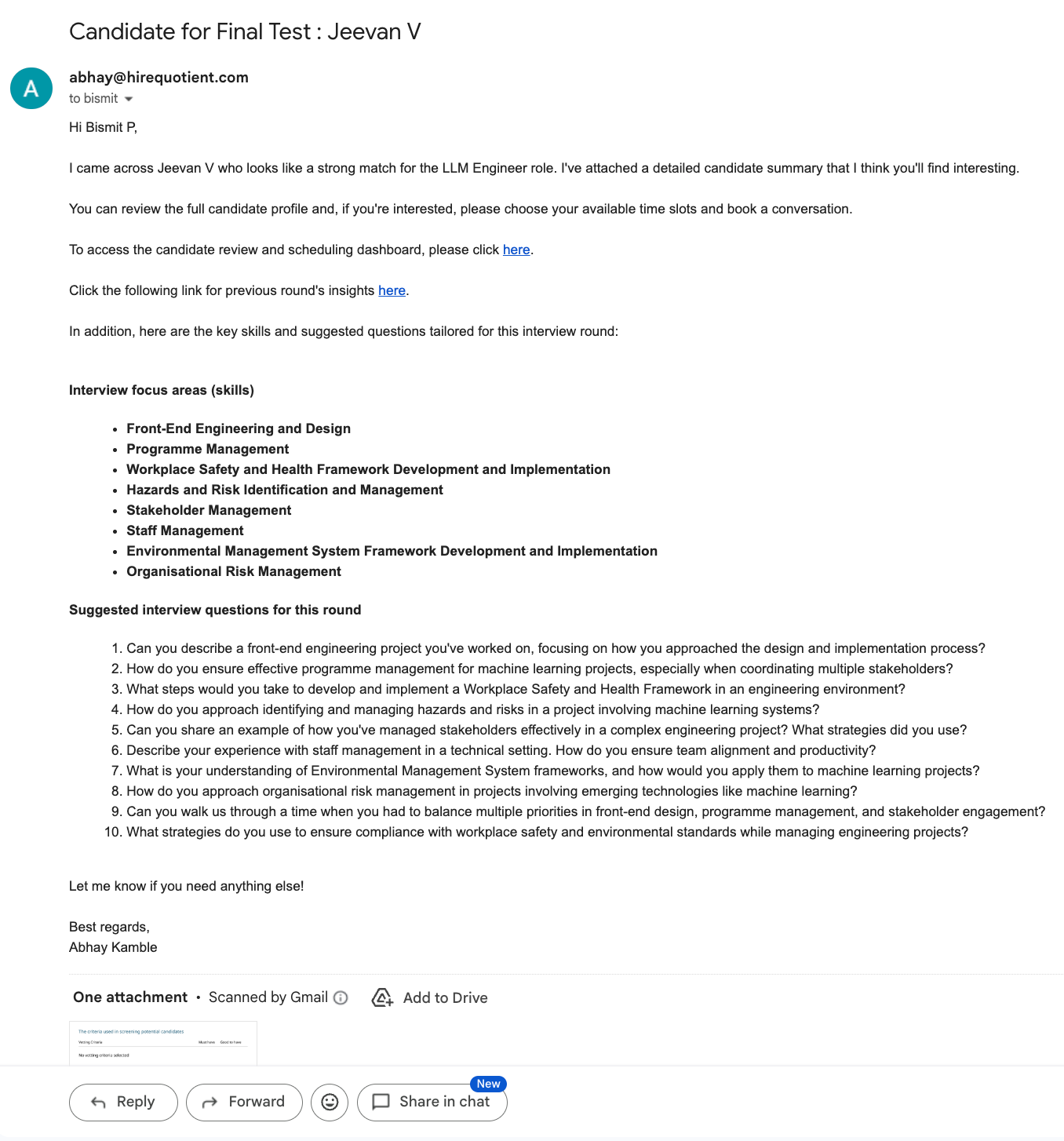
- 7The next interviewer sees the last roundThe next round's hiring manager gets the same candidate-introduction email, plus a line reading "Click the following link for previous round's insights here." It opens the earlier round's scores and summary, so a later interviewer sees how the candidate performed before. It is assembled automatically from the previous feedback, so nothing here needs action from you.
- 8Rounds repeat until all have passedEach later round's feedback works the same way, and approving the last configured round ends the loop. The interview settings modal then shows every round completed with its own score, and the candidate's stage becomes "ALL ROUNDS PASSED" with next step "HR Accept/Reject". A reject at any point sends them straight to "Rejected", with later rounds never scheduled.
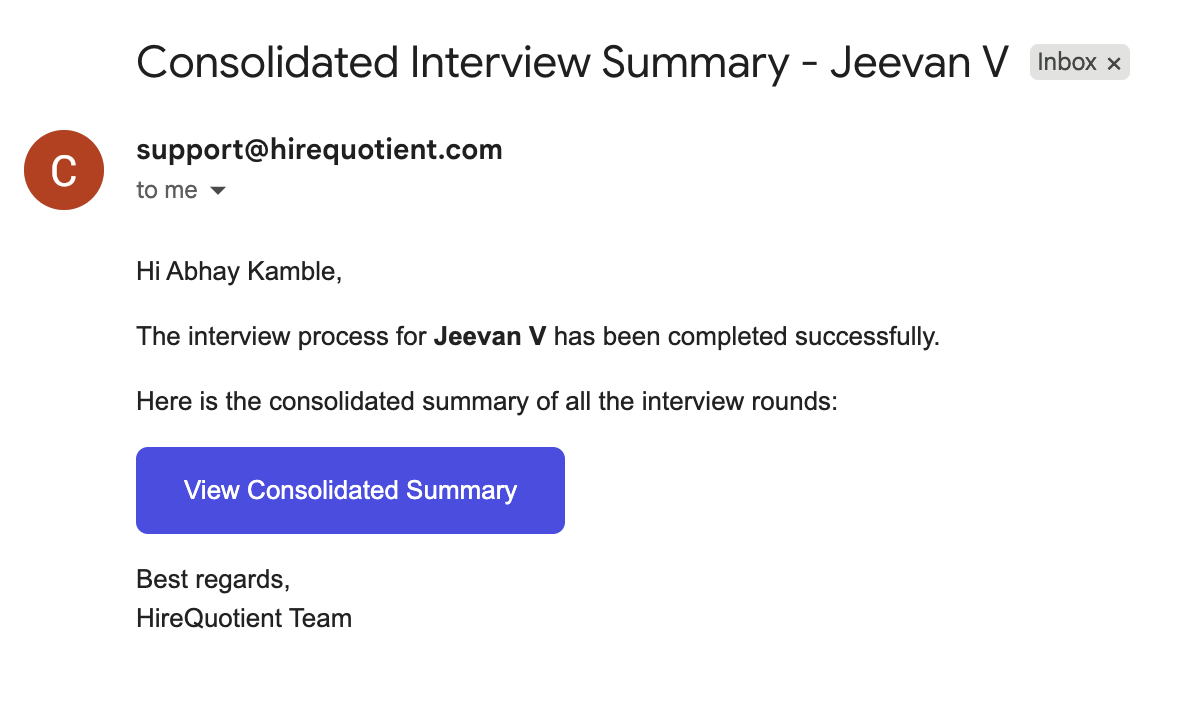
- 9A consolidated summary goes to the recruiterWhen the final round passes, support@hirequotient.com emails you a "Consolidated Interview Summary - [candidate name]" with a "View Consolidated Summary" button. Treat it as the handover from per-round feedback to the final decision. If it never arrives, check the interview settings modal — a round still marked Pending means the loop is unfinished.
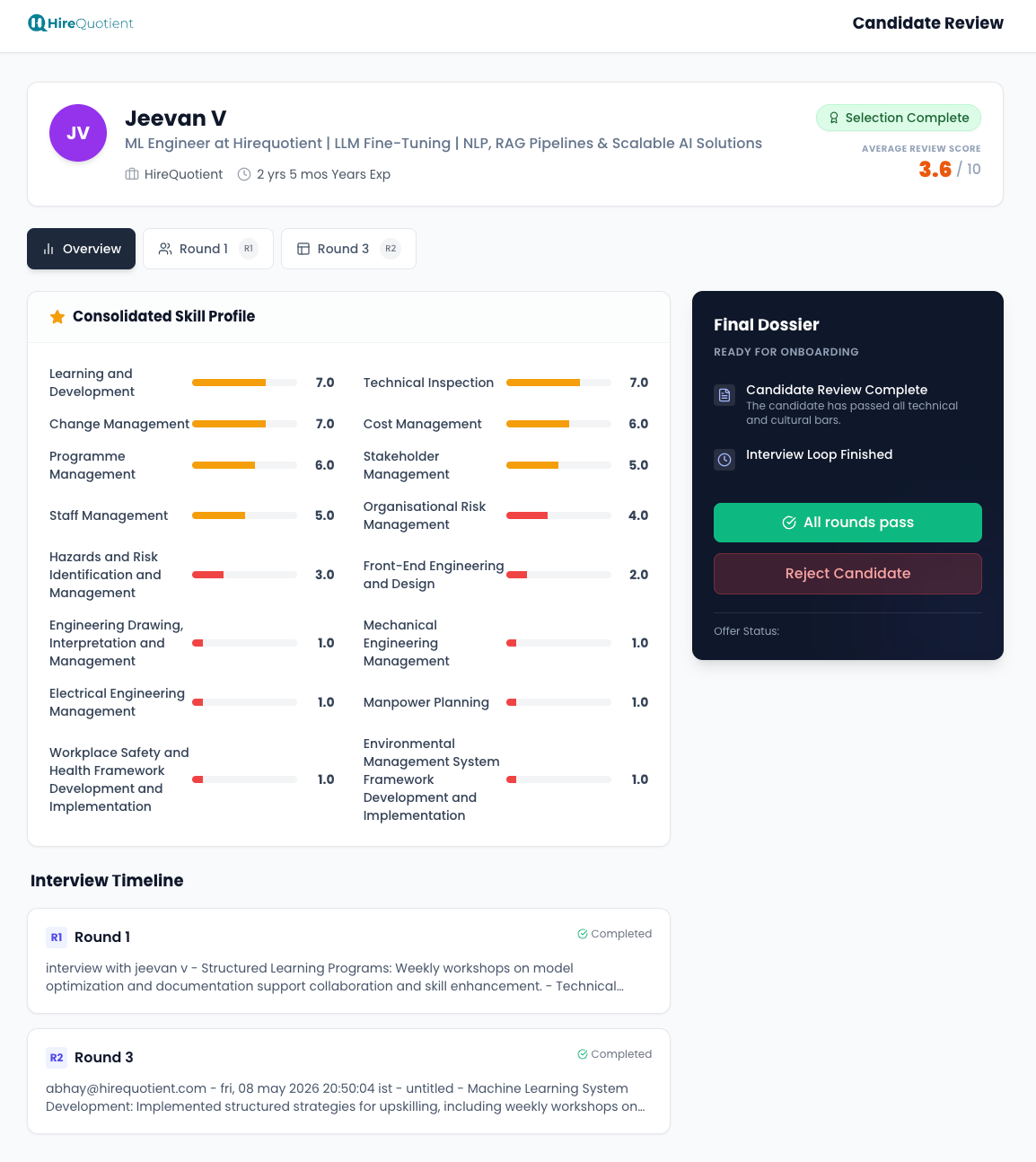
- 10Accept or reject on the consolidated viewThe button opens a "Candidate Review" page badged "Selection Complete", with an average review score across all rounds, a "Consolidated Skill Profile" and tabs per round. The "Final Dossier" card carries the two closing actions, "All rounds pass" and "Reject Candidate". Working this screen belongs to "Reviews and the hiring decision".
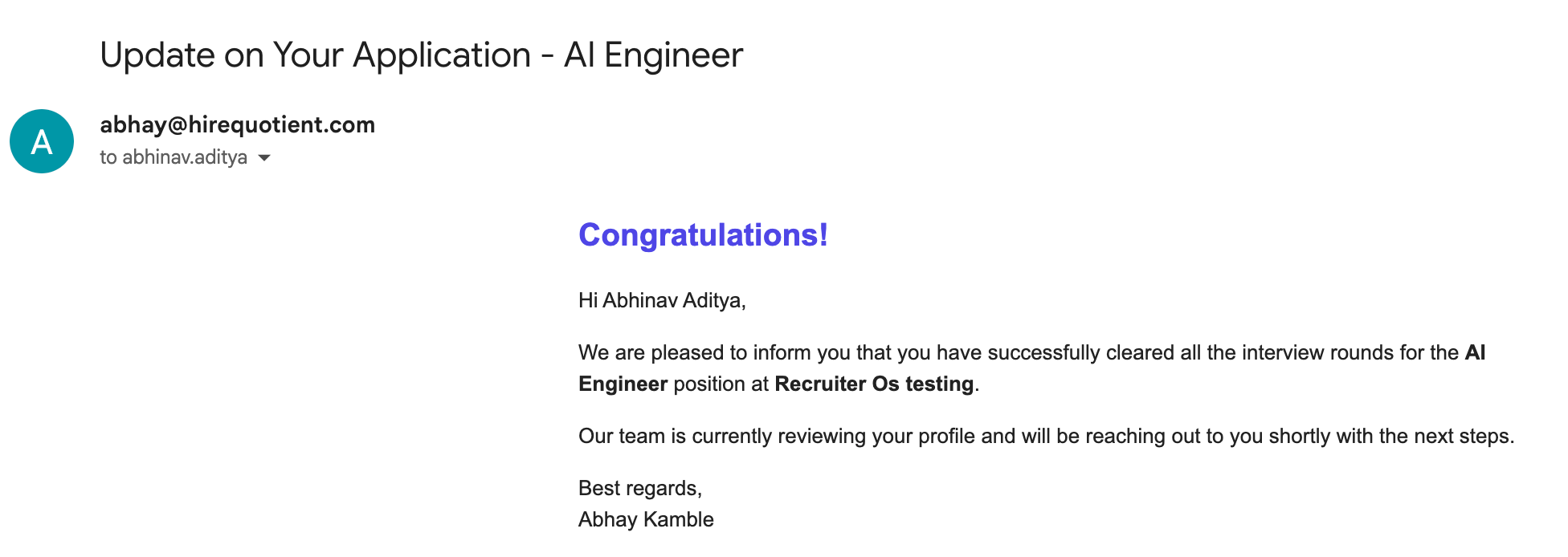
- 11The candidate hears they are throughAn accepted candidate is emailed "Update on Your Application - [job title]" telling them they cleared all interview rounds and the team will reach out with next steps. It is not an offer. They then leave the interview loop and appear in the Onboarding Suite dashboard; wait for this email before adding your own congratulations.