Candidate slot booking and confirmations
How a candidate books an interview slot from a magic link, then both sides get the meeting link and a calendar invite with no manual scheduling.
3 min read
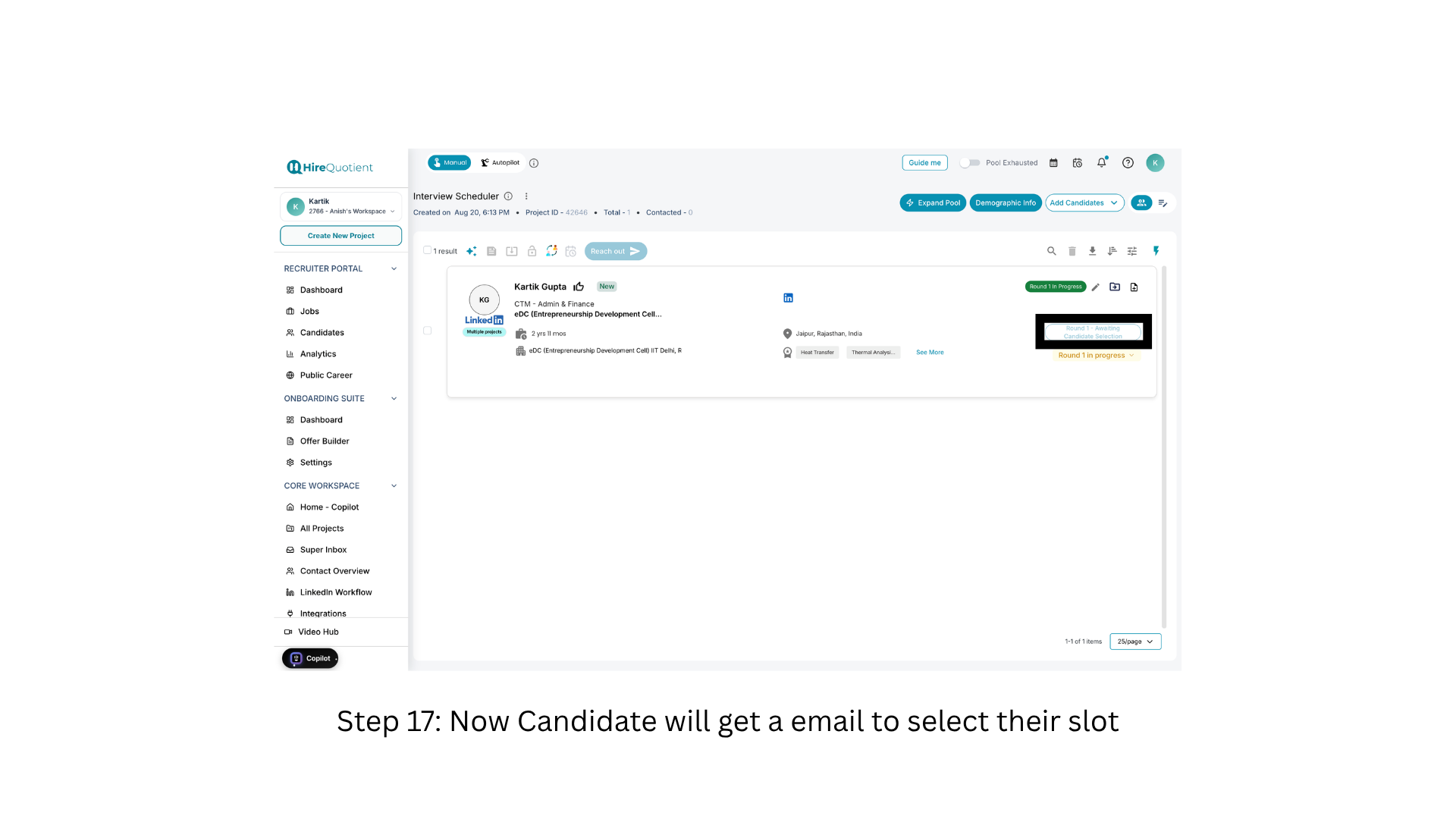
This stage hands the choice to the candidate: they pick a time from the hiring manager's submitted availability, and HireQuotient confirms the meeting for both sides. The round must read "Round 1 - Awaiting Candidate Selection" before the candidate is emailed — see "Collect hiring manager availability" if it does not.
- 1Check that the round is awaiting candidate selectionYour recruiter dashboard. Once the hiring manager submits availability, the candidate card shows "Round 1 In Progress" with "Round 1 - Awaiting Candidate Selection" beneath it, and HireQuotient emails the candidate automatically. Nothing to click here. If it still reads "Round 1 - Awaiting HM Slots", no email has gone out yet.
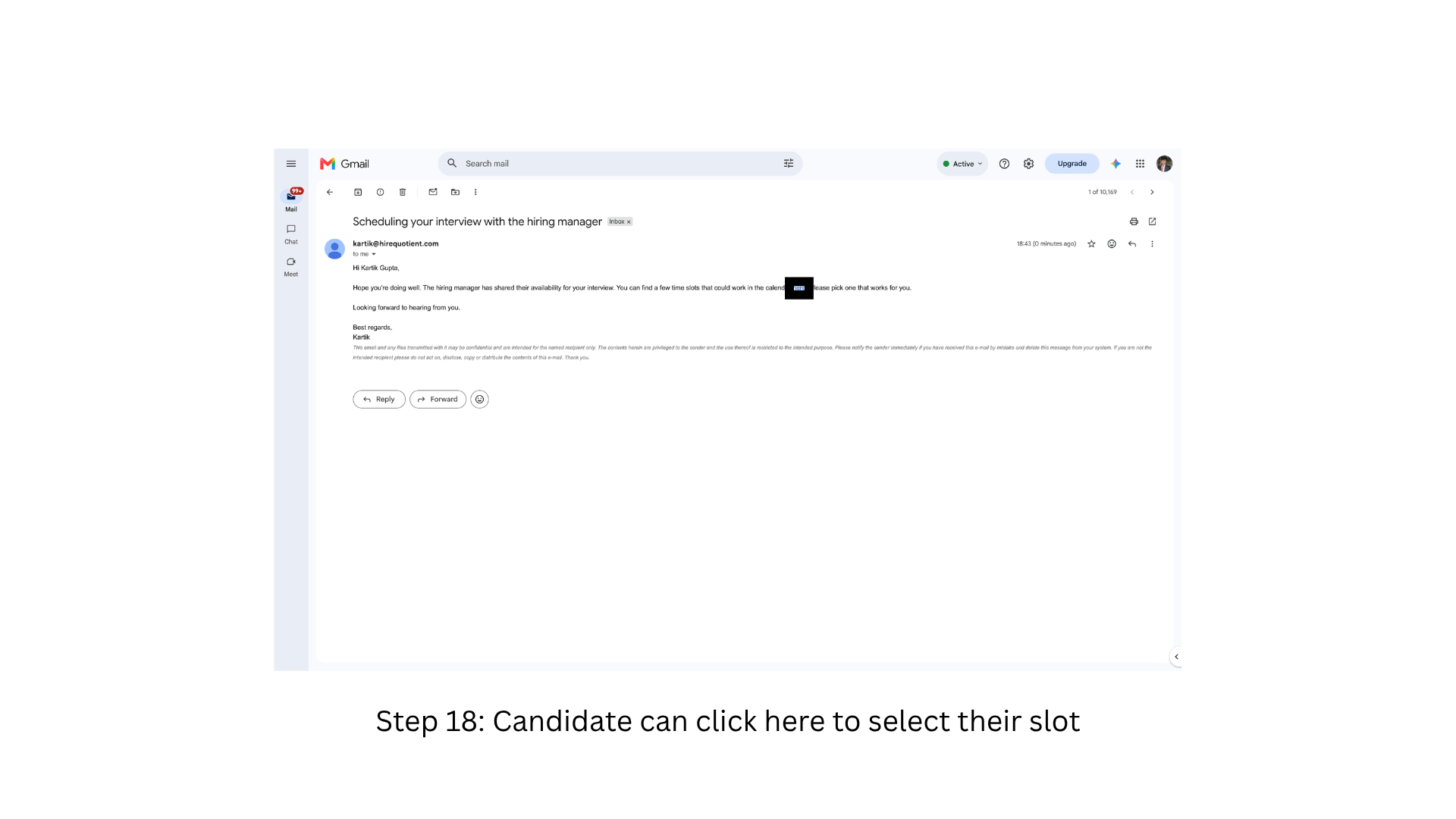
- 2Candidate opens the slot selection emailThe candidate's inbox. The email, subject "Scheduling your interview with the hiring manager", says the hiring manager has shared their availability and gives a magic link (no account needed) to the booking page. It can land in spam or promotions, so have the candidate check there before you resend.
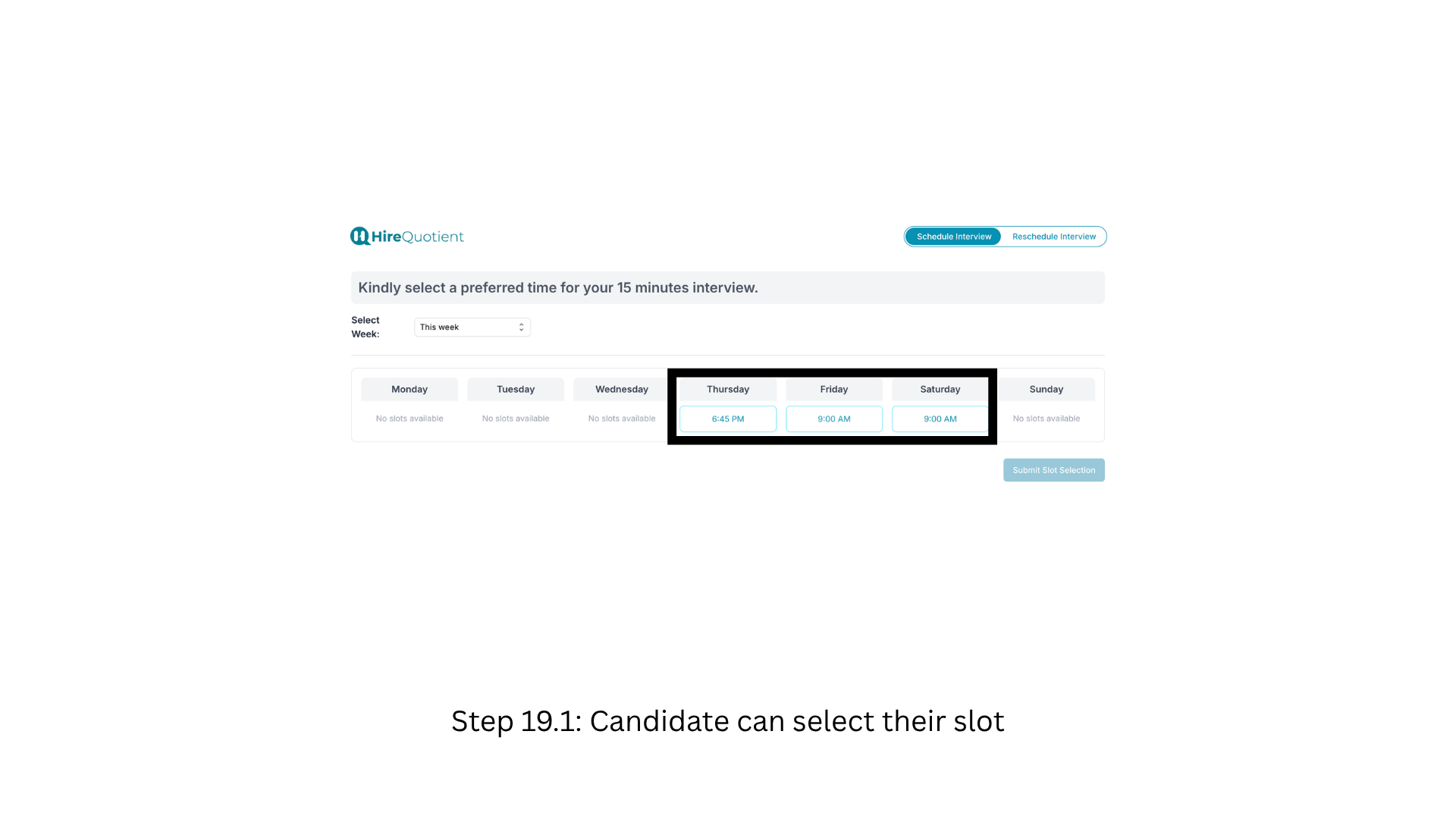
- 3Pick a time on the candidate booking pageThe candidate's "Schedule Interview" booking page. A "Select Week" dropdown sets the seven-day grid, and each weekday column lists bookable times or "No slots available". The candidate picks one and presses "Submit Slot Selection", greyed out until a slot is selected. If every column is empty, ask the hiring manager for fresh availability.
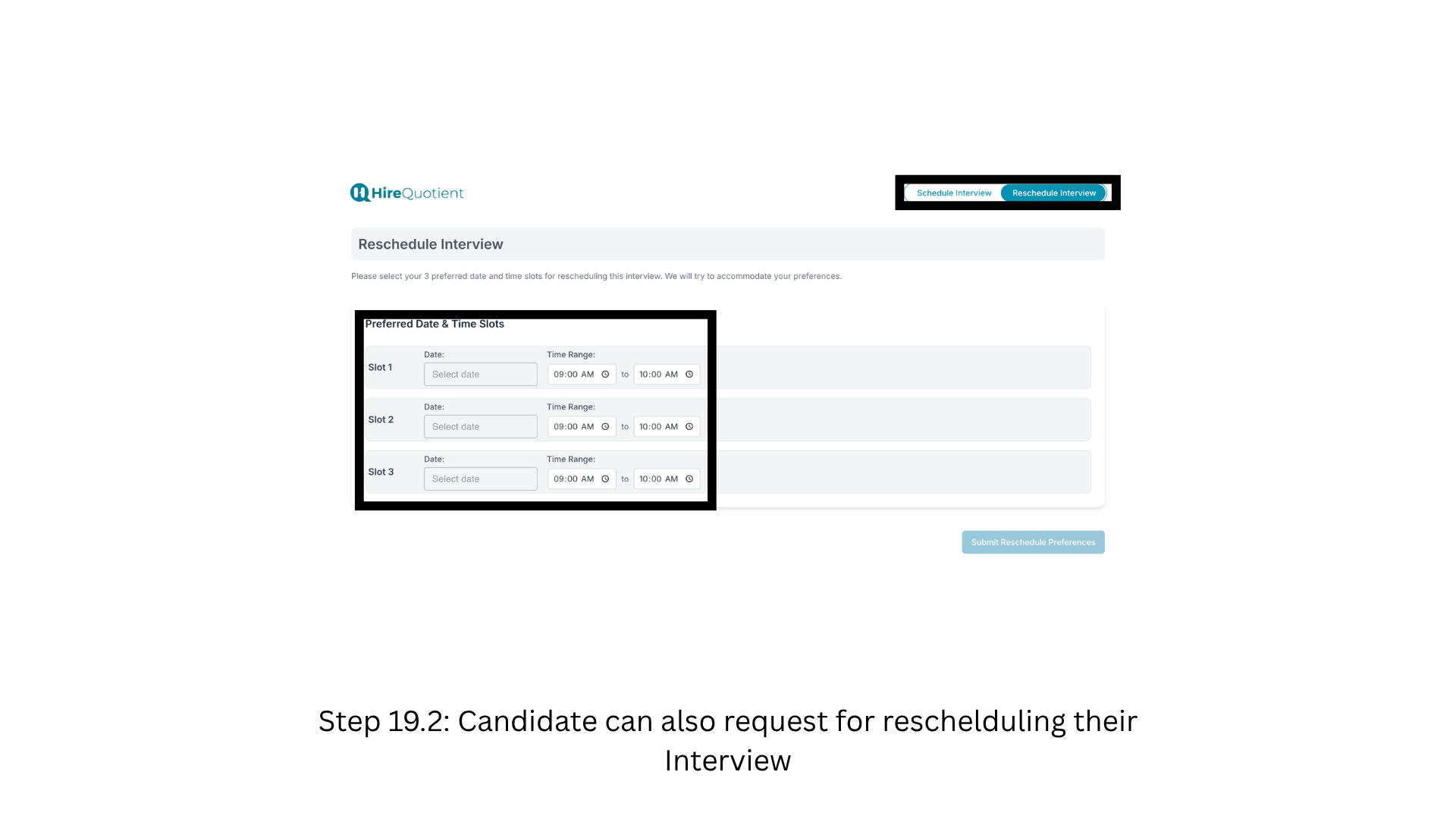
- 4Or request a reschedule, or declineThe same page's "Reschedule Interview" toggle opens a panel where the candidate proposes three preferred date and time slots, then presses "Submit Reschedule Preferences"; your board then reads "Round 1 - Reschedule Interview". Declining outright shows "Round 1 - Candidate Declined". Neither outcome books a meeting or creates a calendar event.
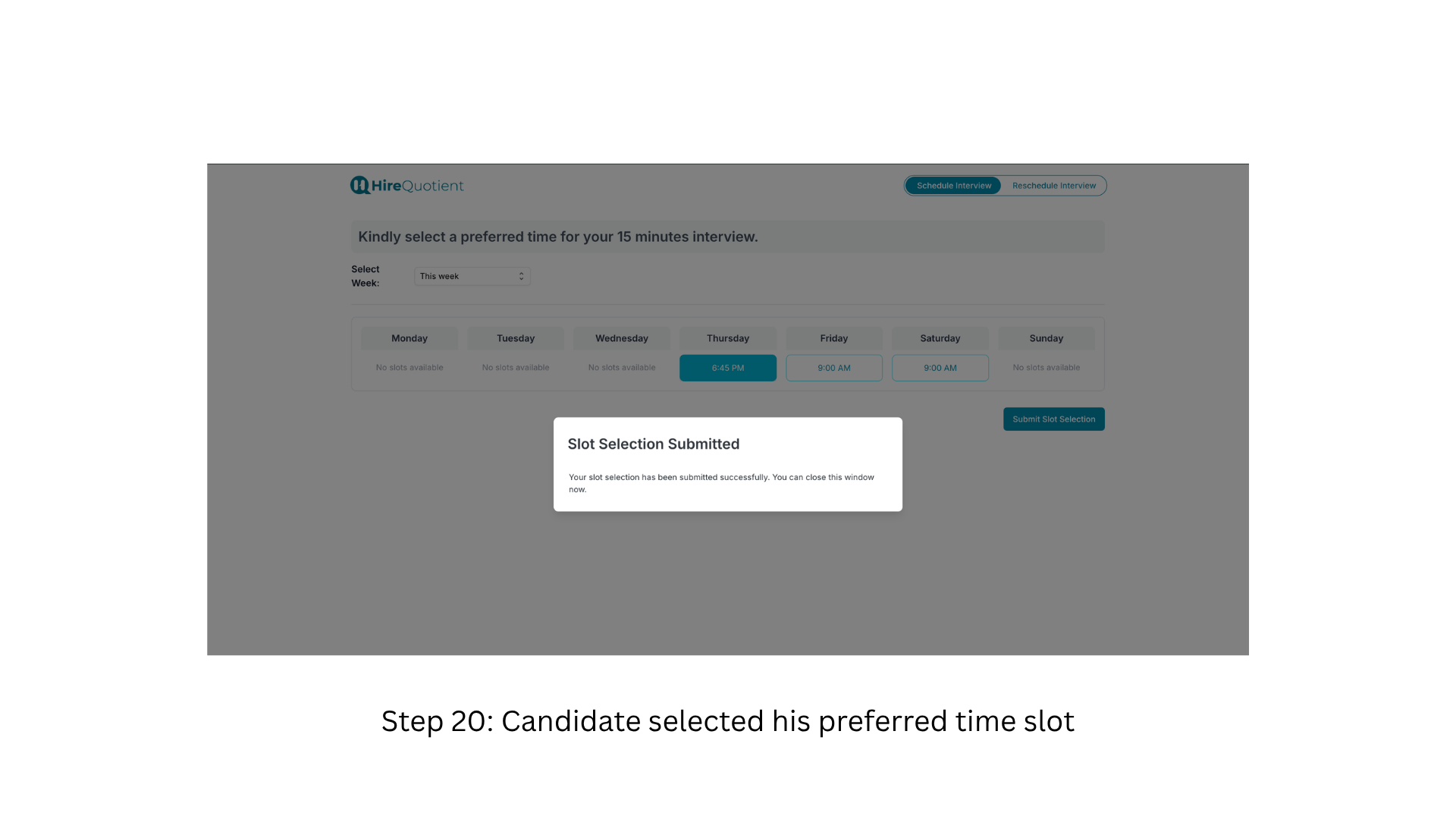
- 5The candidate sees the booking confirmedStill the candidate's page, just after submitting: the chosen time turns solid teal and a "Slot Selection Submitted" dialog confirms they can close the window. On your dashboard the round flips to "Round 1 - Interview Scheduled", which triggers the confirmation emails and the calendar event.
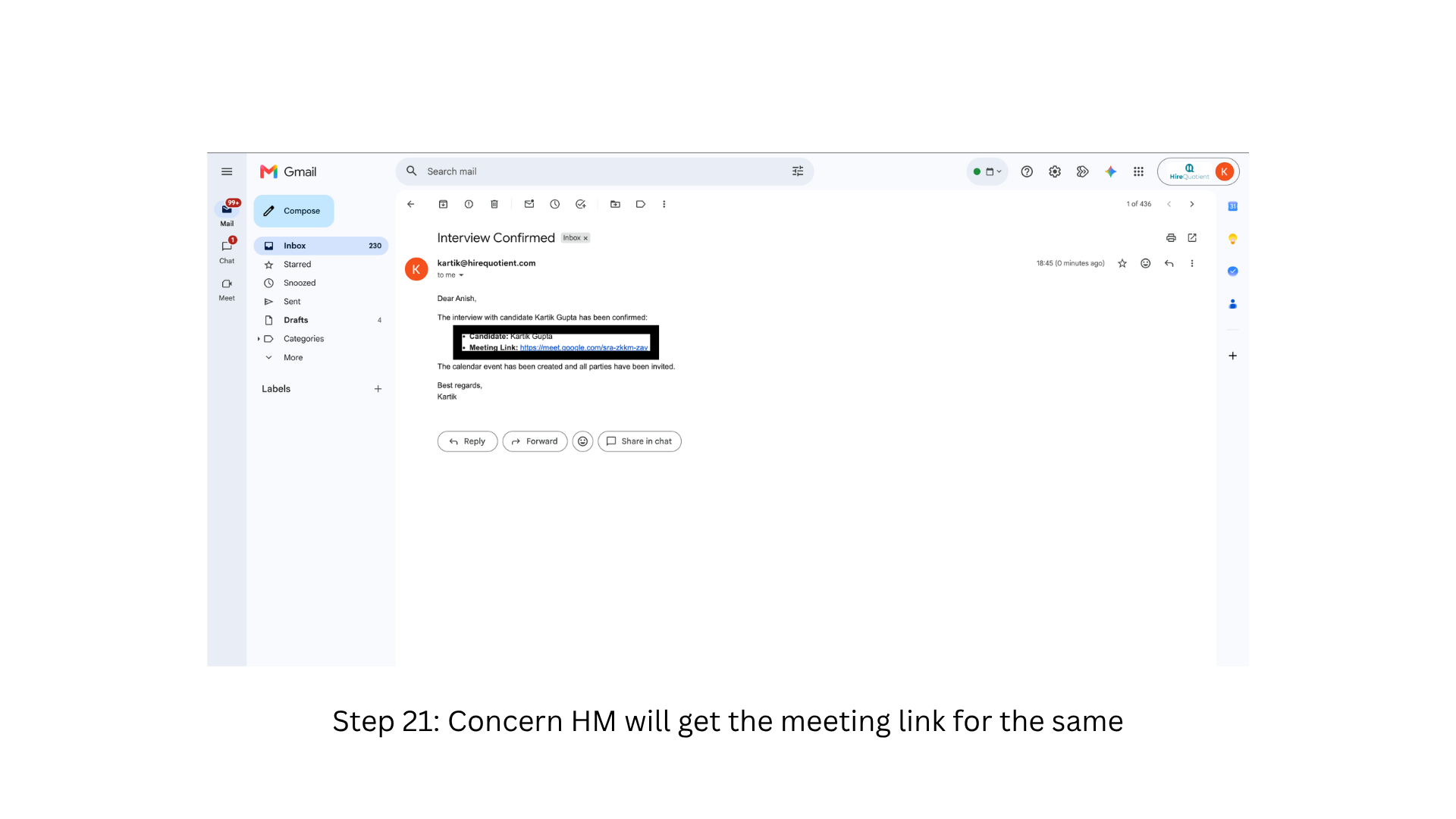
- 6Hiring manager receives the meeting linkThe hiring manager's inbox. An "Interview Confirmed" email arrives within about a minute, listing the candidate and a "Meeting Link", and closing with "The calendar event has been created and all parties have been invited." They just click the link at the appointed time — still with no HireQuotient login.
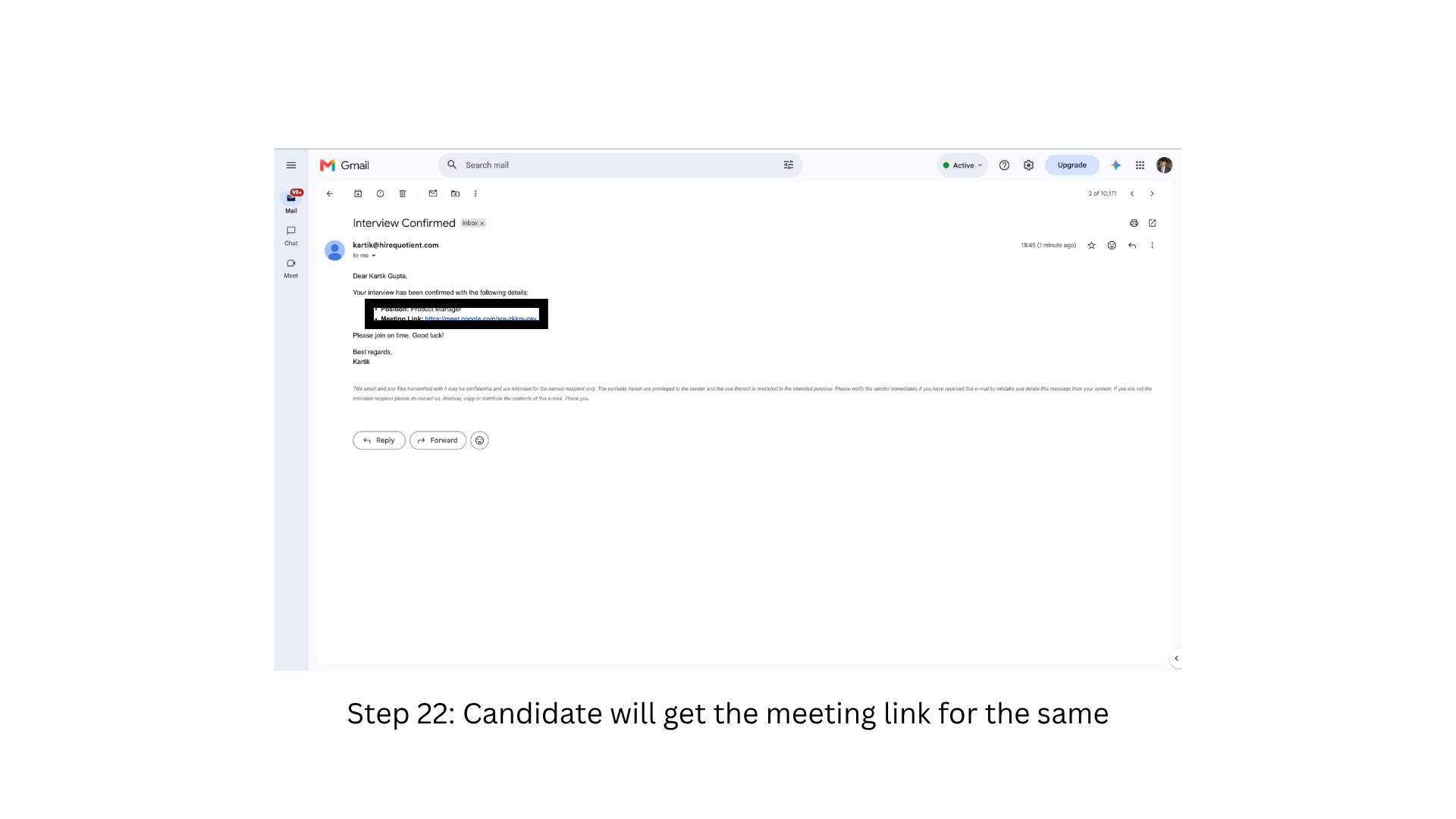
- 7Candidate receives the same meeting linkThe candidate's inbox gets its own "Interview Confirmed" email at the same moment, listing "Position" and "Meeting Link". The link is identical to the hiring manager's, so both join the same call. If the candidate loses the email, they can still join from the calendar invite.
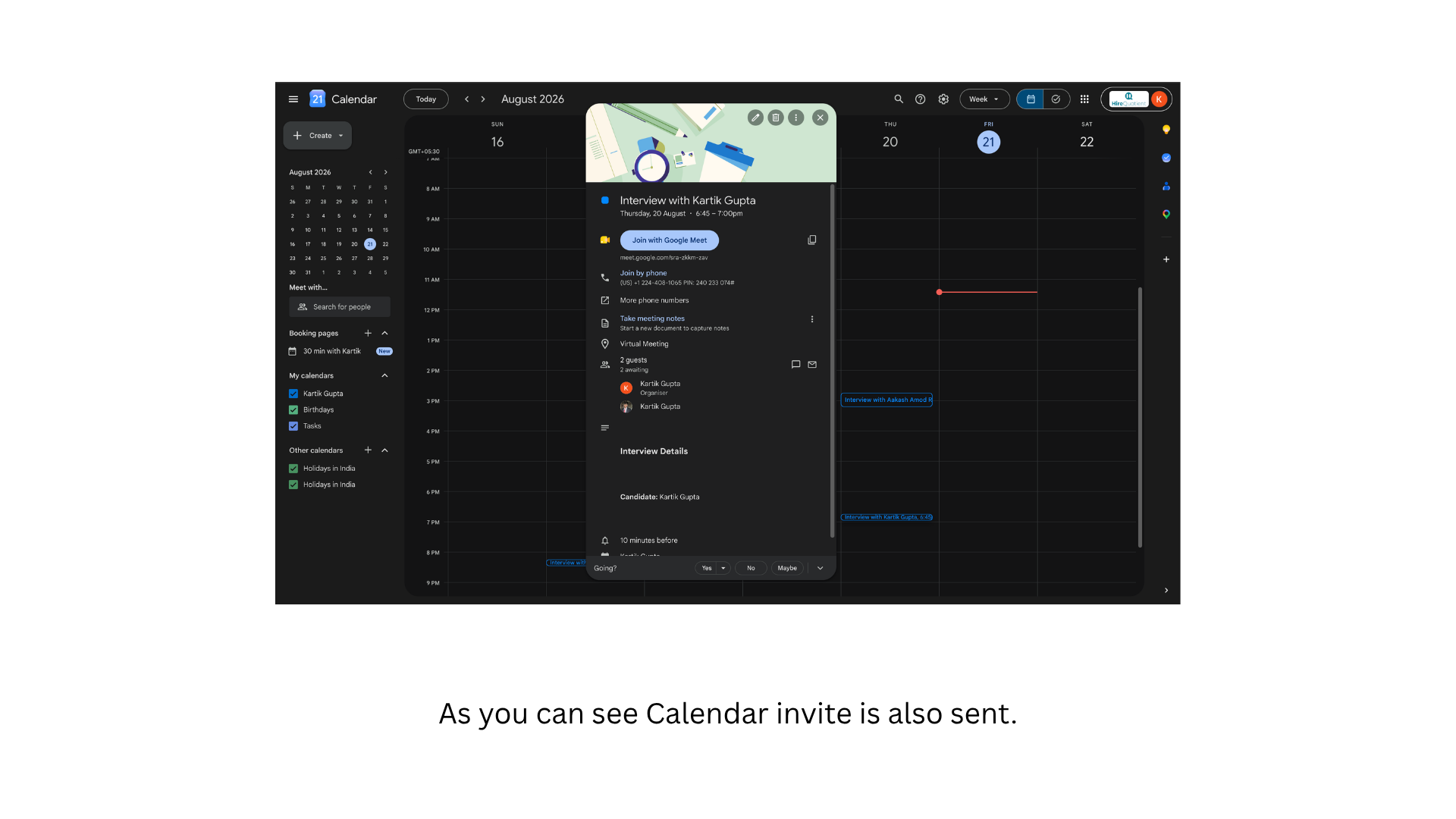
- 8Confirm the calendar invite was createdHireQuotient also writes the event into Google Calendar, titled "Interview with [candidate name]", with both attendees and the same Meet link. After the interview the round moves to "Round 1 - Awaiting Feedback" and the hiring manager is emailed a feedback request, covered in "Interview feedback and advancing rounds".