Start onboarding for a candidate
How to select candidates from the Onboarding Suite dashboard and open Manage Onboarding, where you build their workflow.
2 min read
Before any of this works, the Onboarding Suite must be turned on — see "Enable the Onboarding Suite." Once a candidate hits HR Accept, they appear on the dashboard; select who to onboard and you're redirected into Manage Onboarding, the workspace where you build their workflow.
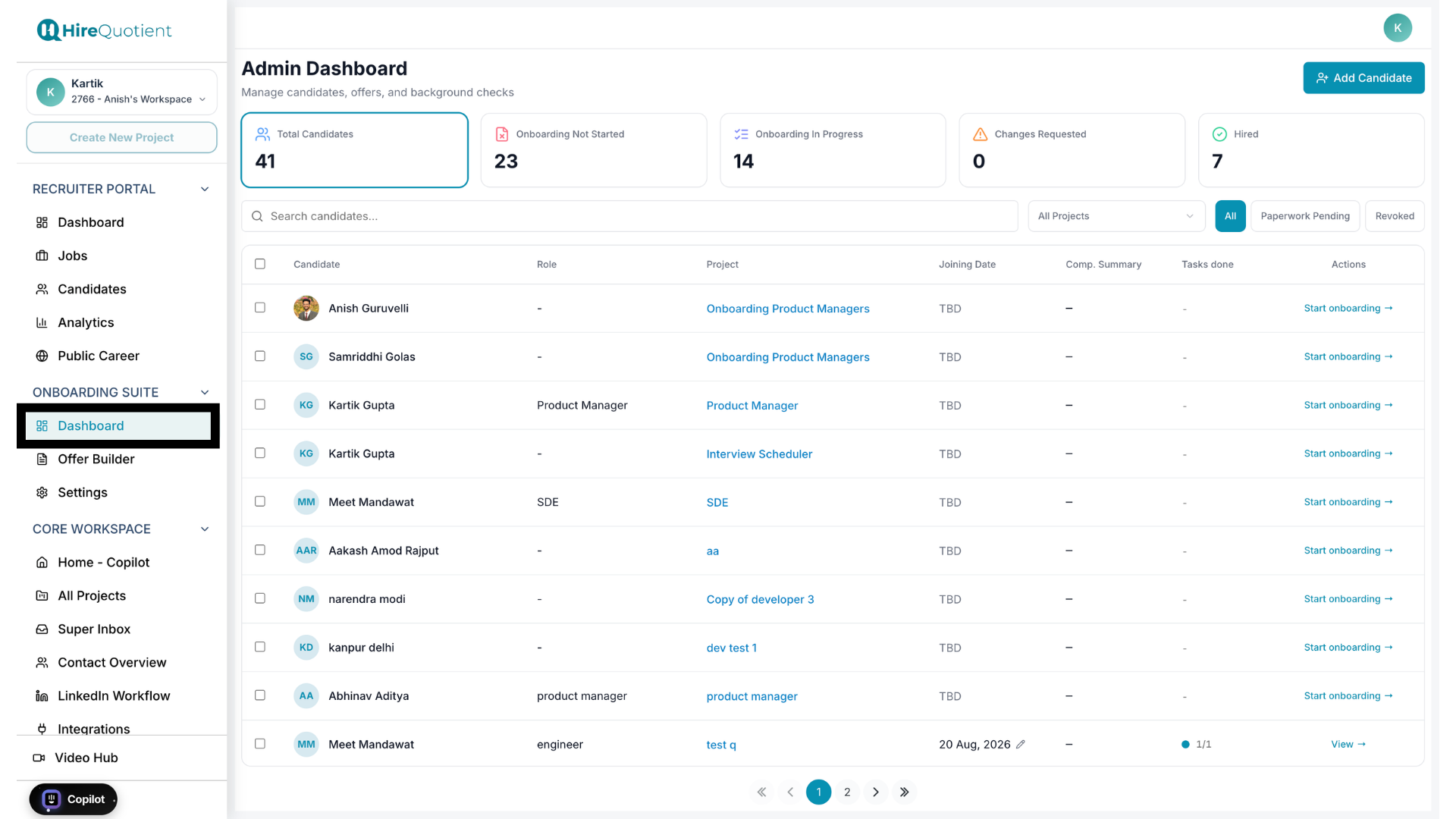
- 1Open the Onboarding Suite dashboardFrom the sidebar, go to Onboarding Suite > Dashboard. It lists every candidate who's reached HR Accept, with each row showing Candidate (name and status badges), Role, Project, Joining Date, Comp. Summary (base salary and allowance), Tasks done (a progress indicator), and Actions. Search by name to find a candidate — results update automatically as you type — or narrow the list with the status filter (All, Paperwork Pending, Revoked) and the project filter, a searchable dropdown for organizations with many projects. See the existing Candidate Management article for the full search and filter reference.
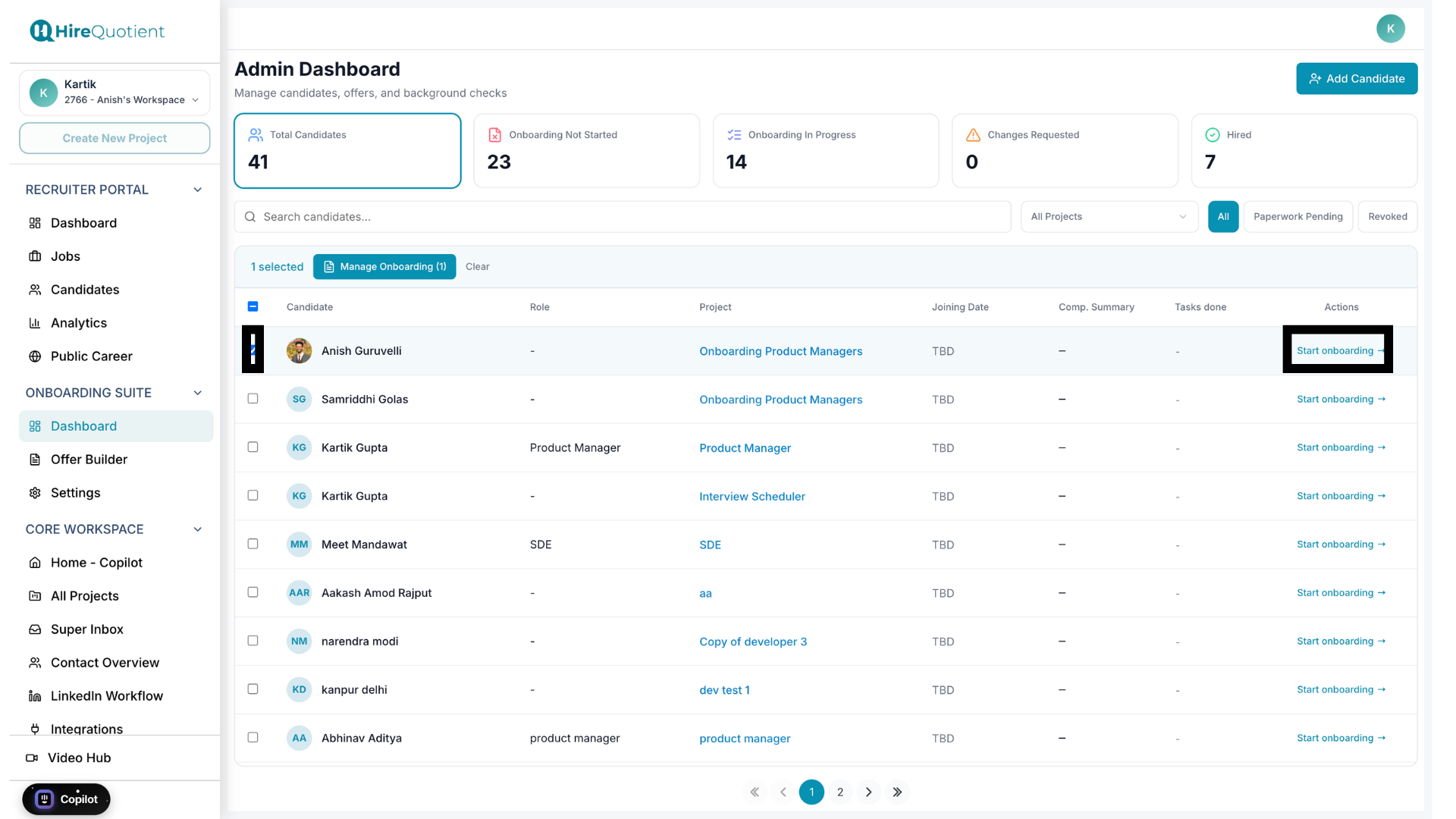
- 2Select the candidate(s) to onboardCheck the box next to one or more rows — a Manage Onboarding button appears with your selection count, alongside Clear to reset it, and Add to Paylocity if your organization has Paylocity enabled. Select a single candidate or a whole batch; the next screen builds one workflow for everyone selected. You don't have to open a profile for quick tasks: click the pencil icon next to a candidate's joining date to edit it inline, use the Start onboarding button for candidates with no workflow yet or the View button for those already in progress, and open a candidate's project in a new tab directly from their row.
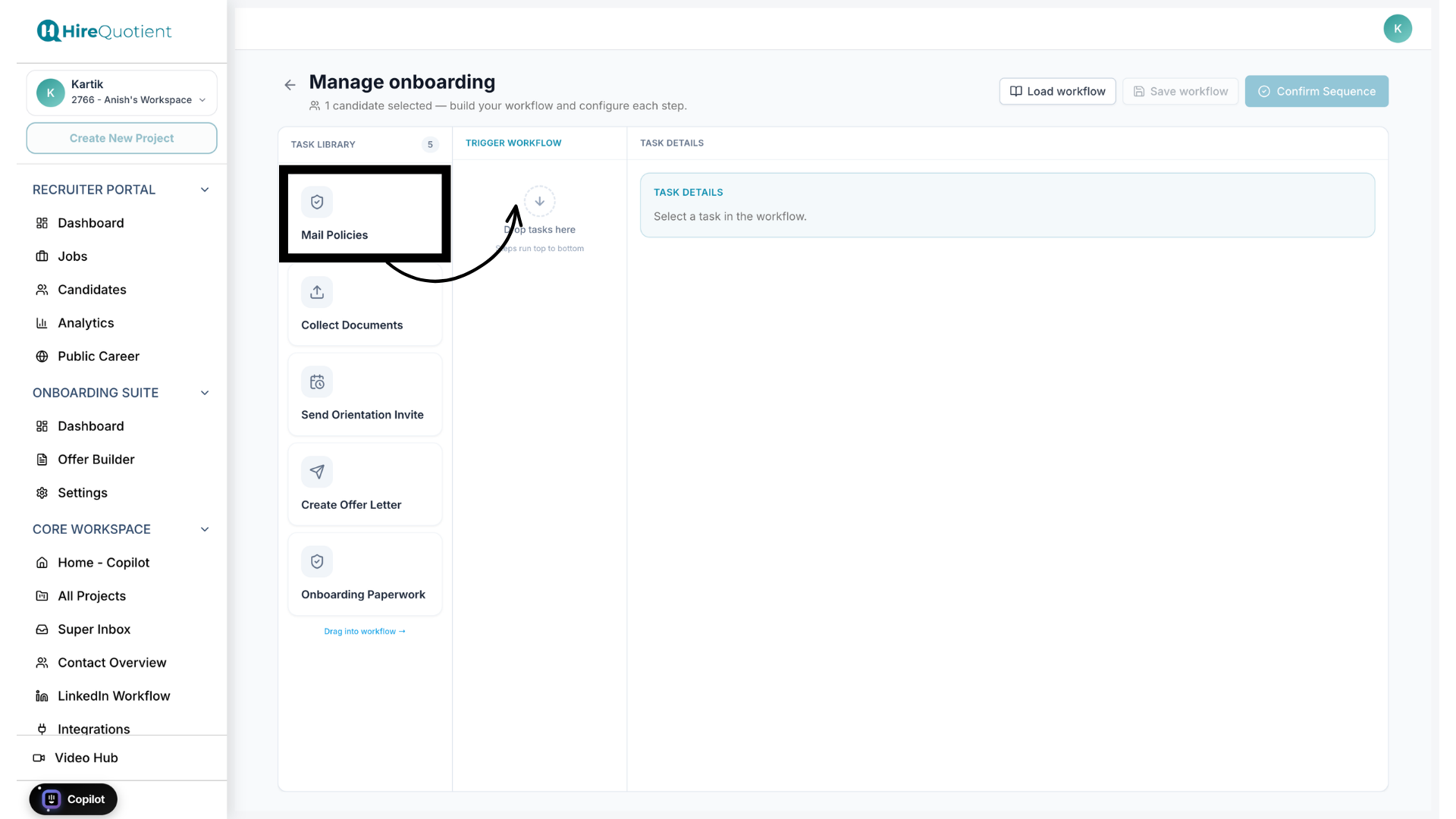
- 3Land in Manage OnboardingClicking Manage Onboarding redirects you here — the workspace with Task Library, Trigger Workflow, and Task Details columns. This is where you actually build the onboarding sequence; see "Build the onboarding workflow" for how to drag tasks in and configure them.