Completing the onboarding paperwork
How candidates submit onboarding paperwork online, and how recruiters get notified and confirm it to advance them.
3 min read
The Onboarding Paperwork task sends candidates a form link to submit personal, tax, and direct deposit details themselves. Once submitted, the recruitment team is notified and must confirm the info before the task counts as done. This picks up after the candidate accepts the offer, covered in 'Candidate view: reviewing and accepting the offer.'
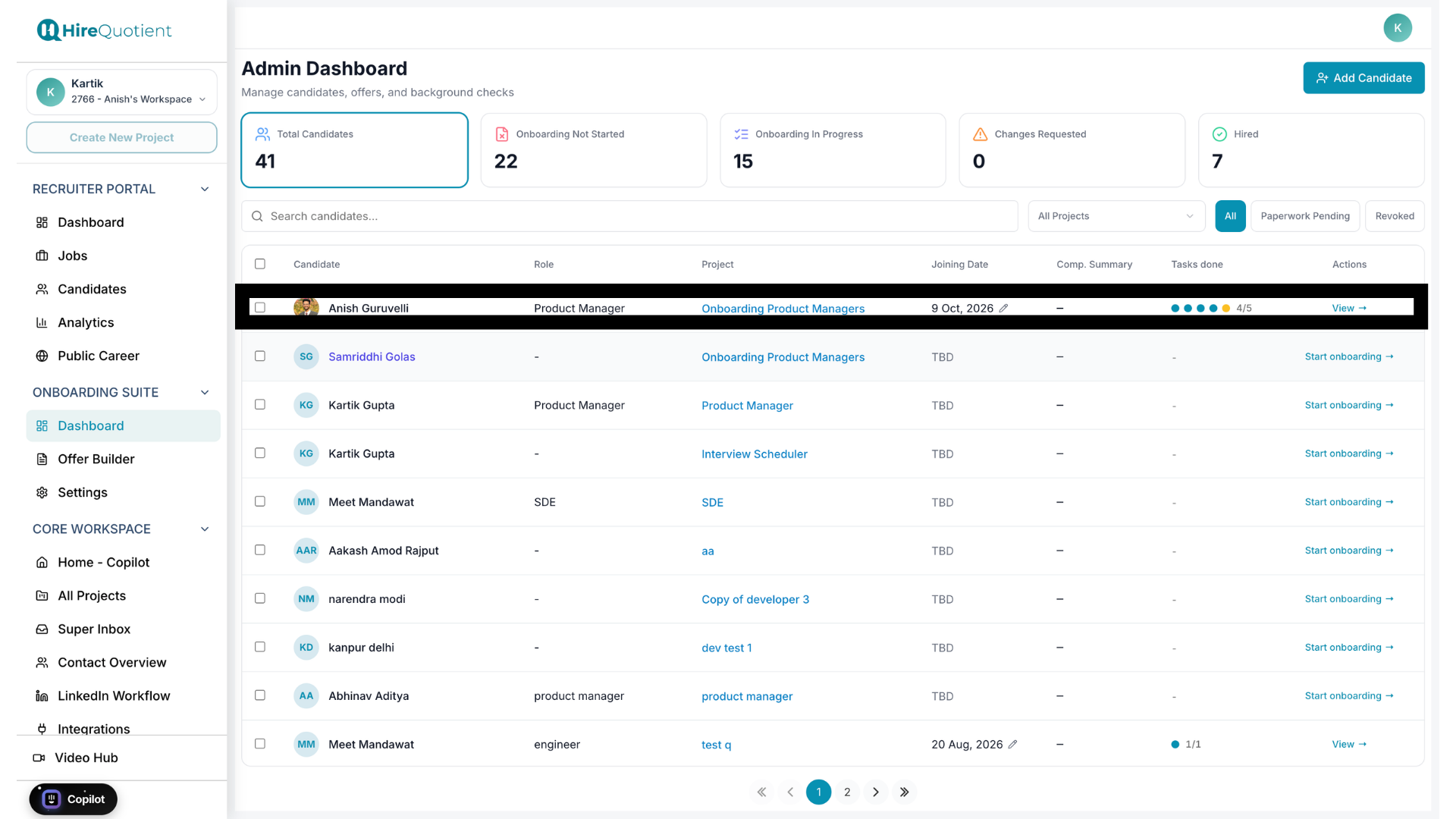
- 1Check onboarding progress anytimeFrom the recruiter dashboard, open any candidate's profile to see how their onboarding tasks are progressing at a glance.
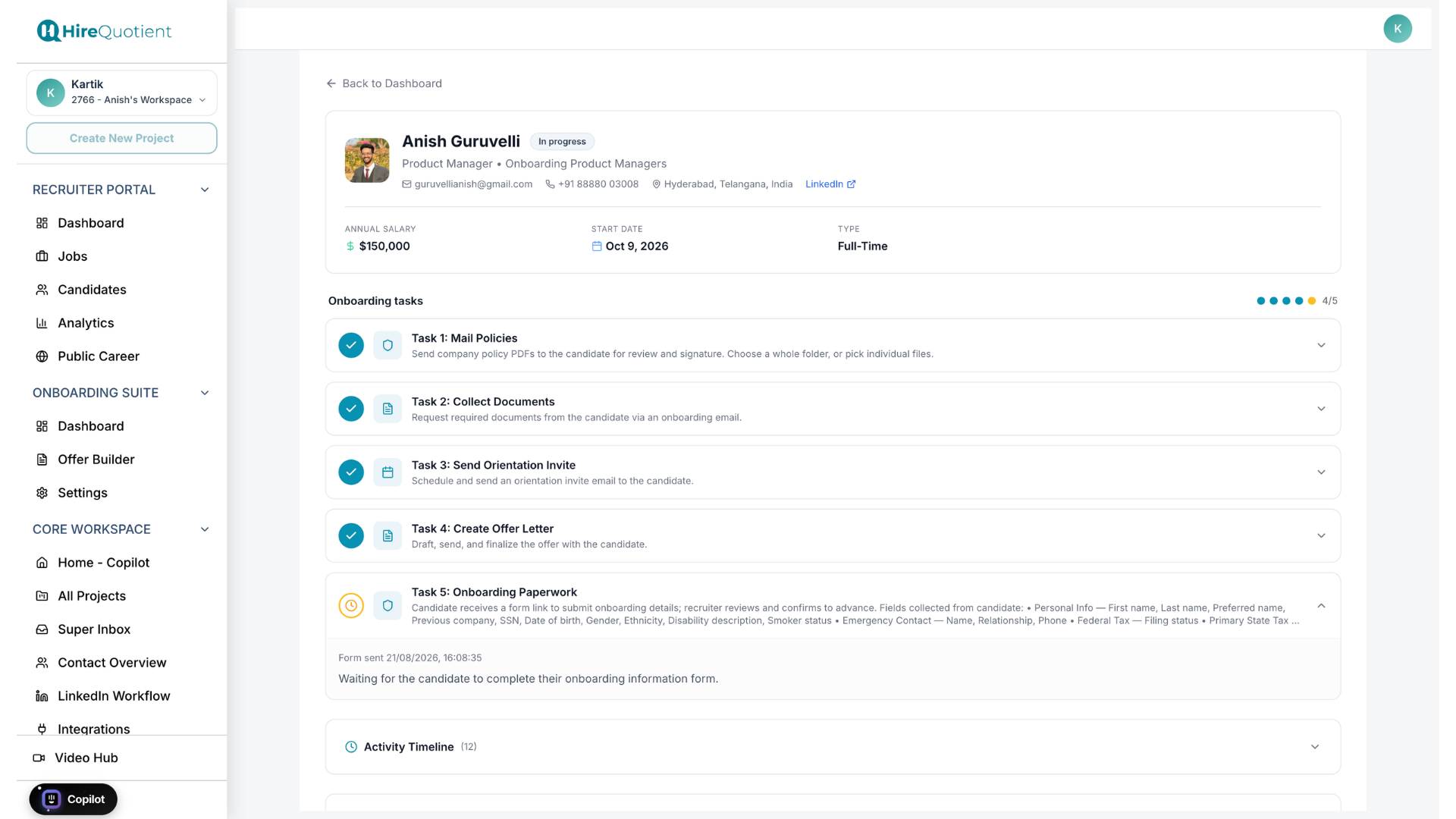
- 2Spot a task that's still pendingHere, Task 5: Onboarding Paperwork is still waiting — the candidate hasn't submitted their info yet, so the recruiter can't advance them.
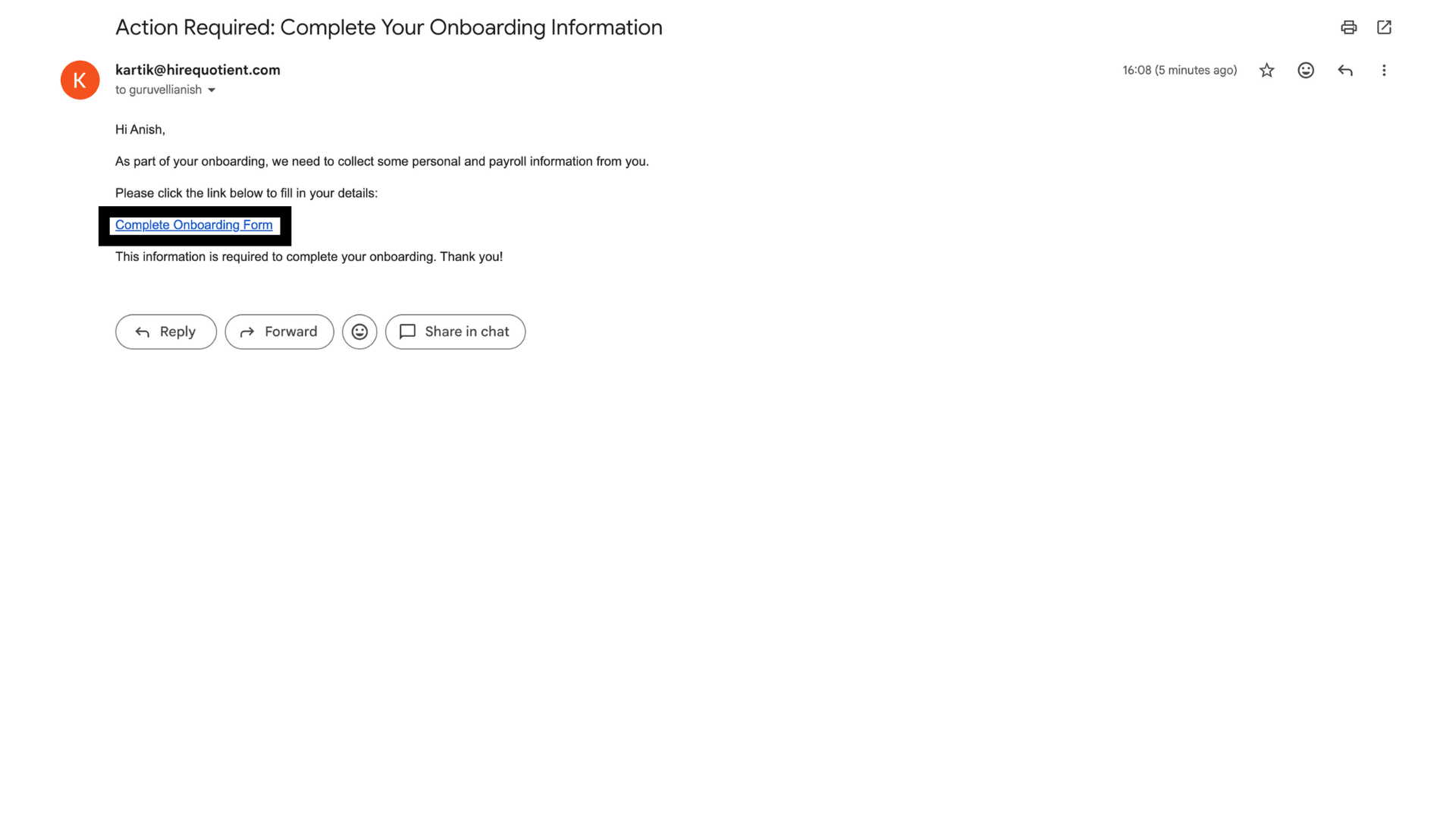
- 3Candidate gets the paperwork form linkThis is the Onboarding Paperwork element from your workflow (see 'Build the onboarding workflow'). The candidate receives an "Action Required: Complete Your Onboarding Information" email and clicks Complete Onboarding Form.
- 4Candidate lands on the info formThe link opens a candidate-facing "Complete Your Onboarding Information" page for entering personal, tax, and direct deposit details needed to finish onboarding.
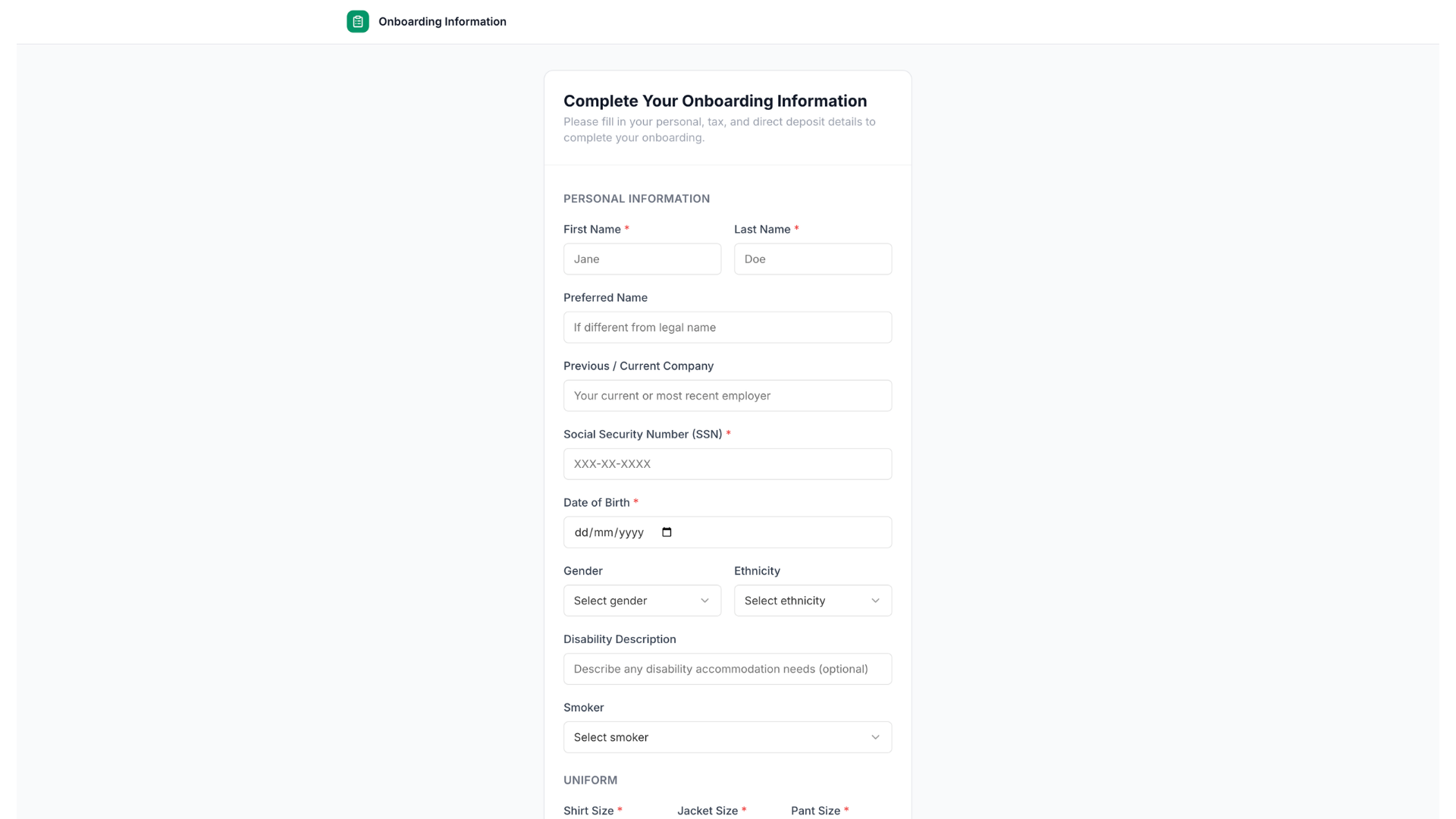
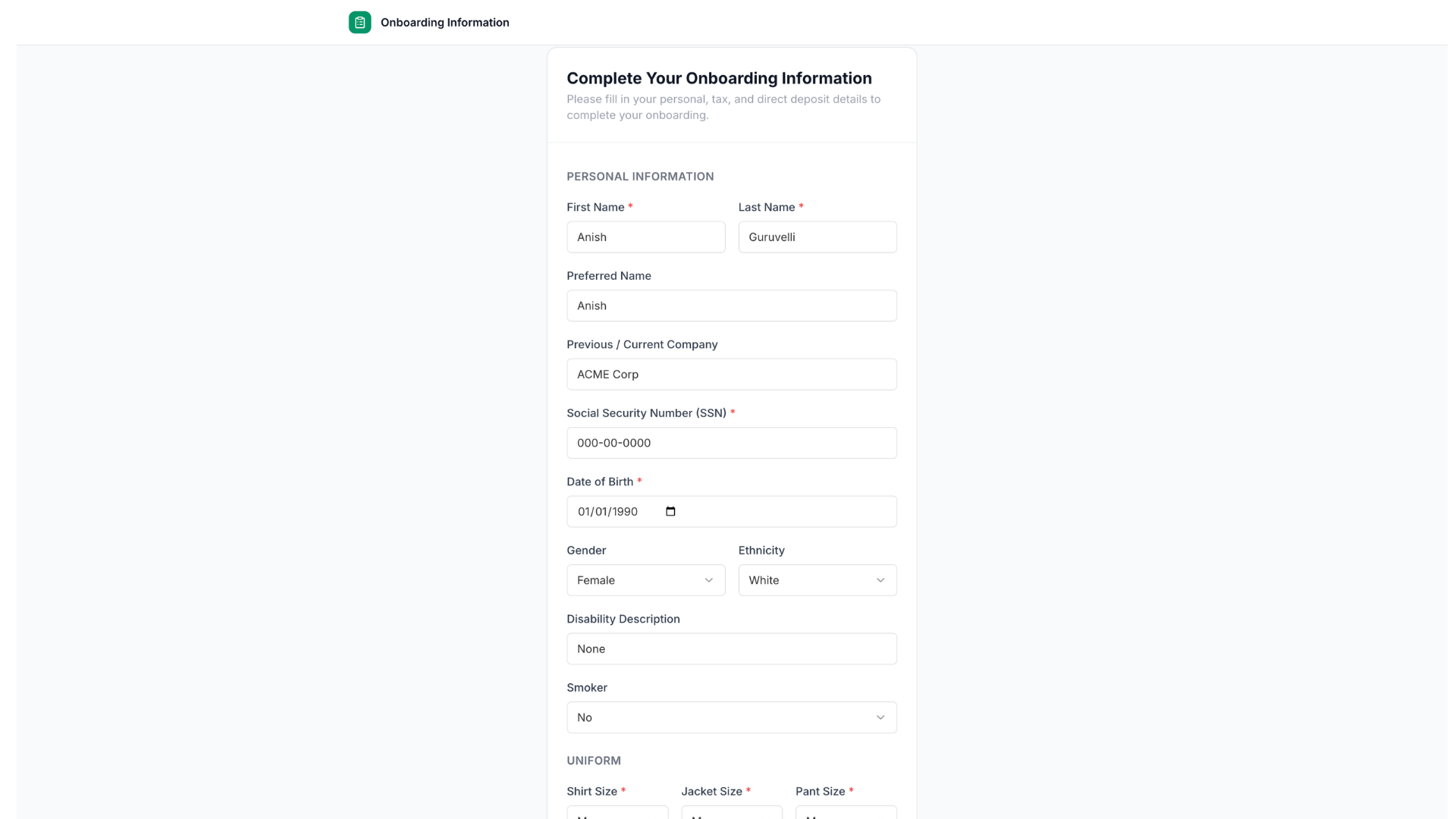
- 5Candidate fills in personal detailsThe Personal Information section collects name, preferred name, previous company, SSN, date of birth, gender, ethnicity, disability description, and smoker status, plus uniform sizing.
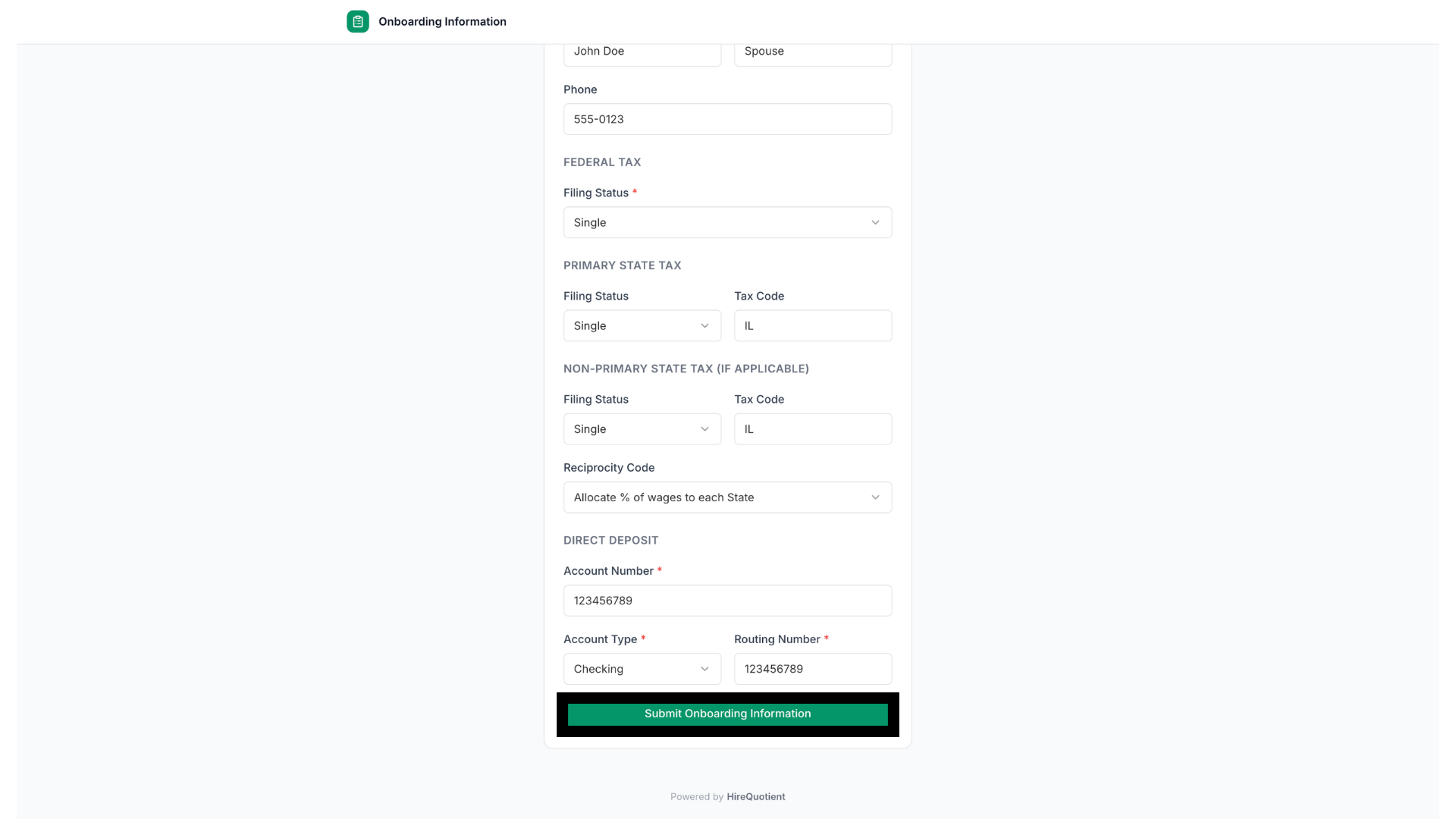
- 6Candidate adds tax and deposit info, submitsFurther down: emergency contact, federal and state tax filing status, and direct deposit account details. The candidate clicks Submit Onboarding Information to send it in.
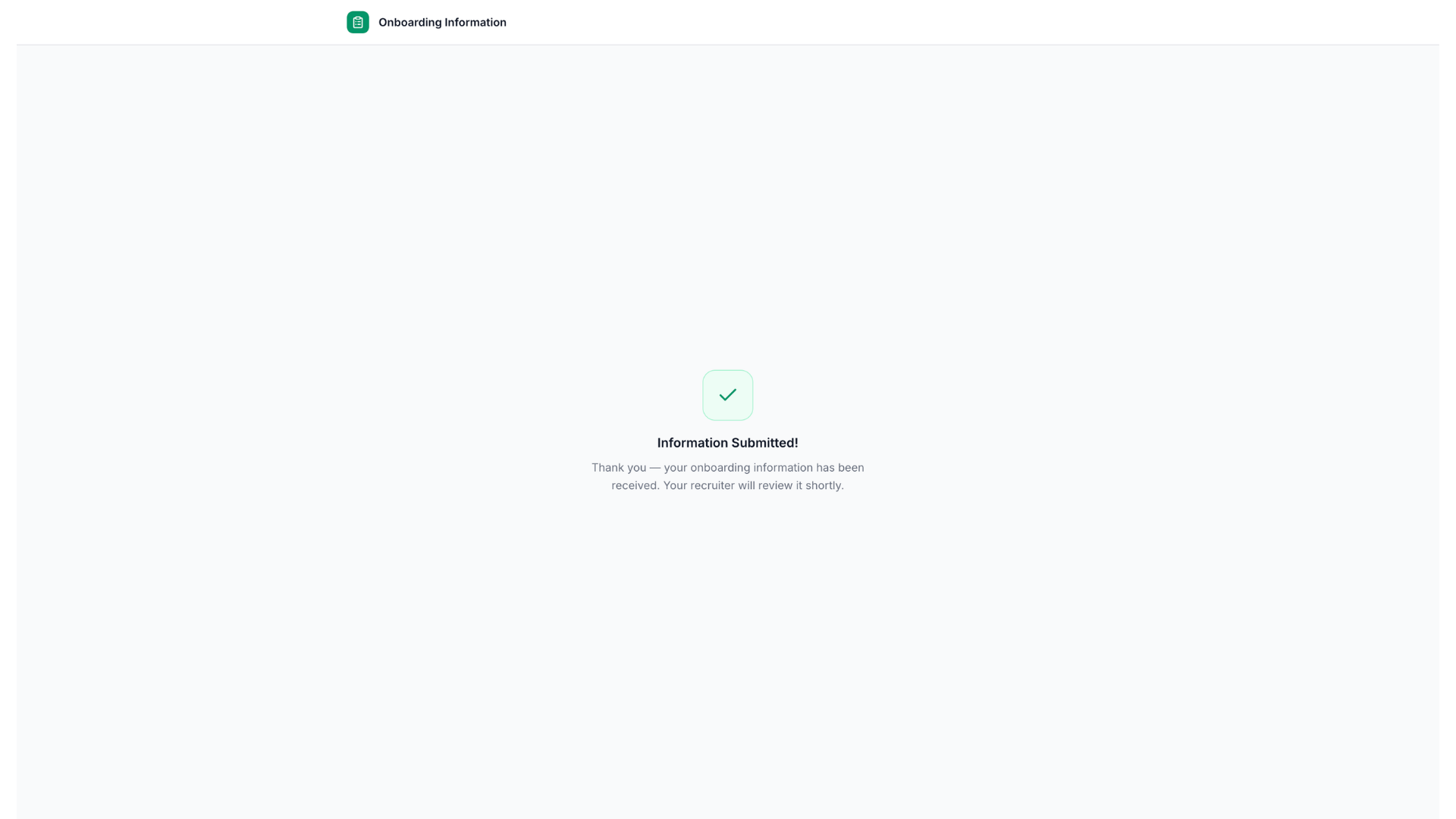
- 7Candidate sees a confirmation screenAn "Information Submitted!" screen thanks the candidate and tells them their recruiter will review the submission shortly.
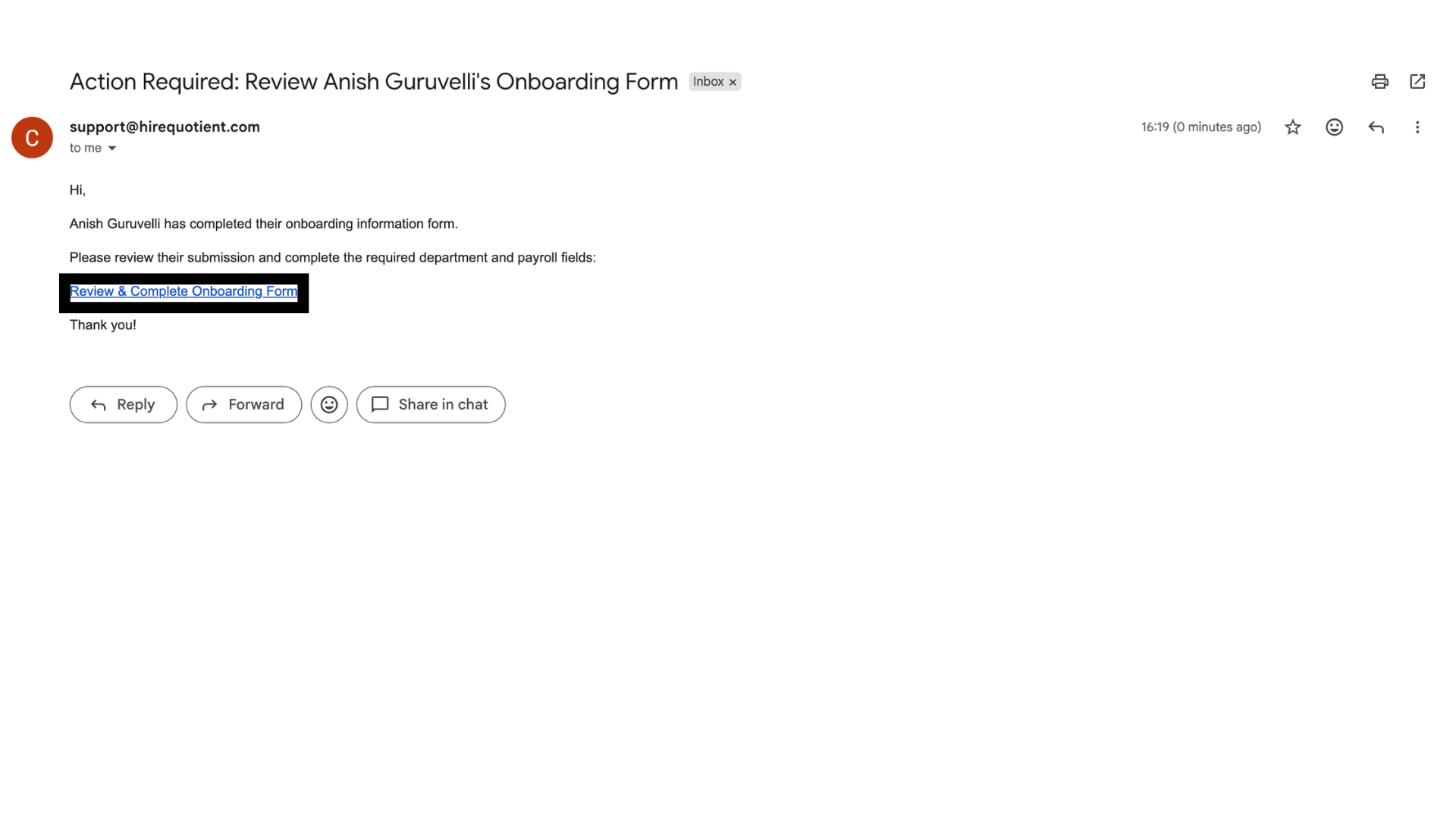
- 8Recruitment team is notified by emailAn "Action Required: Review [candidate name]'s Onboarding Form" email lands with the recruiting team, linking to Review & Complete Onboarding Form so they can check the submission and fill in department and payroll fields.
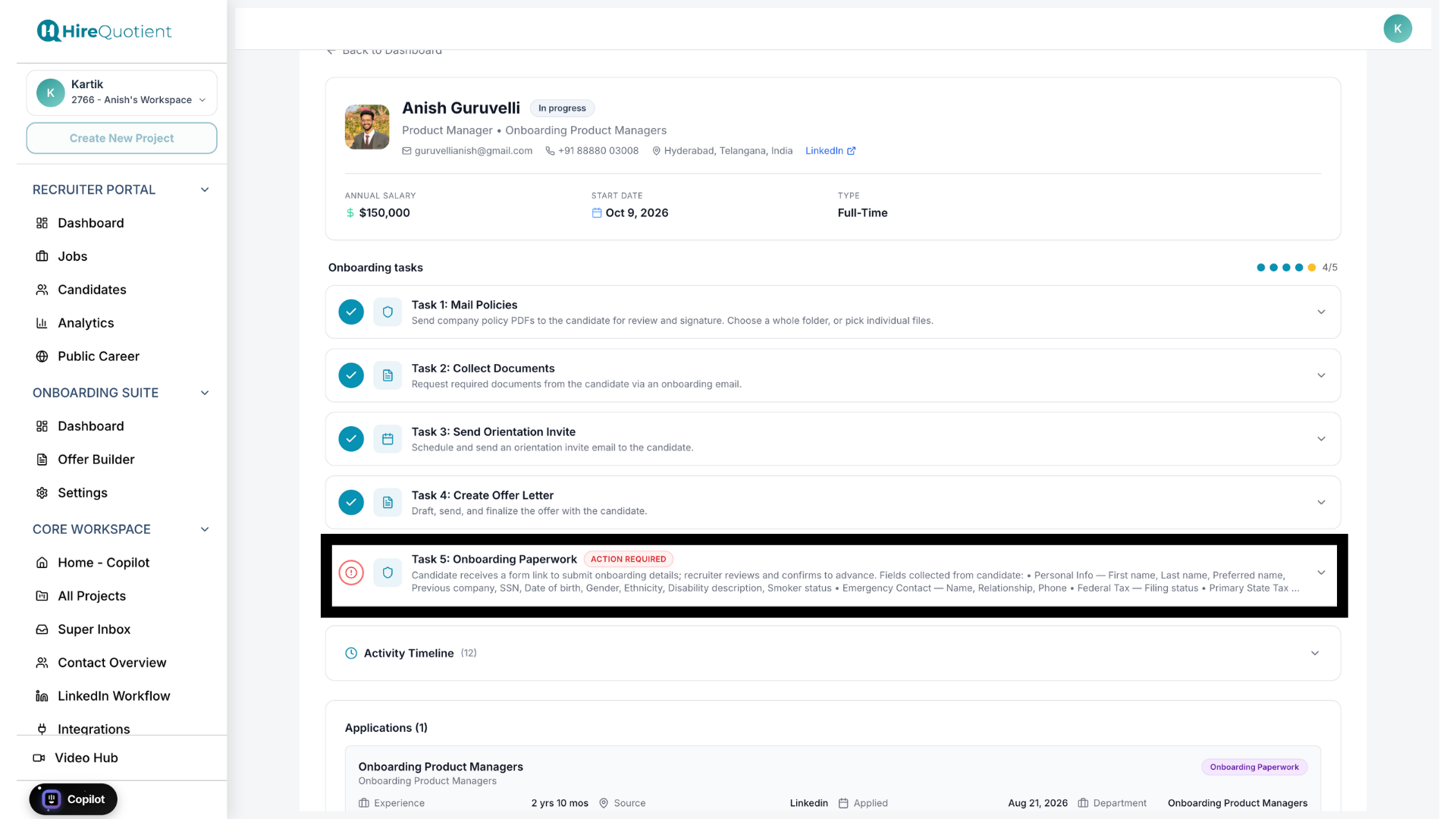
- 9Action required flag appears for the recruiterBack on the candidate's profile, Task 5: Onboarding Paperwork now shows an Action Required badge, and the candidate's application is tagged "Onboarding Paperwork" too.
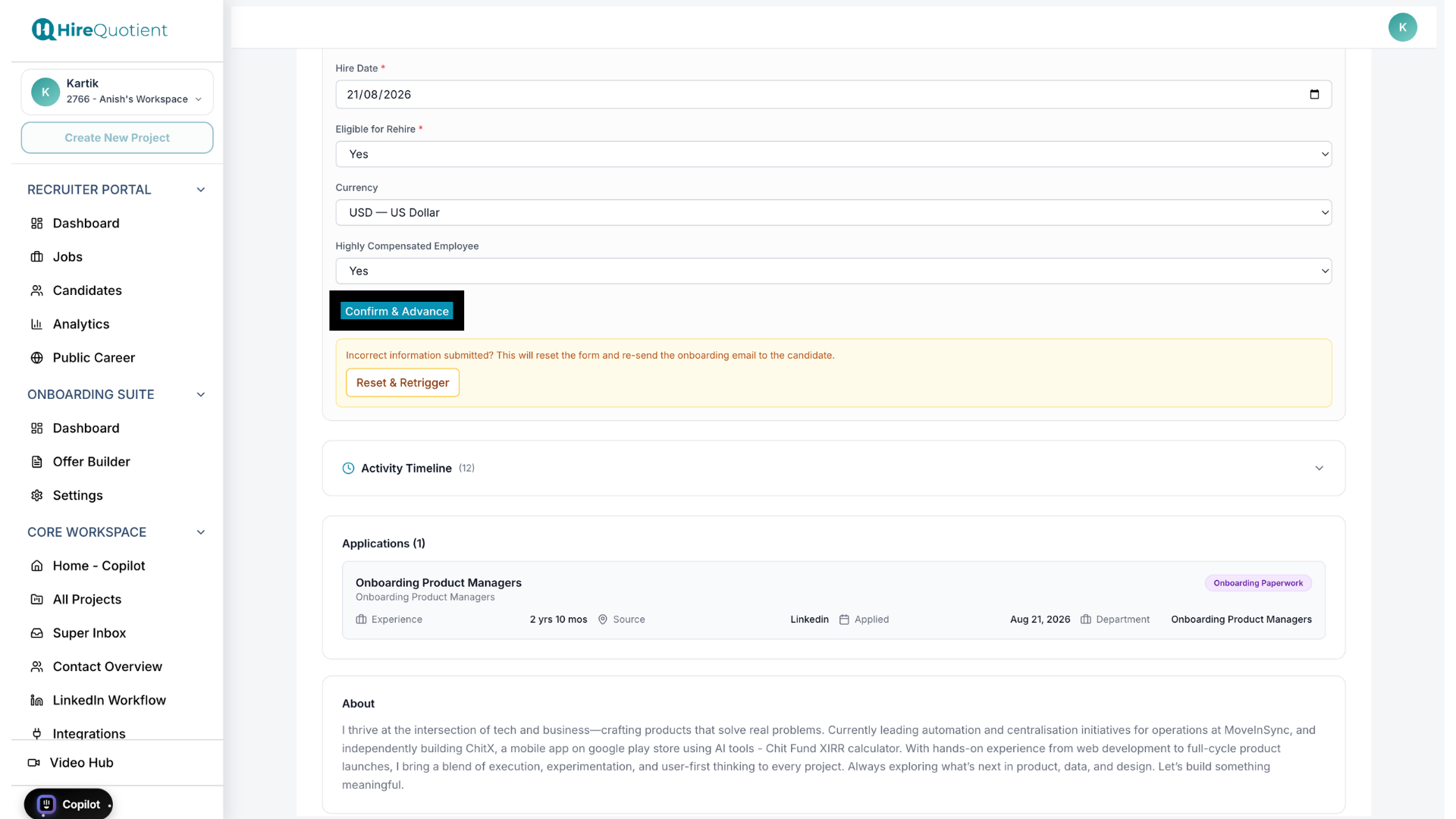
- 10Recruiter confirms and advancesThe recruiter fills in remaining fields like hire date, rehire eligibility, currency, and compensation status, then clicks Confirm & Advance. Reset & Retrigger instead resends the form if the candidate's info was wrong.
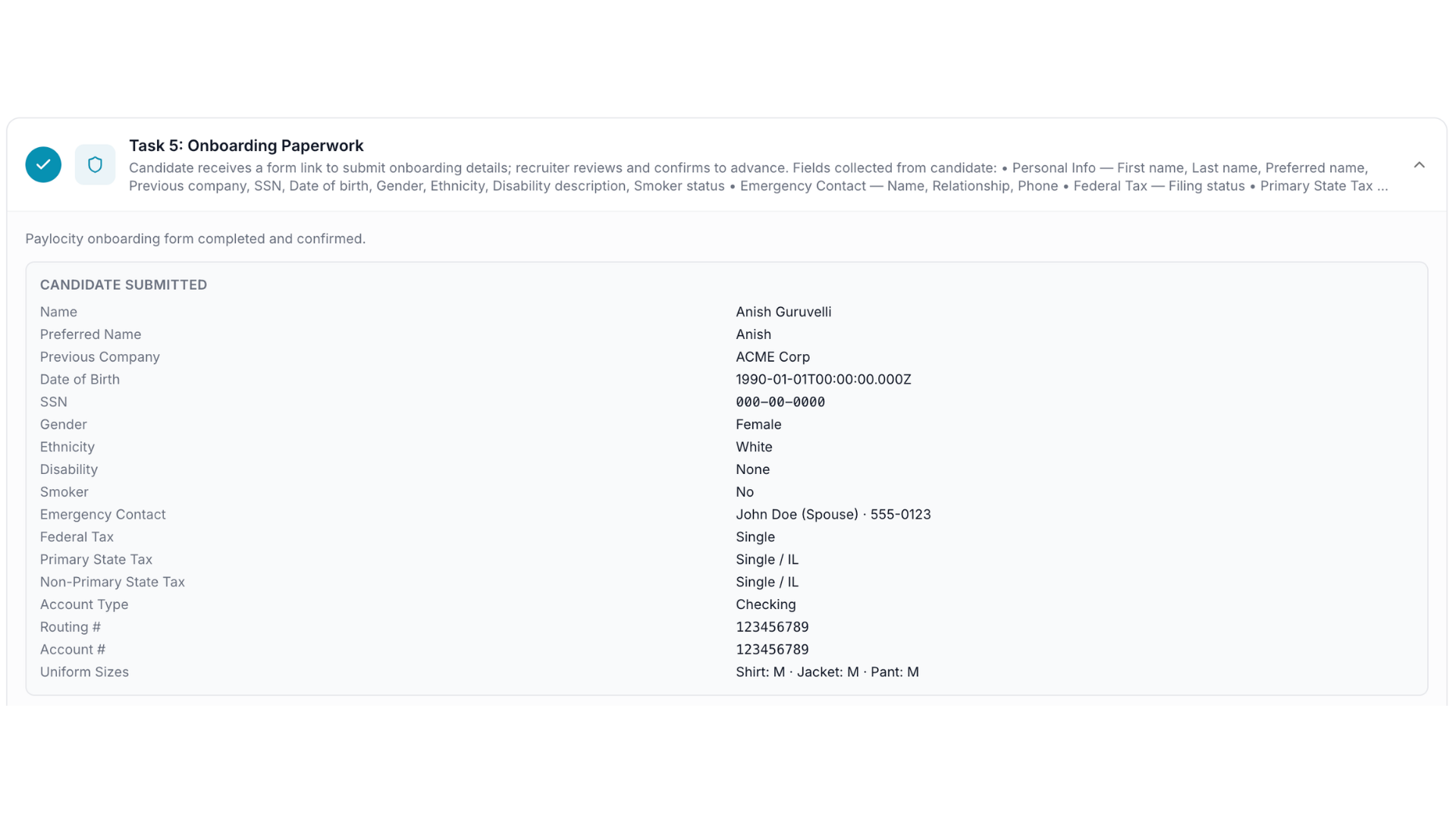
- 11Onboarding Paperwork is completeTask 5 now shows a checkmark and the candidate's submitted data for reference. Next, the recruiter marks the candidate hired or revokes the offer — see 'Marking a candidate hired or revoking the offer.'