Marking a candidate hired or revoking the offer
How a recruiter marks a fully onboarded candidate as Hired, or instead revokes their offer, and what each path sends the candidate.
3 min read
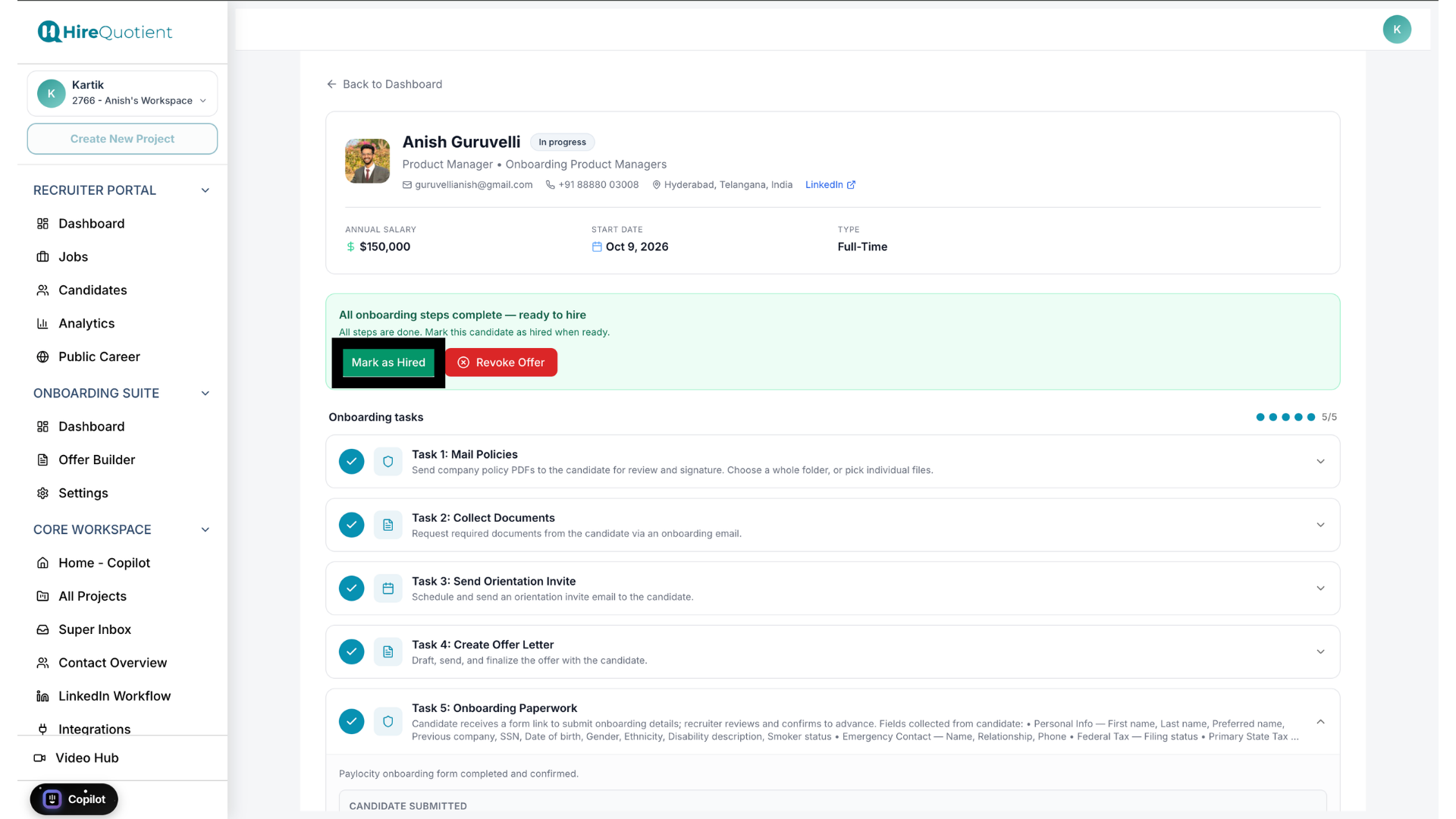
Once Completing the onboarding paperwork is finished, the candidate's profile shows two buttons: Mark as Hired and Revoke Offer. There are two possible outcomes here — a recruiter takes one path or the other for a candidate, never both. The steps below walk each branch in turn.
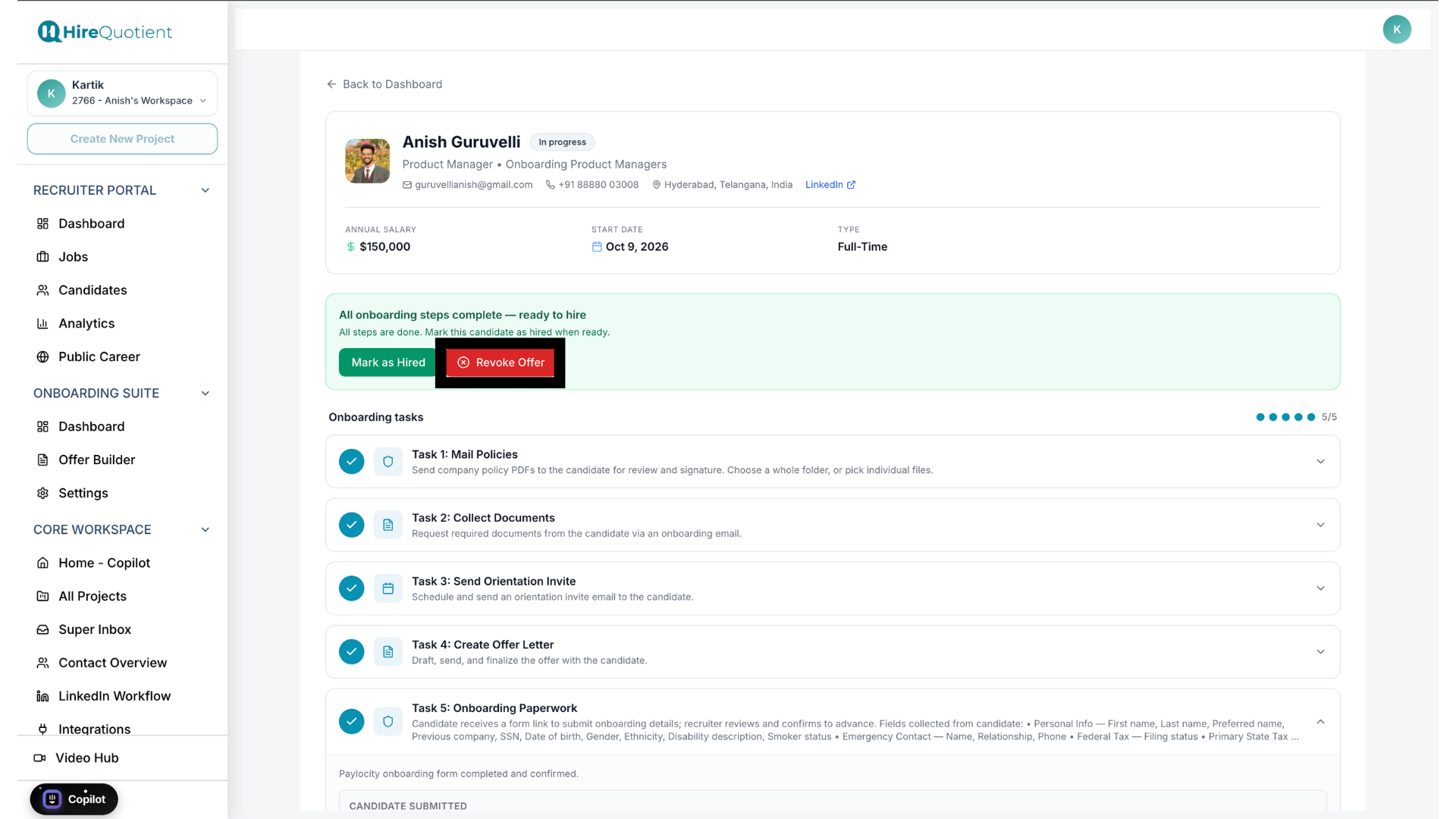
- 1Open a fully onboarded candidate's profileOnce all 5 onboarding tasks are checked off, the candidate's profile shows a green banner: "All onboarding steps complete — ready to hire." Two buttons sit here, Mark as Hired and Revoke Offer, the two alternative endpoints for this candidate.
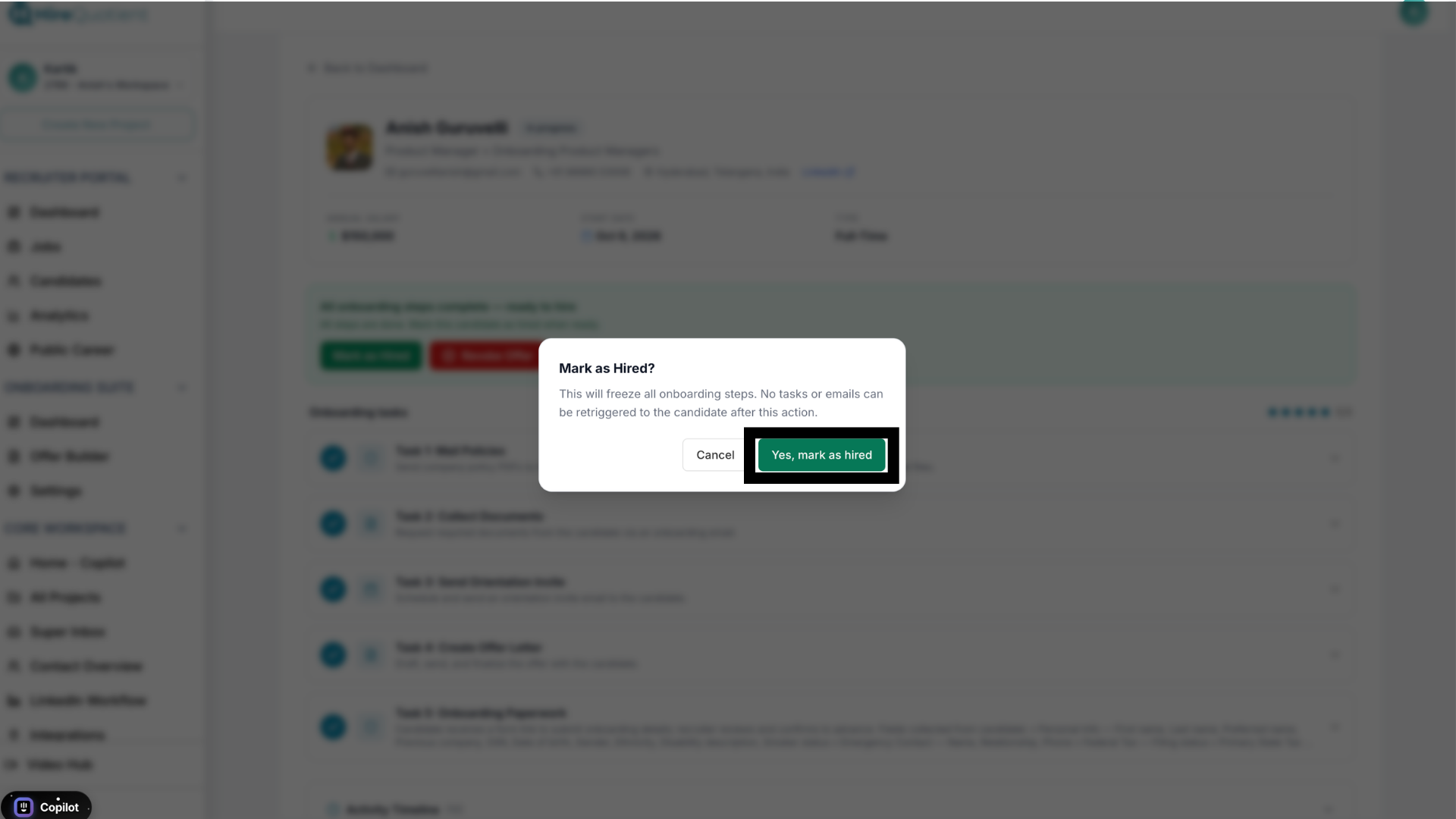
- 2Confirm Mark as HiredClicking Mark as Hired opens a dialog: "This will freeze all onboarding steps. No tasks or emails can be retriggered to the candidate after this action." Click "Yes, mark as hired" to proceed, or Cancel to back out.
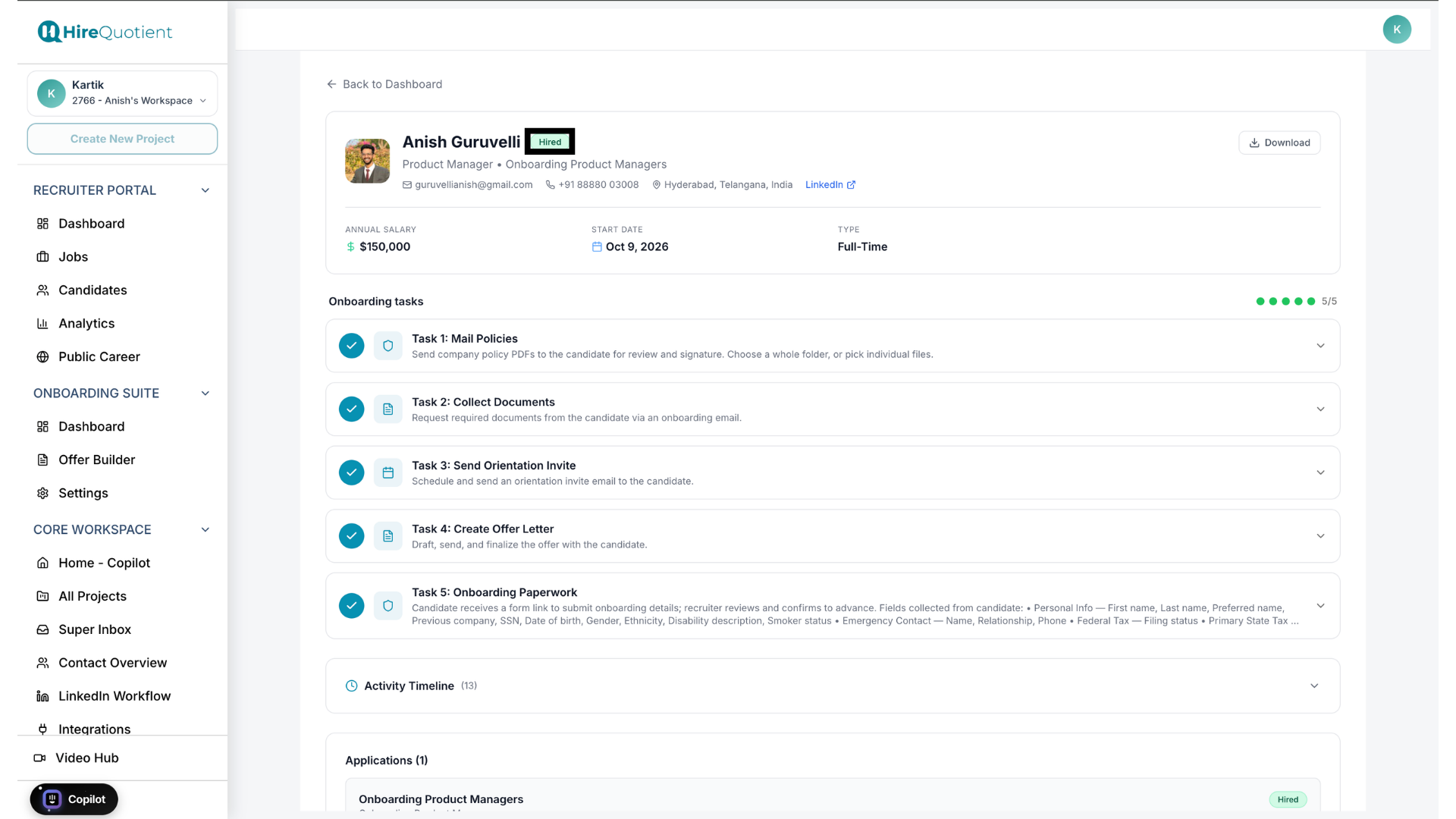
- 3Candidate status becomes HiredThe profile header badge changes from "In progress" to a green "Hired" tag, and all 5 onboarding tasks now show complete in green. This is the final state for a candidate who's cleared onboarding.
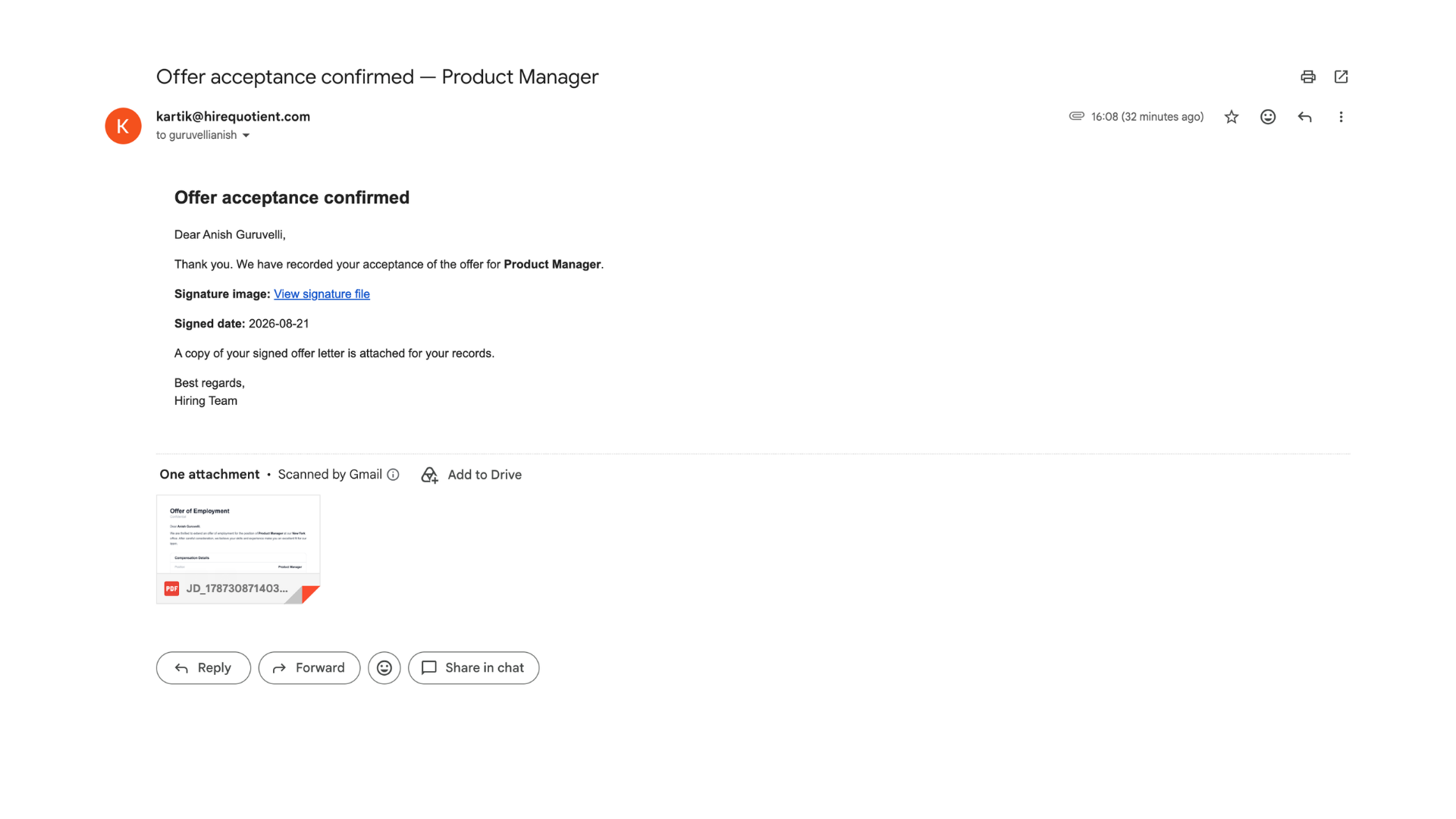
- 4Candidate gets a hire confirmation emailThe candidate receives a confirmation email in their inbox with their signed offer letter attached for their records. That closes out the Mark Hired branch for this candidate.
- 5Or click Revoke Offer insteadFrom that same profile and banner, the recruiter can instead click Revoke Offer, an alternative to Mark as Hired rather than a next step after it. Use this when the hire should not go through.
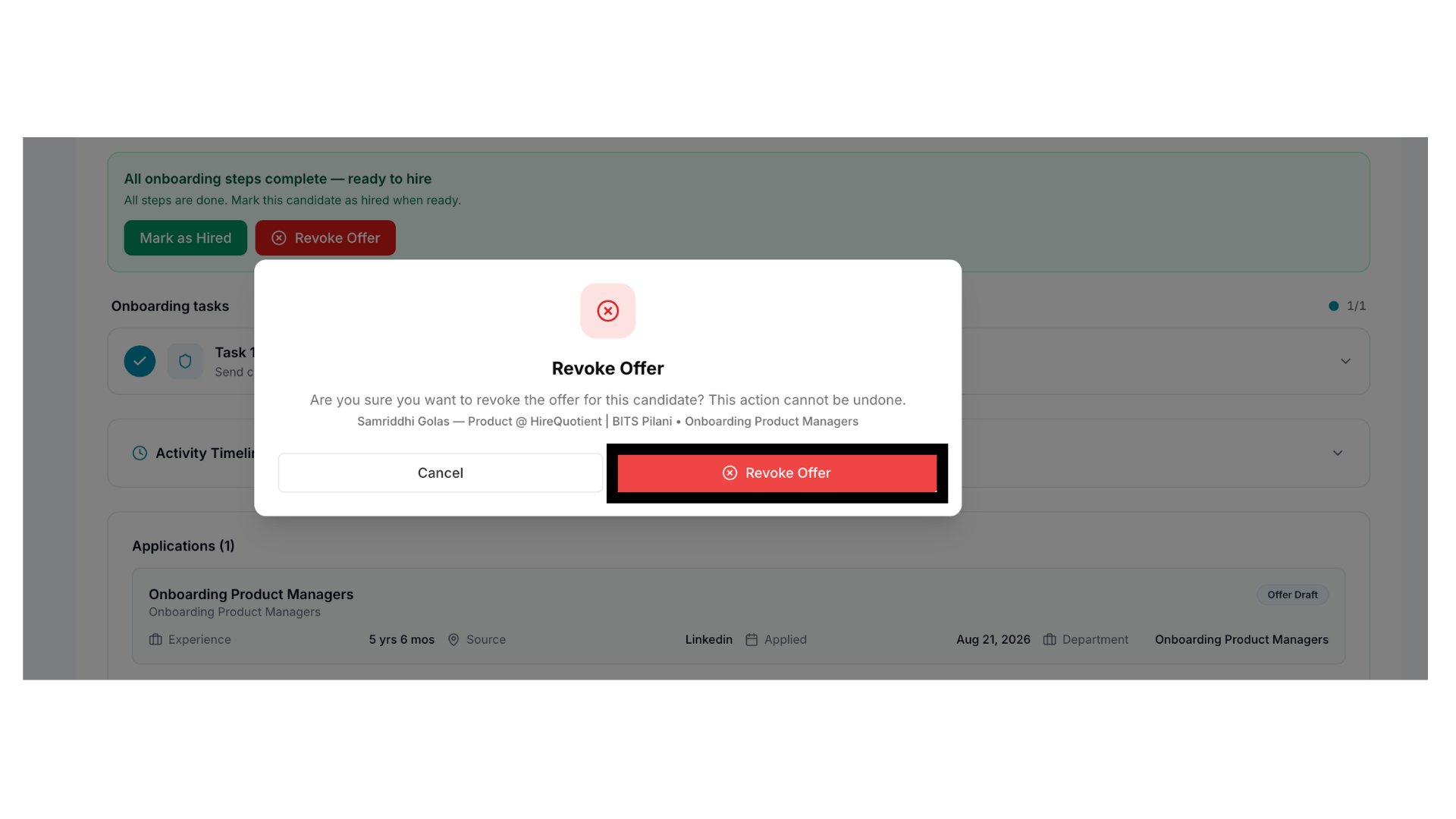
- 6Confirm the revokeA dialog names the candidate and role and warns: "Are you sure you want to revoke the offer for this candidate? This action cannot be undone." Click Revoke Offer again to confirm, or Cancel.
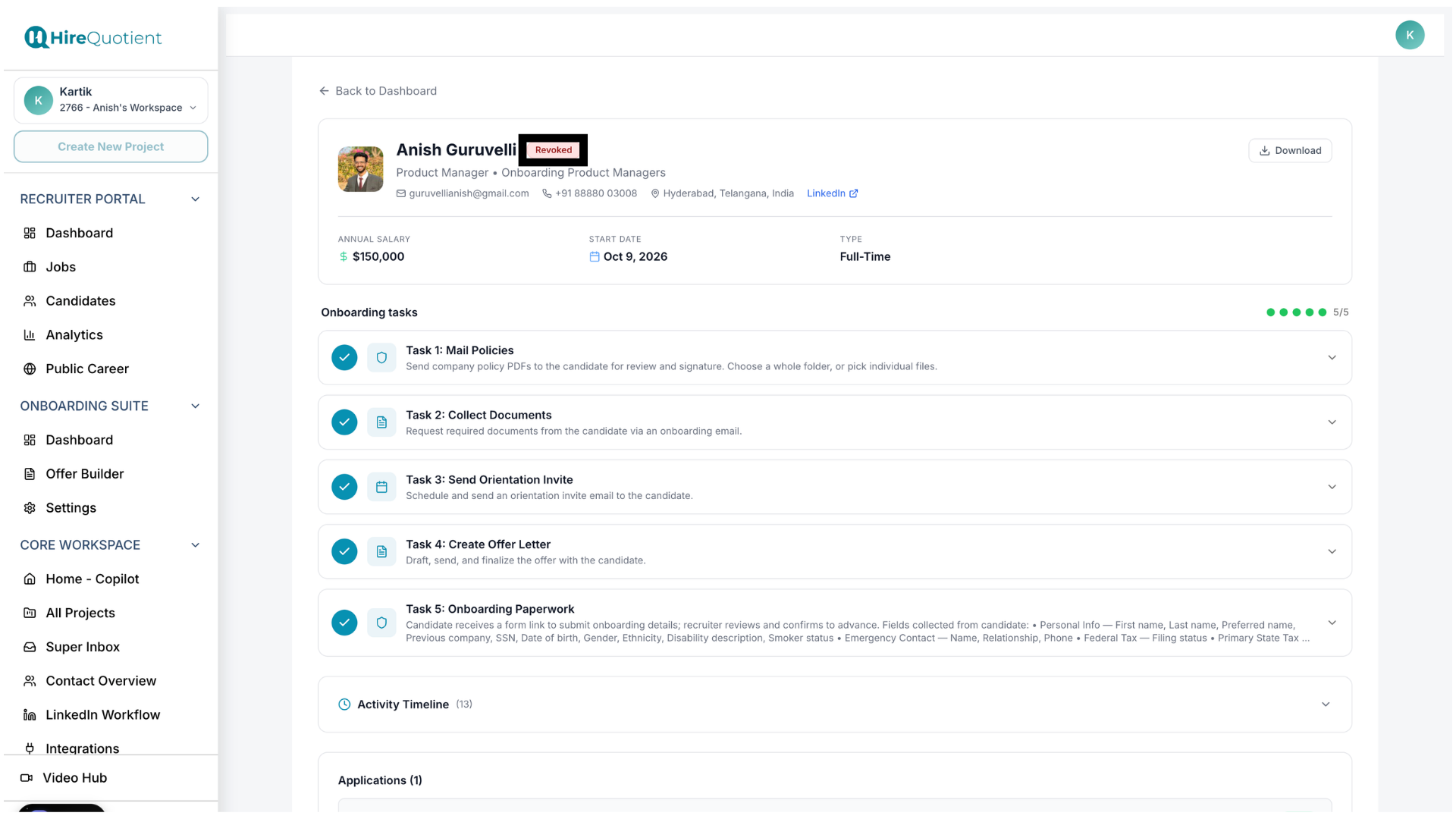
- 7Candidate status becomes RevokedThe profile header badge changes to a red "Revoked" tag. Anything already completed, like signed policies or uploaded documents, stays on record, but the process stops here for this candidate.
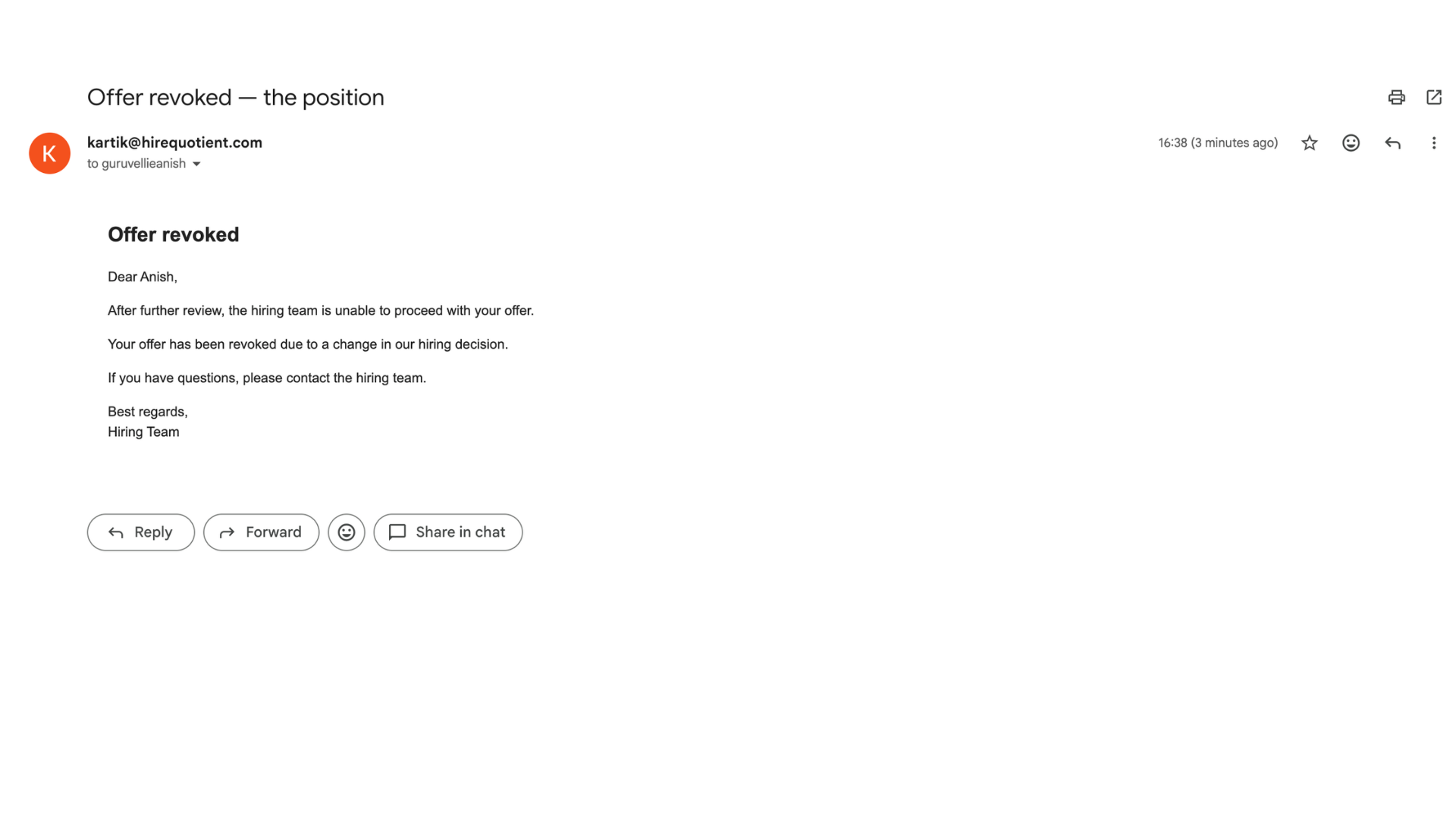
- 8Candidate is notified by emailThe candidate gets an "Offer revoked" email explaining the hiring team can't proceed. This closes out the series' Onboarding Suite flow — to run it again for another candidate, start from "Enable the Onboarding Suite" or "Start onboarding for a candidate."