Candidate view: reviewing and accepting the offer
What the candidate sees reviewing and accepting an offer: three signature methods, then confirmation to both candidate and recruiter.
3 min read
Continuing from Candidate view: signing policies and uploading documents, the candidate now receives the orientation invite and the offer letter itself, the next two mails in the same outreach sequence from Build the onboarding workflow. From there they review, sign, and accept the offer.
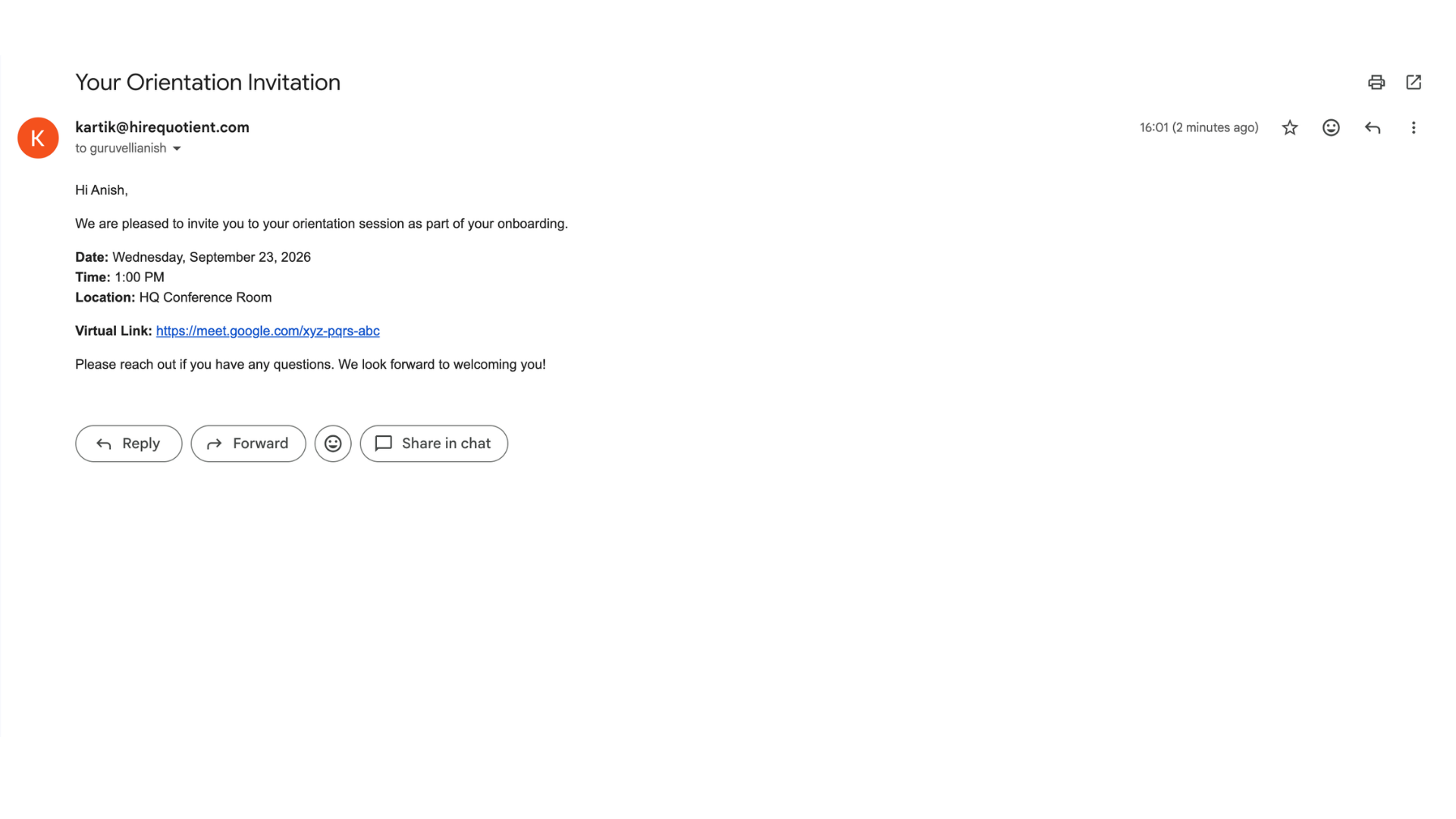
- 1Orientation invite arrivesContinuing the outreach sequence from Build the onboarding workflow, the candidate first gets an email titled "Your Orientation Invitation" with the session date, time, location, and a virtual meeting link.
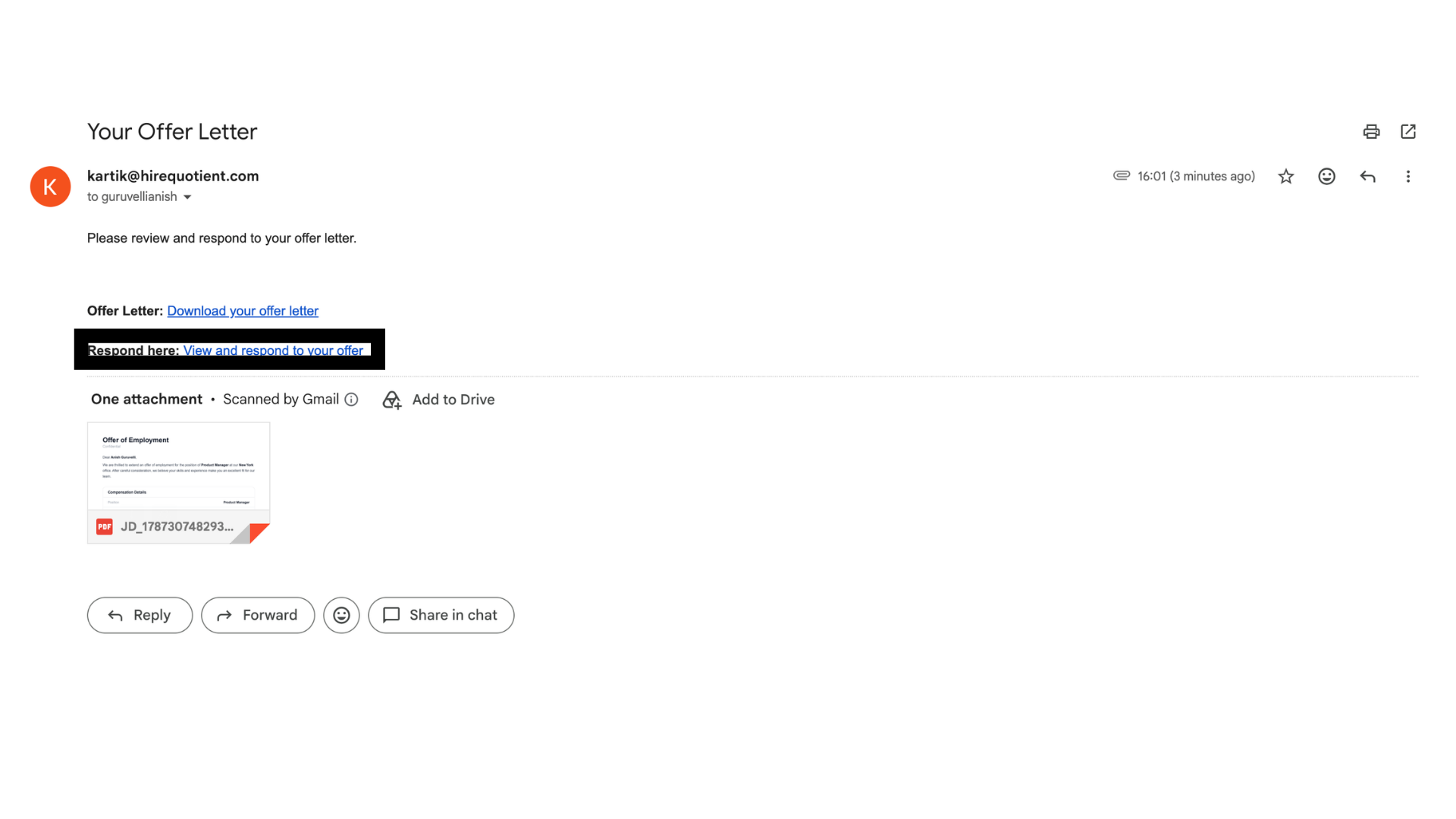
- 2Offer letter emailNext, a "Your Offer Letter" email arrives with a downloadable copy and a highlighted "View and respond to your offer" link. Clicking it opens the candidate's own Offer Inbox page, no login required.
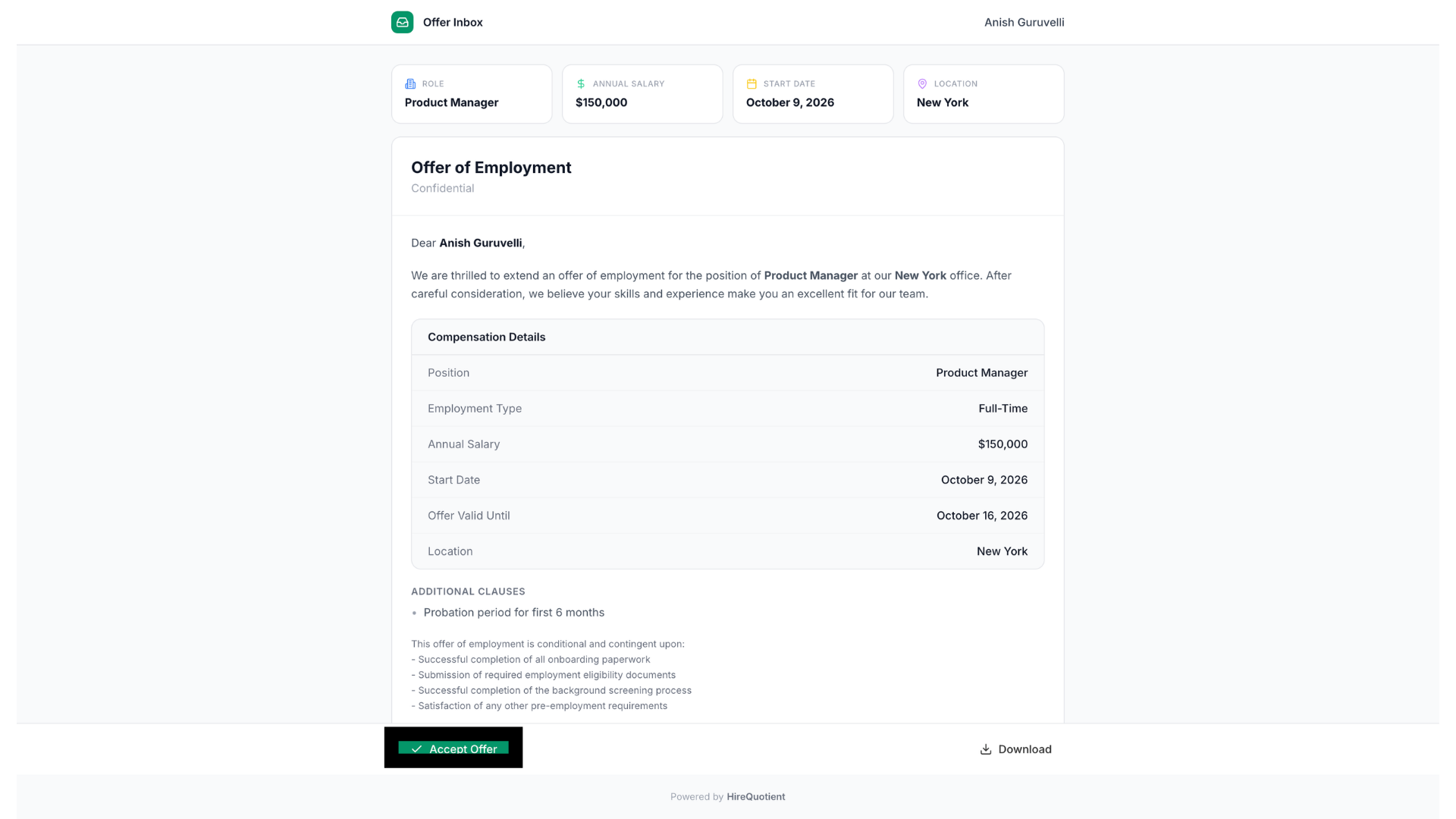
- 3Reviewing the offerThe Offer Inbox shows role, annual salary, start date, and location at a glance, plus the full Offer of Employment with compensation details and any additional clauses. A Download button lets the candidate save a PDF copy at any point before deciding. Two buttons let them respond: Accept Offer, and Request Changes, the latter only shown if the offer includes a work schedule.
- 4Requesting changes insteadInstead of accepting, the candidate can click Request Changes. This is an alternative to the accept-and-sign steps that follow, not something that happens after acceptance. Clicking it changes the offer status to Changes Requested, shown as an orange badge, and routes back to the recruiter on the candidate's profile so they can revise the offer and send it again. Request Changes is only available before the offer is accepted.
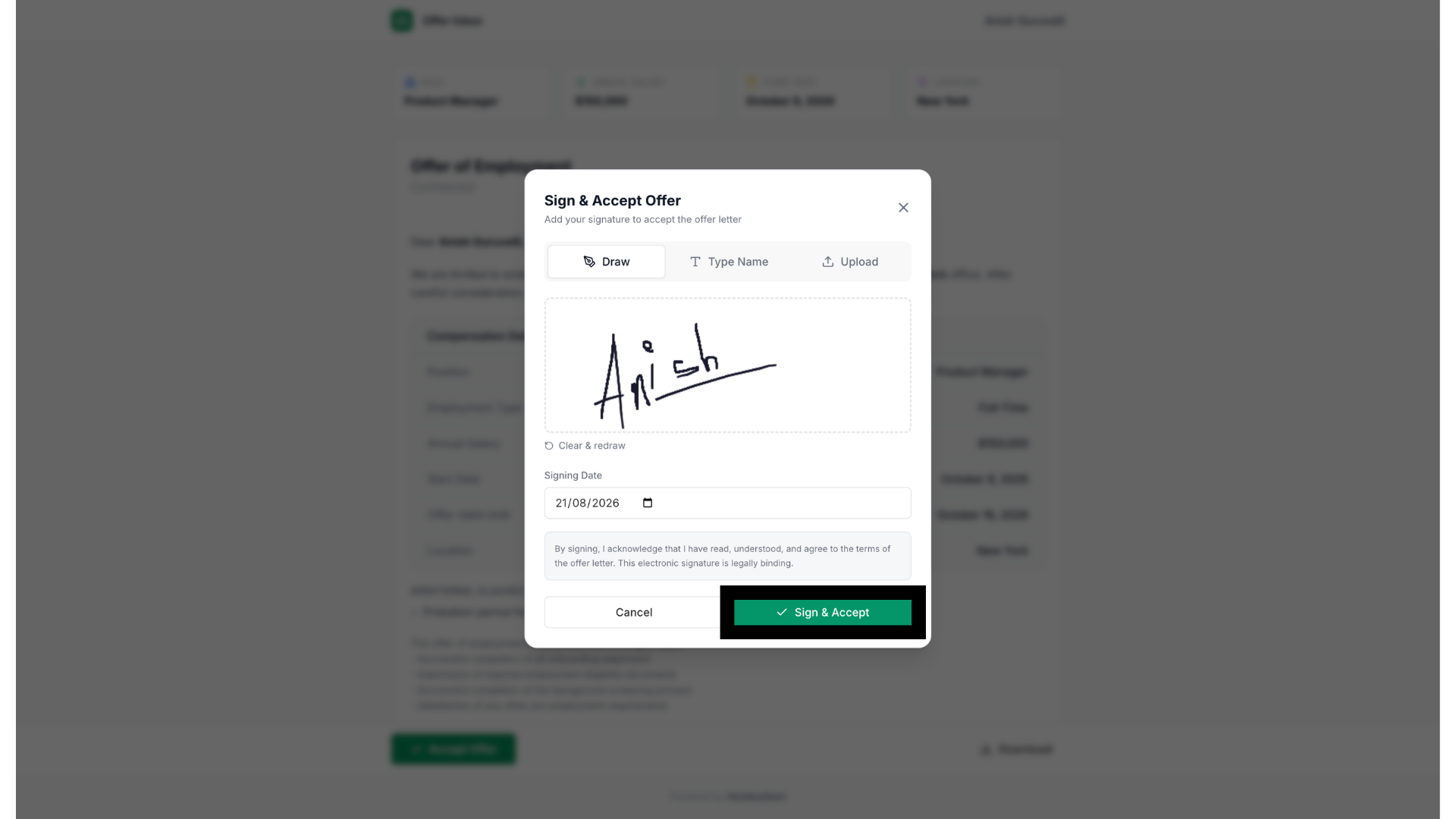
- 5Choosing a signature methodAccept Offer opens the Sign & Accept Offer modal, where the candidate picks one of three signature methods: Draw, Type Name, or Upload. They also confirm a signing date before continuing.
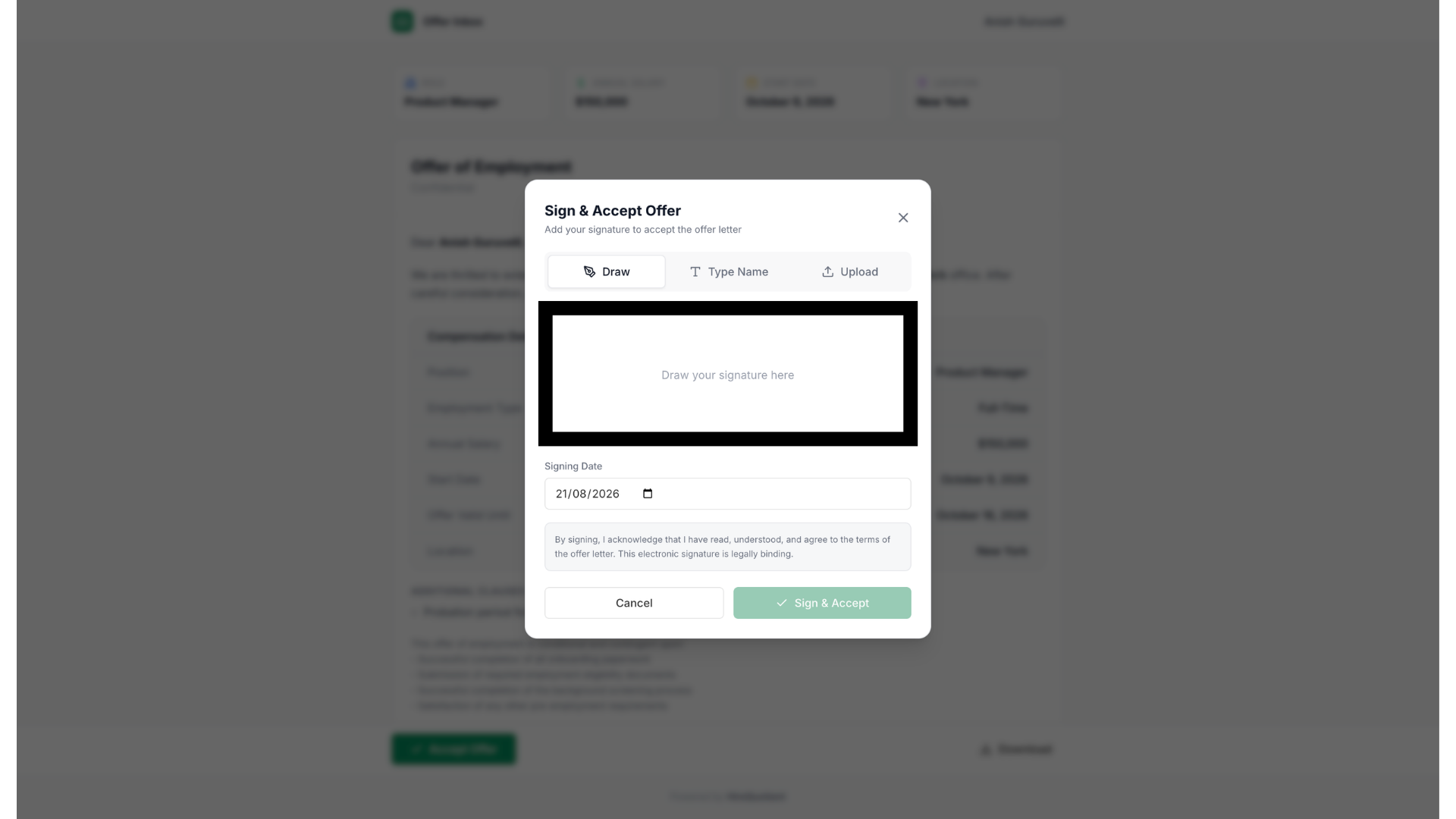
- 6Signing and acceptingAfter drawing, typing, or uploading their signature, the candidate checks the acknowledgment that the electronic signature is legally binding, then clicks Sign & Accept to finalize the offer.
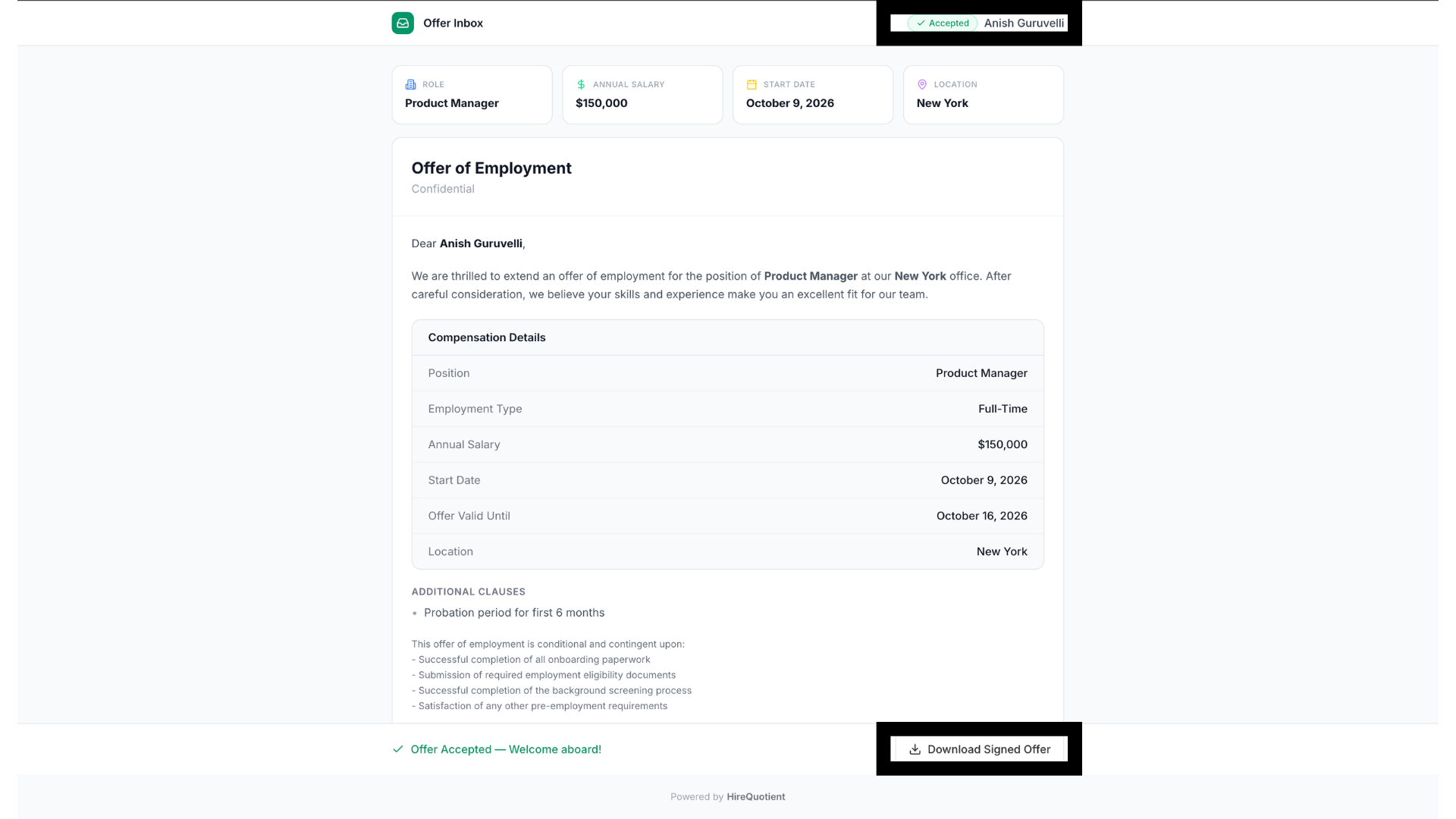
- 7Status changes to AcceptedThe Offer Inbox now shows an Accepted badge next to the candidate's name, along with a confirmation message and a Download Signed Offer button for the fully executed document.
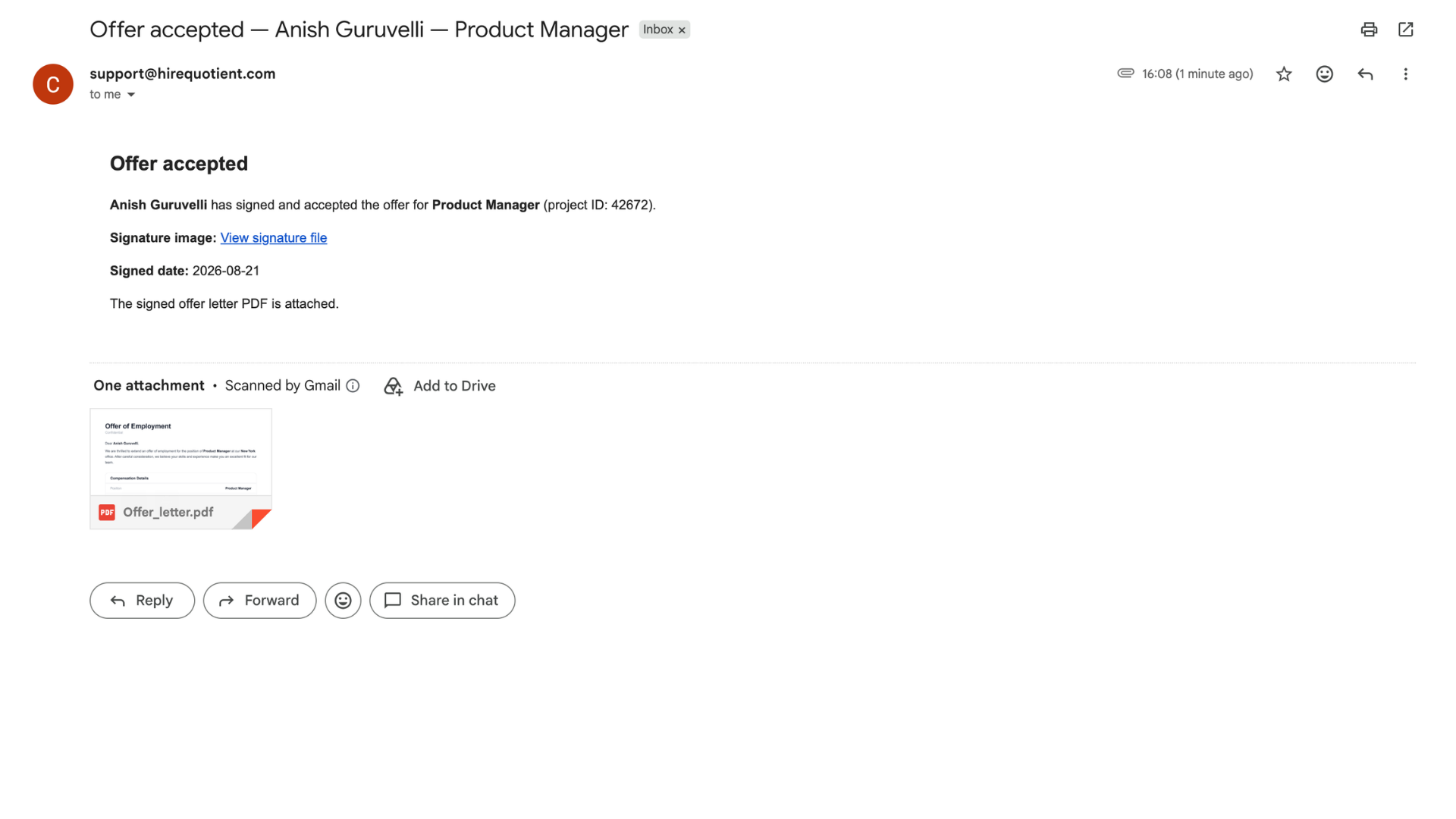
- 8Recruiter gets confirmationThe same acceptance is emailed to the recruiter, with a link to the signature image, the signed date, and the signed offer letter attached as a PDF. Next: Completing the onboarding paperwork.