Enable the Onboarding Suite
How to turn on the Onboarding Suite from admin settings, and why only HR Accept candidates appear on its dashboard.
2 min read
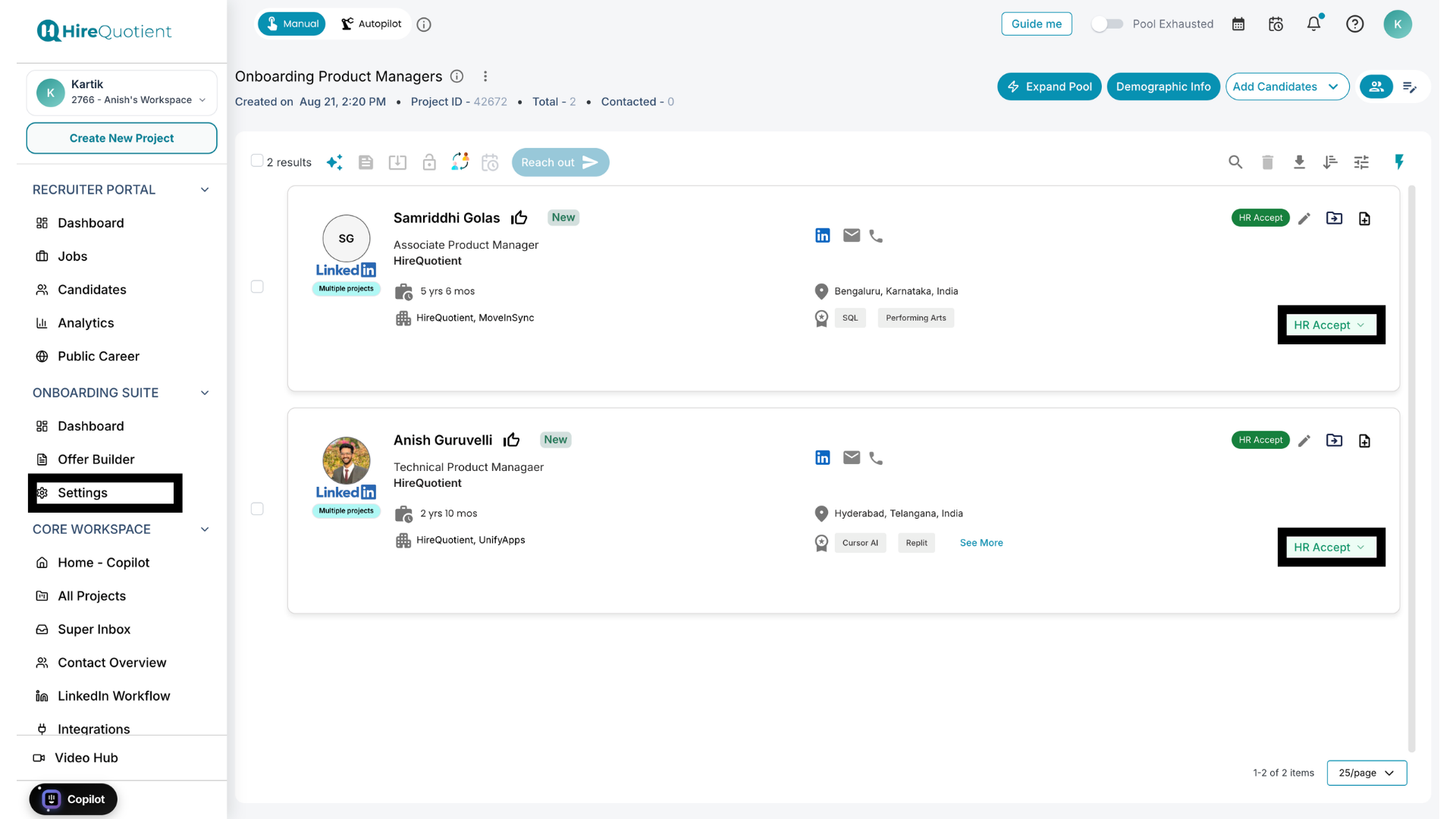
The Onboarding Suite sits directly after the recruitment/ATS pipeline and before a candidate becomes an active employee in HR systems: recruiters own finding and evaluating candidates, and the Onboarding Suite owns converting an accepted candidate into a hired employee. Before it existed, that work happened manually over email and spreadsheets; now it's a structured, trackable workflow with role-based visibility and audit history. The Onboarding Suite runs a candidate's entire journey from HR Accept to hired: setting up document folders, building an onboarding workflow, sending the candidate mail sequence, and finally marking them hired or revoking the offer. This article covers just the first step: turning the suite on.
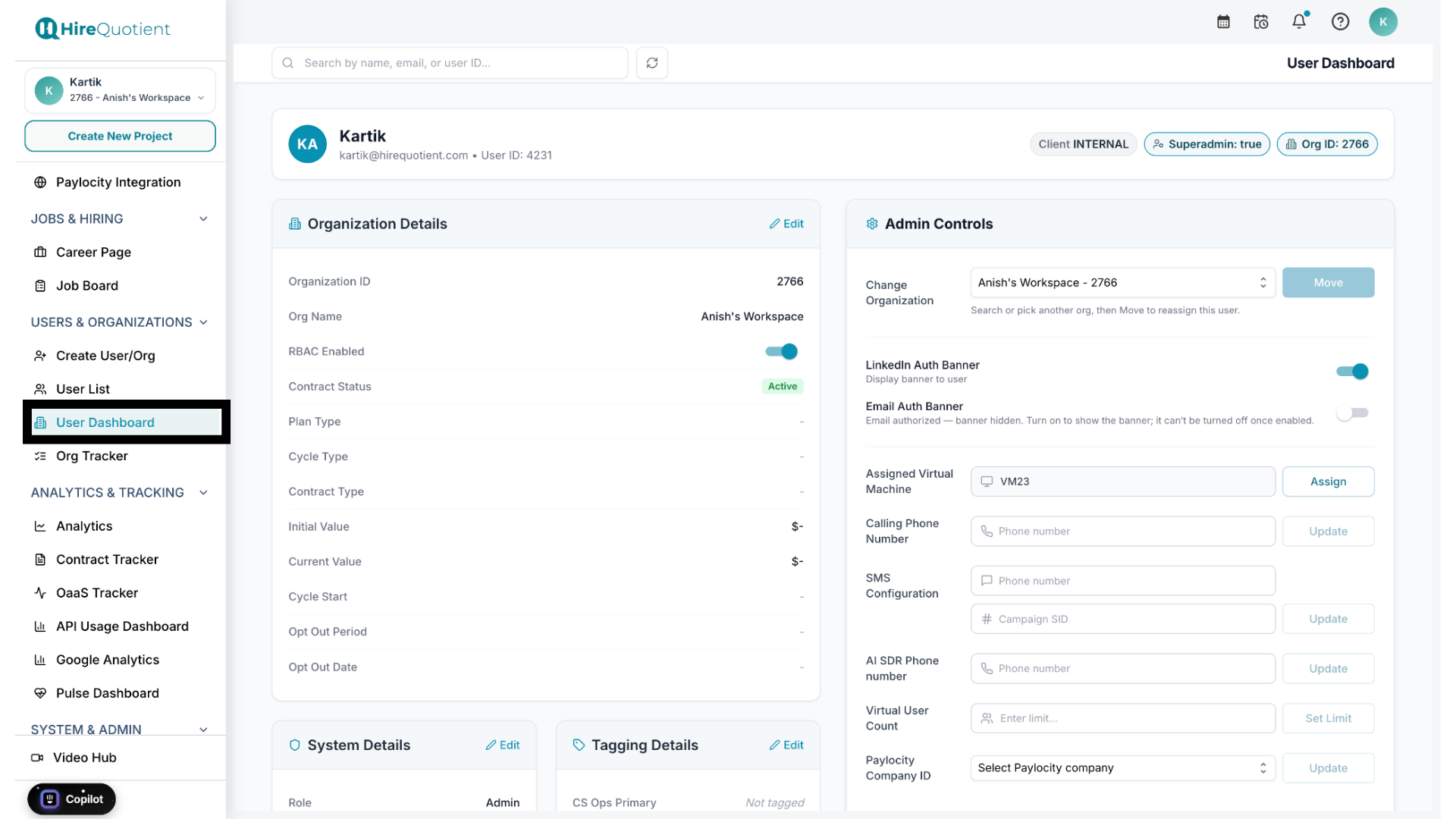
- 1Open the User DashboardOnboarding Suite is switched on per organization from the internal User Dashboard, the admin screen showing Organization Details and Admin Controls for that org. This is an admin-level settings area, separate from the recruiter's day-to-day workspace.
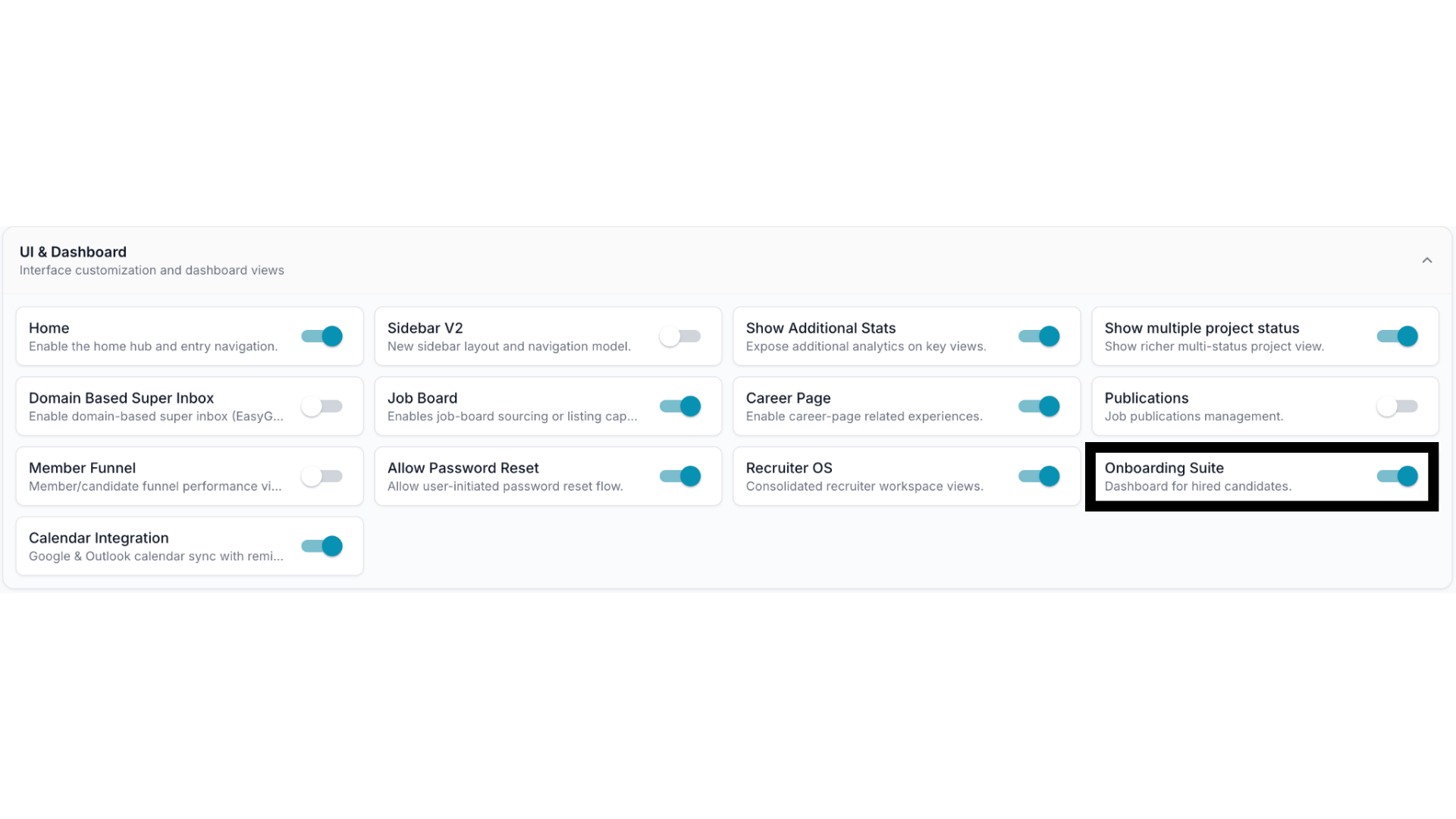
- 2Turn on the Onboarding Suite toggleIn the UI & Dashboard section of admin settings, find Onboarding Suite, described as "Dashboard for hired candidates," and switch its toggle on. This adds an Onboarding Suite section to the recruiter portal's sidebar, with Dashboard, Offer Builder, and Settings.
- 3Only HR Accept candidates show upOnce enabled, the Onboarding Suite dashboard lists only candidates whose stage is HR Accept, since they've cleared every interview round and HR has approved them. From here, set up document folders, then start onboarding for a candidate.